21I want to read my pattern PDFs
View purchased PDFs, bookmark pages, and read alongside your project
- Tools → Organizers → Pattern Explorer, or a pattern's PDF tab.
- PDFs come from your Ravelry library or from your own imports.
- The reading tools need no beta and no premium plan.
Most knitting and crochet patterns come as PDF files. Reading one on a phone or tablet while you knit means endless scrolling, losing your place, and swapping back and forth to your row counter. Stash2Go's PDF Smart Viewer keeps the pattern, your row counters, your reading guides and your notes together in one place.
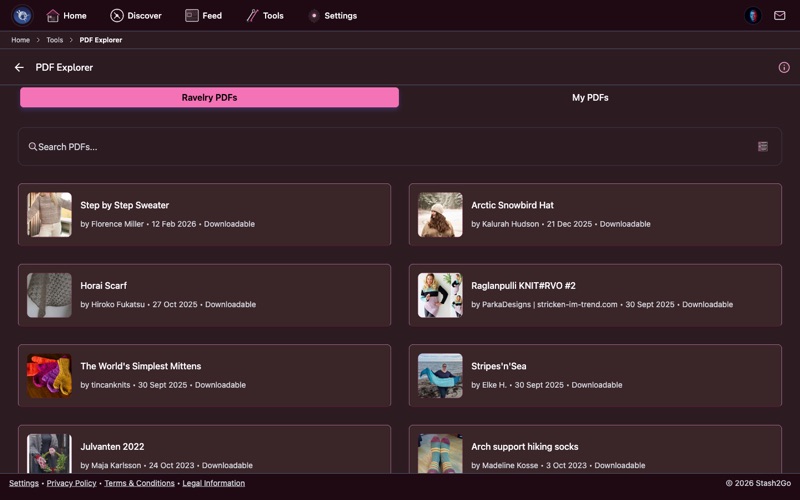
Go to Tools → Organizers → Pattern Explorer. It lists every pattern PDF in your Ravelry library, the ones you have bought or downloaded. Each entry shows the cover, the title, the designer, and when it was added.
A walk through the Pattern Explorer and the Smart Viewer: finding a PDF, opening it, the reader controls, the Dashboard, and the way in from a project.
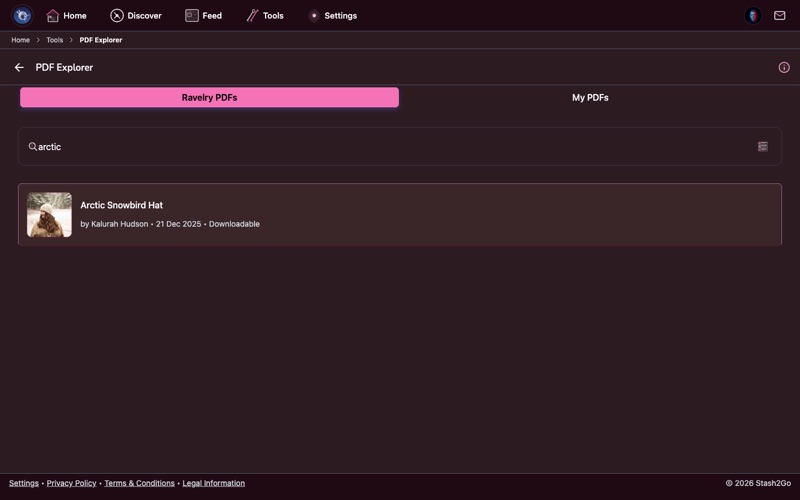
The search bar finds PDFs by pattern name or by designer. You can switch between list, simple, grid and gallery layouts and browse whichever way suits you. With a big library, searching beats scrolling every time.
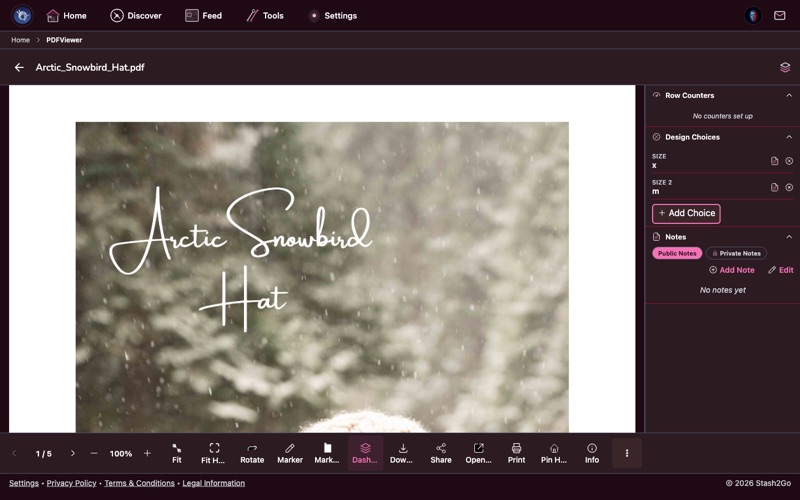
Tap a PDF to open it in the Smart Viewer. It is more than a PDF reader. It is a place to work. Pinch to zoom, swipe to turn the page, and it remembers where you left off. The toolbar along the bottom holds the page navigation and the zoom controls.
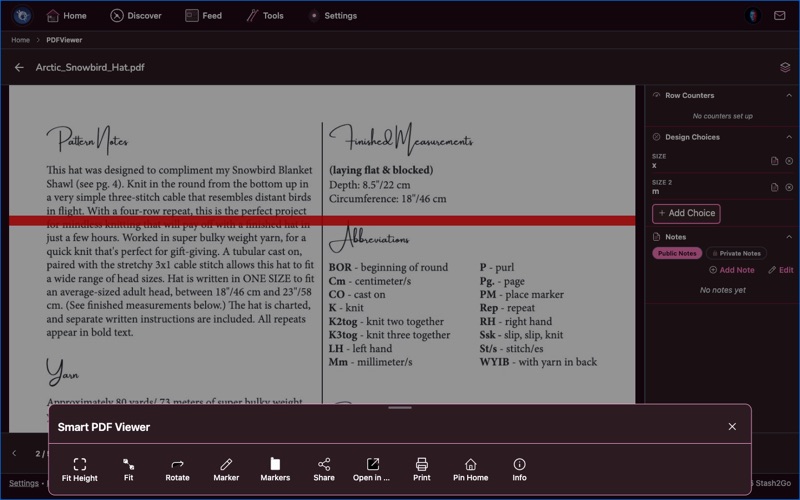
The bottom toolbar carries the things you touch while the pattern is open. From left to right: the PDF switcher, the page arrows and page counter, the zoom controls with Fit width and Fit height, Rotate, and Lock view, which freezes panning and zooming so a sleeve brushing the screen cannot lose your place. Then the Dashboard, Share, Open in another app, Simple View, Print, Pin to home, Show terms, the Glossary, and Info. On the web there is a Download button as well.
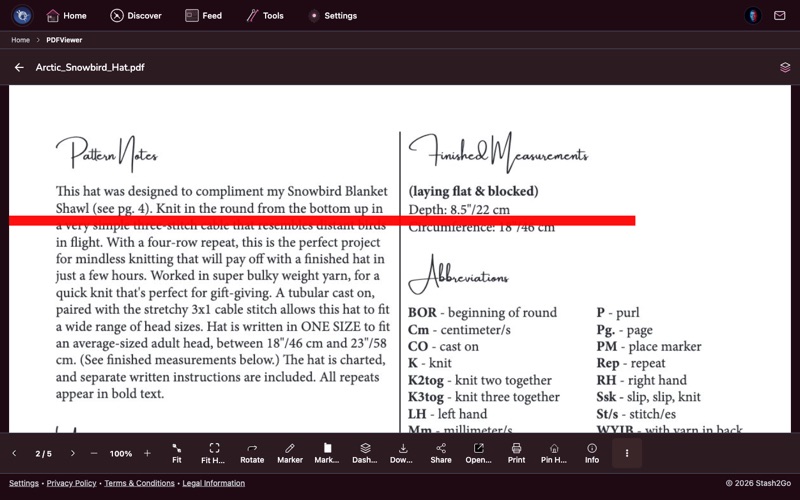
Tap the layers icon in the header to open the Knitting Dashboard next to your pattern. The panel holds your project's row counters (with buttons to count up and down), your design choices (size, yarn, colours), and your notes, public and private. On a tablet it sits beside the PDF. On a phone it fills the screen.
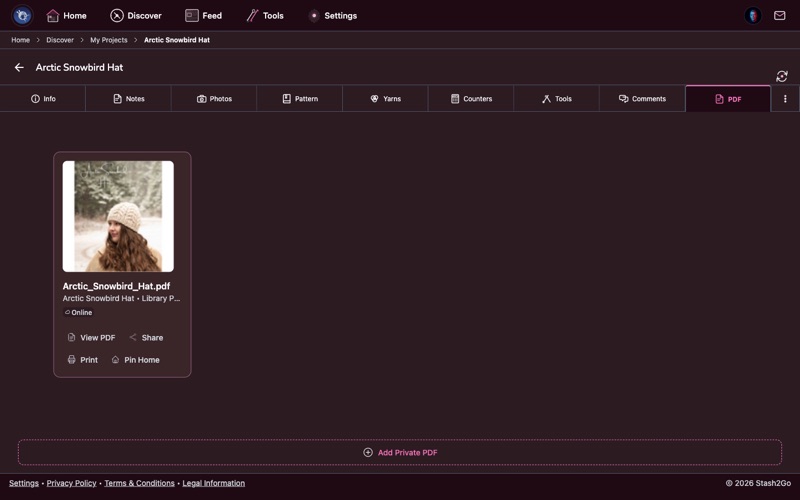
You do not have to go through the Pattern Explorer. If a project is linked to a pattern whose PDF is in your library, a PDF tab appears on the project page. Open that and the Smart Viewer arrives with the project already attached, so your counters, notes and design choices are waiting in the side panel.
That is the viewer, and the two ways into it. Everything the Smart Pattern Reader does with a pattern – row tracking, shaping guides, stitch markers, reading guides, notes and voice commands – has a guide of its own:
Smart Pattern Reader Overview · Setup · Row Tracking · Shaping Guides · Annotations & Markers · Notes & Design Choices · Voice Commands
Available on iPhone, iPad, Android, and web at app.stash2go.com