9I need to count my rows
Set up row counters with targets, keep them with your project, and track repeats
- Your own project. The Counters tab is only shown to the project's owner.
- Counters are stored by Stash2Go rather than Ravelry, and follow your account across devices.
- They keep counting with no connection. Changes sync when you are back.
Patterns are written row by row, and keeping your place is the hard part. Repeats, shaping sections and picking the work up again days later all conspire against you. Stash2Go gives every project its own counters, and they follow you across your devices, so you never lose your place.
A short walk through row counters: making one, chaining them, and setting them up for your projects.
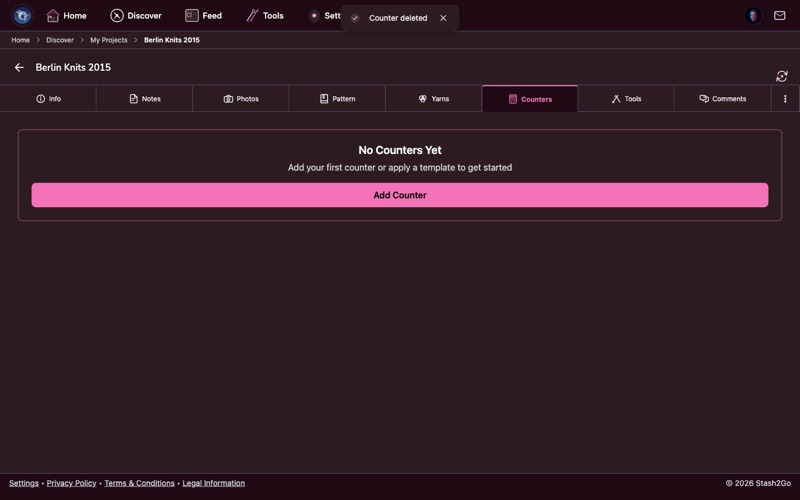
Open any project and go to the Counters tab. Each project has its own counters, so your body rows stay separate from your sleeve rounds and your collar stitches. A new project starts with none. You decide how many you need.
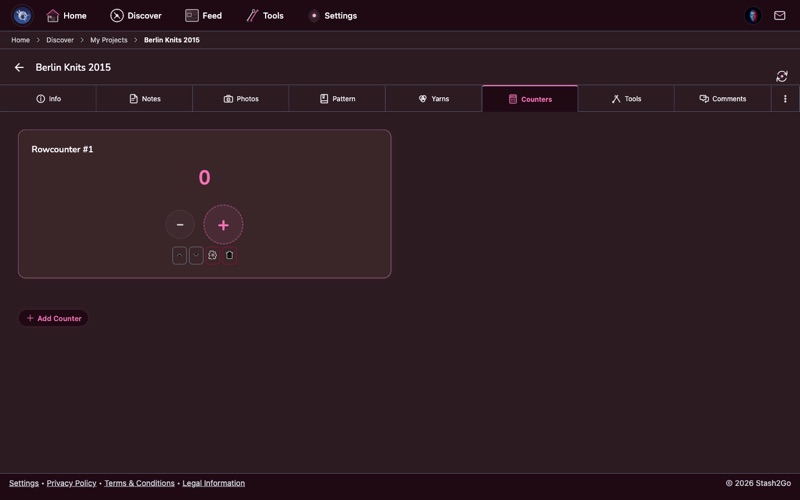
Press "Add Counter". The new counter starts at zero with a name already in it. Most patterns want more than one: one for the total rows, one for a stitch pattern that repeats, and perhaps a third for shaping, such as raglan increases.
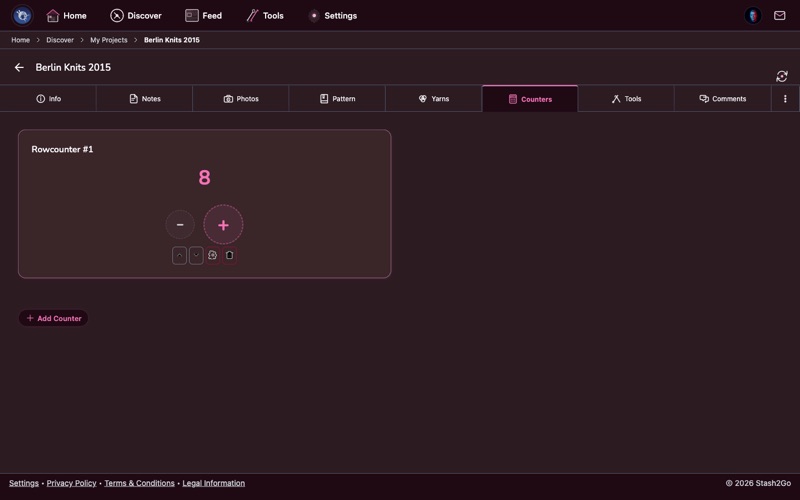
Finish a row, then tap the big + button. It is deliberately large so you can hit it without looking, with your eyes on the needles or the television. On phones that support it, a tap can give a small buzz back.
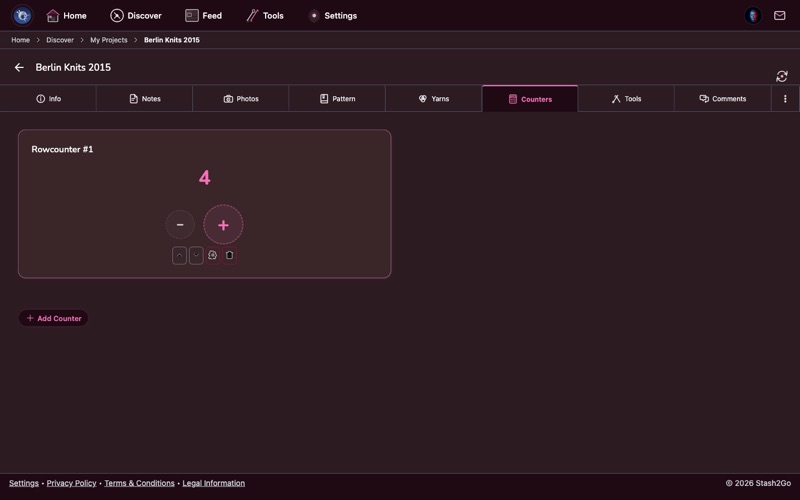
The smaller − button takes the counter back by one. Use it when you miscounted, frogged a row, or tapped once too often. It will not drop below zero.
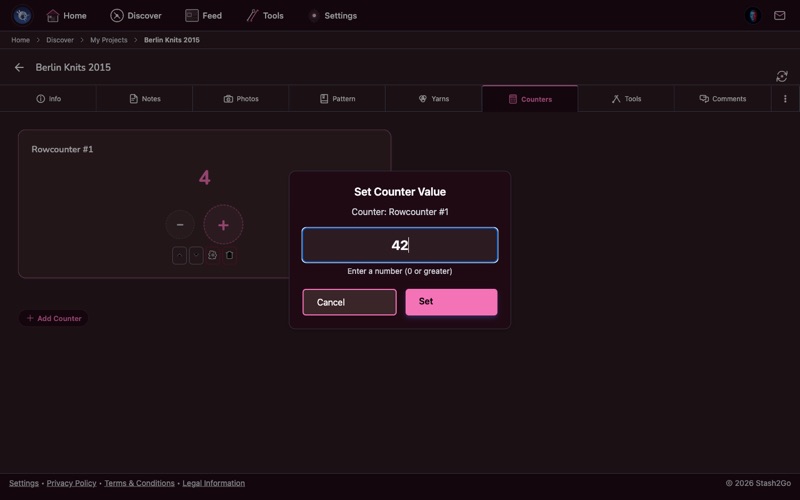
Rather than tapping dozens of times, press the counter number itself and type the value in. This is what you want when you come back to a project after a break, or when you have been frogging (ripping back) several rows. Type where you are and keep going.
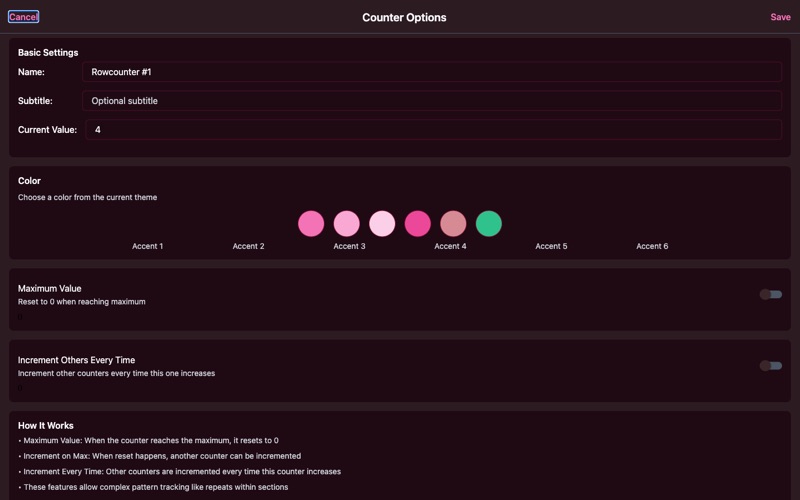
The … menu on each counter card holds its actions: Move Up, Move Down, Move to Part, History, Settings, Duplicate and Delete. Settings is where you set its name, subtitle, colour, project part, maximum value, row repeat and chaining. Every counter can be tuned to the section of the pattern it is following.
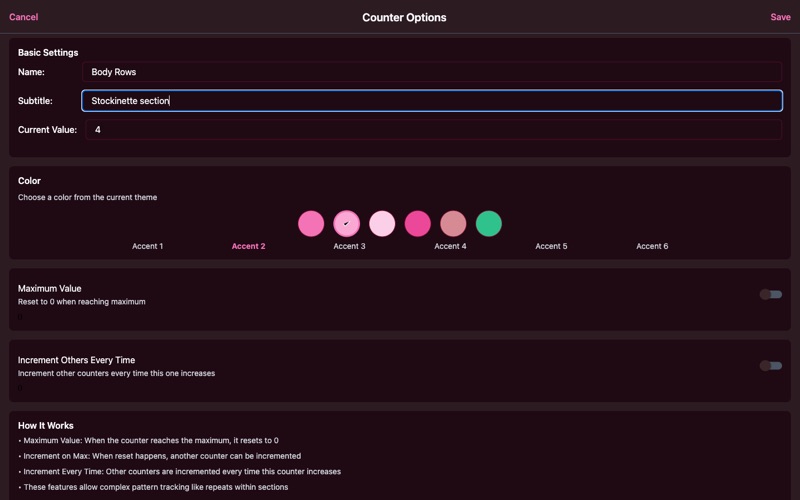
Give each counter a name that says what it is, such as "Body Rows", and a subtitle if it helps, such as "Stockinette section". Then pick one of ten theme-matched colors so you can tell your counters apart at a glance: blue for the body, green for the sleeves, purple for the yoke.
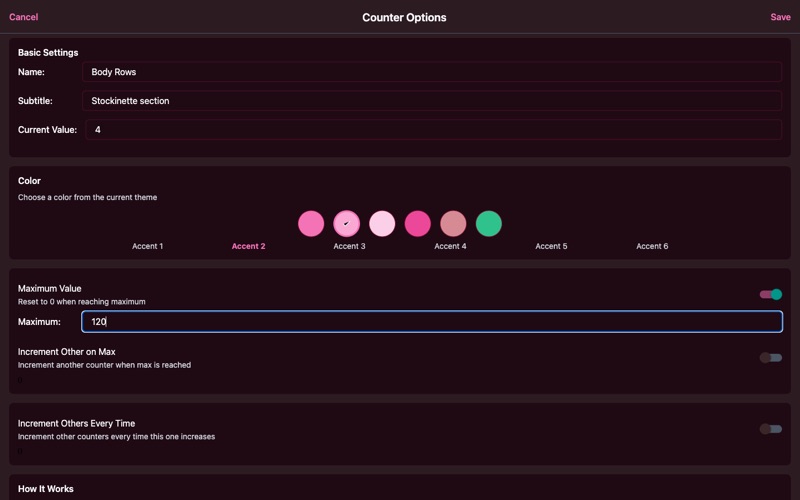
Lots of patterns repeat: an 8-row lace repeat, a 4-row stripe sequence, a cable twist every 6 rows. Turn "Maximum Value" on and set the length of your repeat. When the counter reaches that number it goes back to zero by itself, and a progress indicator on the card shows how far through the current repeat you are.
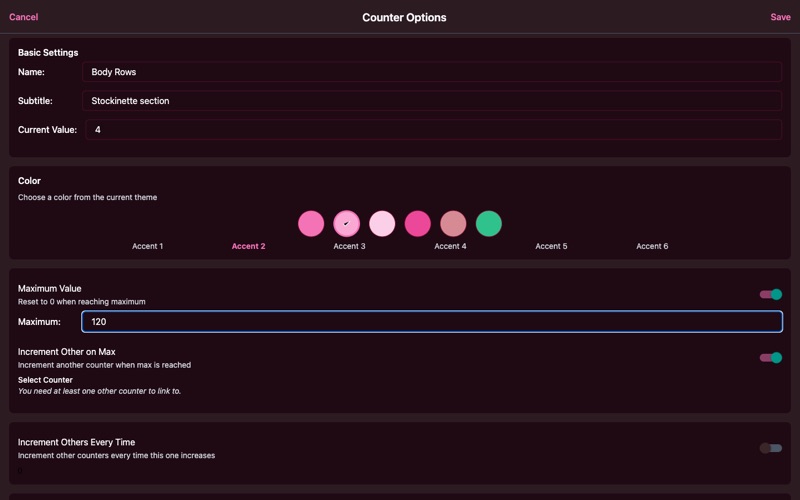
Chaining is where counters earn their keep. With "Increment Other on Max", one counter moves another on every time it resets. The classic setup is a "Row in Repeat" counter with a maximum of 8 driving a "Repeat Count" counter. Knit rows 1 to 8, the repeat counter goes from 3 to 4, and you know at once that you are starting your fourth repeat.
Some patterns repeat only part of a section, for example "repeat rows 3-6 another 43 times". You do not need two chained counters for this. Open the counter's options and turn "Row Repeat" on. Enter From Row (3), To Row (6), and how many times the range is worked in total (43). Stash2Go works out the full row count for you. Everywhere the counter appears, on the project screen, the home tile and the Smart Pattern Reader sidebar, it shows which row of the range you are on plus a repeat indicator like "Repeat 17 of 43".
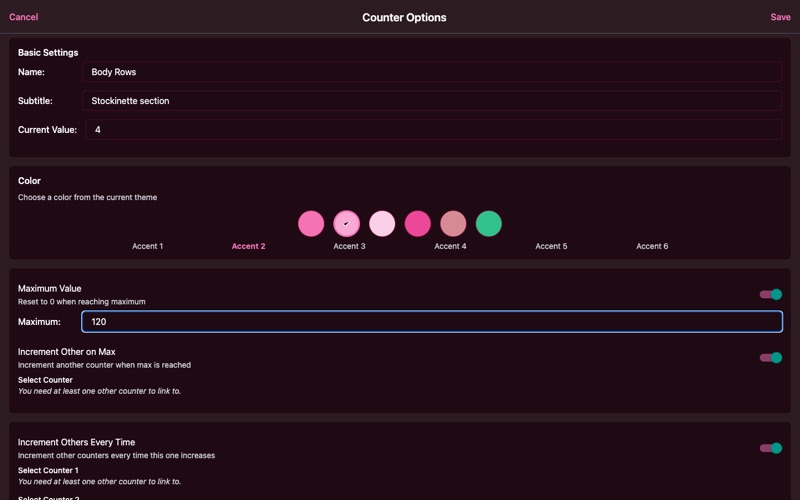
When a pattern shapes in two places at once, "Increment Others Every Time" lets one tap move up to four other counters as well. That suits a top-down raglan, or any garment where several measurements grow together. One tap on your main row counter moves your raglan increase counter, your body length and your sleeve separation counter, all at once.
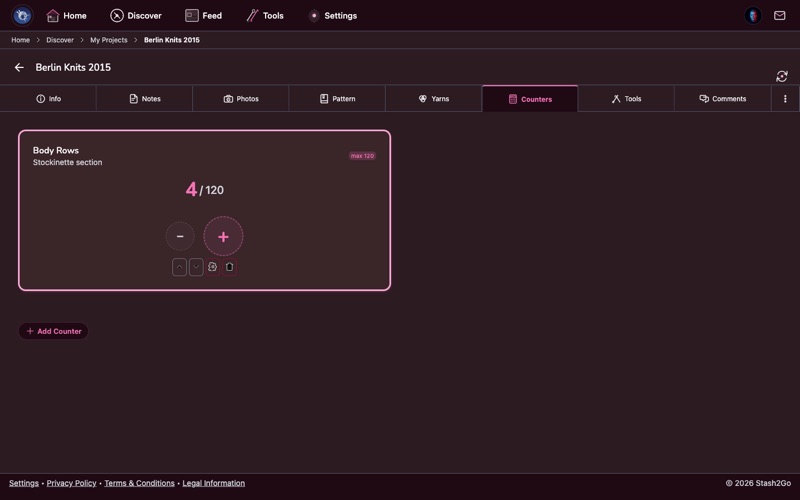
All your counters sit together on one screen. On a tablet and on the web they line up side by side. Each card shows its name, its subtitle, its current value (with the maximum, if you set one) and a colored border. Small markers show which counters are linked, so you can follow what one tap sets off.
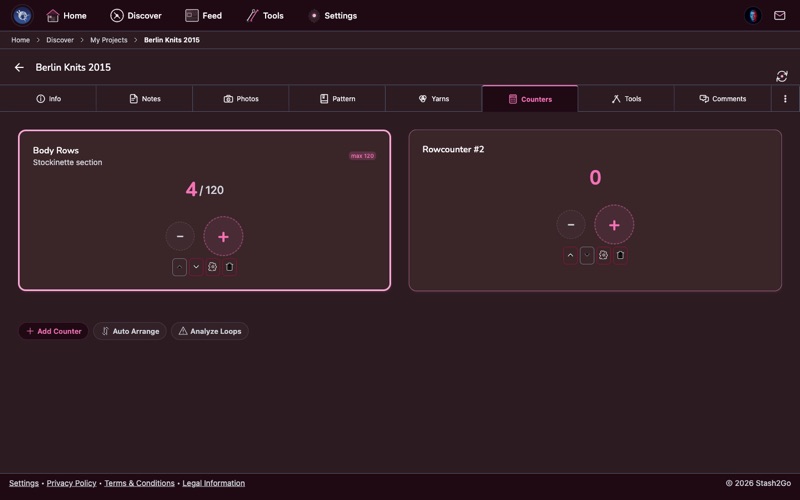
Add counters as the pattern asks for them. A complicated garment might want five or six, each following something different. "Auto Arrange" sorts them so the ones that drive others come first. "Analyze Loops" checks that nothing has been chained in a circle by accident. You can also move counters yourself with the up and down arrows, and delete any counter you no longer need.
Real setups, put together
The steps above cover everyday knitting. But plenty of patterns repeat a stitch sequence, shape in two places at once, or have sections that depend on each other. Here are some setups that show what chaining and maximums are for.
A lace pattern often repeats every 12 rows. Set up two counters:
- "Row in Repeat" - maximum set to 12, auto-reset on.
- "Repeat Count" - no maximum. It counts the full repeats you have finished.
Chain the first to the second with Increment on Max. Now one tap a row is all it takes. The repeat counter goes up on its own every 12 rows, and the progress indicator shows exactly where you are in the current repeat.
In a top-down raglan you increase at four points every other row, while the yoke gets longer at the same time. A setup that works:
- "Yoke Rows" - the main counter, no maximum. Chain it to all the counters below with Increment Every Time.
- "Increase Row" - maximum 2, auto-reset. It tells you whether this row is an increase row (odd) or a plain row (even).
- "Total Increases" - chained from "Increase Row" with Increment on Max. It counts your increase rounds for you.
One tap a row on "Yoke Rows" drives the whole thing. When the increase row counter shows 2 and resets, you have just finished an increase round.
For a pattern that alternates 4 rows of Color A and 4 rows of Color B:
- "Rows in Stripe" - maximum 4, auto-reset.
- "Stripe Count" - chained with Increment on Max. Odd stripes are Color A, even stripes are Color B.
When "Rows in Stripe" goes back to zero, it is time to change colors. The stripe counter tells you which color comes next, so you do not have to look at the pattern.
Many cable patterns twist every 6 or 8 rows, with plain rows in between. One counter is enough:
- "Cable Row" - maximum set to 6, auto-reset.
When the counter reaches 6 and resets, that is your cue to work the cable cross. You do not need a second counter. The progress bar on the card shows at a glance how close the next twist is.
Knitting two sleeves separately and worried they will not match? Set up two counters with the same settings:
- "Sleeve 1 Rows" - color green, subtitle "Left sleeve."
- "Sleeve 2 Rows" - color blue, subtitle "Right sleeve."
Count each sleeve on its own. Before you bind off, compare the two numbers and check that both sleeves have the same number of rows. The colors make it obvious which sleeve you are working on.
A sweater is not one count. Give each counter a Project Part, such as Body, Sleeve or Yoke, from its ⋯ menu (Move to Part) or in its Settings. The counters then gather into sections you can fold away, so you only see the piece you are working on.
Use a template builds the parts for you. There are twelve: sweater top-down and bottom-up, cardigan top-down and bottom-up, hat, socks, mittens, gloves, blanket, shawl, vest and amigurumi. Pick the nearest one and rename what does not fit.
Tapped one too many times? The counter's ⋯ menu has History, which lists what happened to that counter, and Undo Last Action, which puts it back. Duplicate is there too, for the second sleeve.
Counters keep working with no signal: on a train, in a cabin, on a plane. Changes are held on the device and sent when you are back. A counter with changes still waiting says Saved on device.
If you counted on another device in the meantime, the app does not guess. It shows you both versions, this device and server, each with how many counters it has and when it was last edited, marks the newer one, and asks which to keep.
Available on iPhone, iPad, Android, and web at app.stash2go.com