1I want to start a new project
Create a project, add yarn, set up counters, and start knitting
- A Ravelry account. Projects live there, so a project you start here is on ravelry.com too.
- Nothing to switch on. Choosing Weaving as the craft brings out the weaving tools.
The full walkthrough – create a project, fill in the details, then set status, progress and happiness.
Where you can start a project – the three entry points, side by side.
How to make a project in Stash2Go II. The second video shows the three ways in:
- From nothing, with no pattern behind it
- Straight from a pattern
- From something already in your queue (its notes, tags, yarn, who it is for, the start date and the finish-by date all come along)
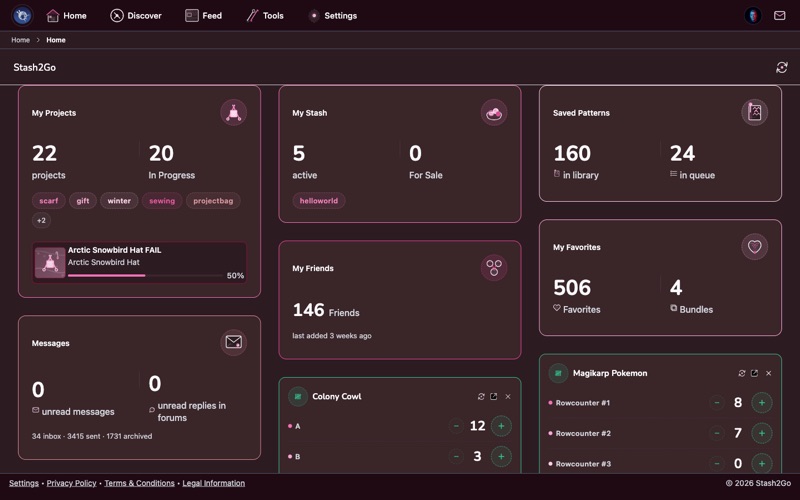
Opening Stash2Go puts your crafting notebook in front of you. Projects, yarn stash and patterns are all one tap away. Tap the Projects tile to see your project list.
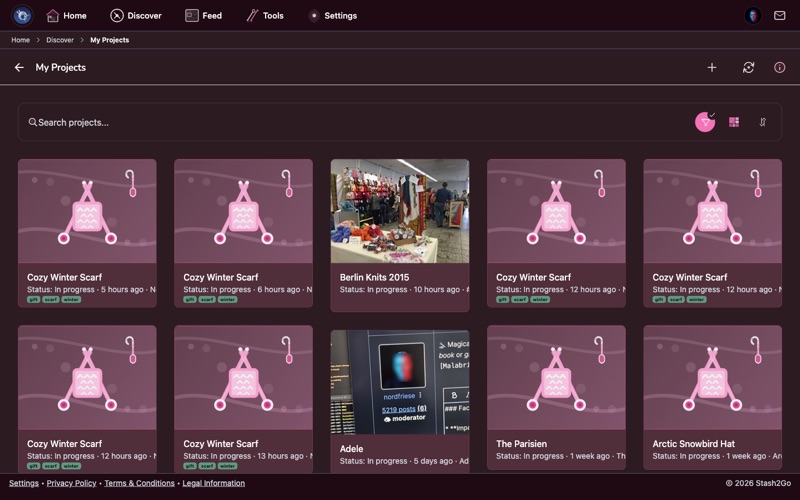
The list holds every knitting and crochet project you have, each card showing its progress, its photo and its status. To start a new one, tap the + button in the header.
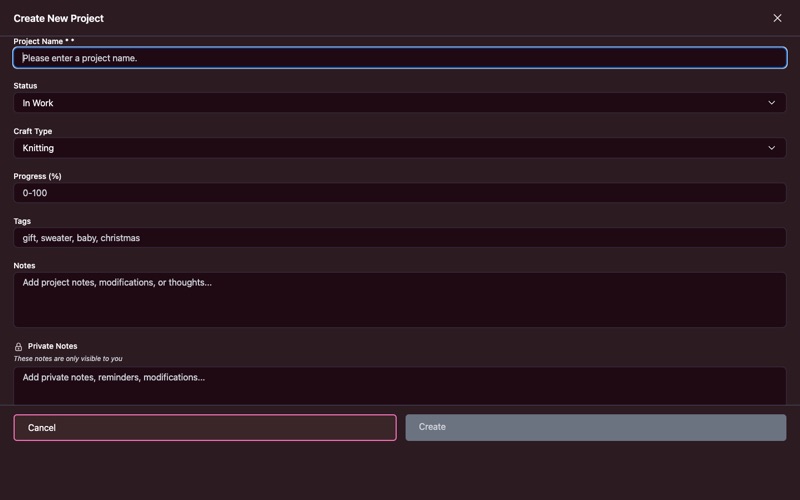
The form asks for a name, tags to search by later, and any notes you want to start with. Give it a name you will still recognise in six months.
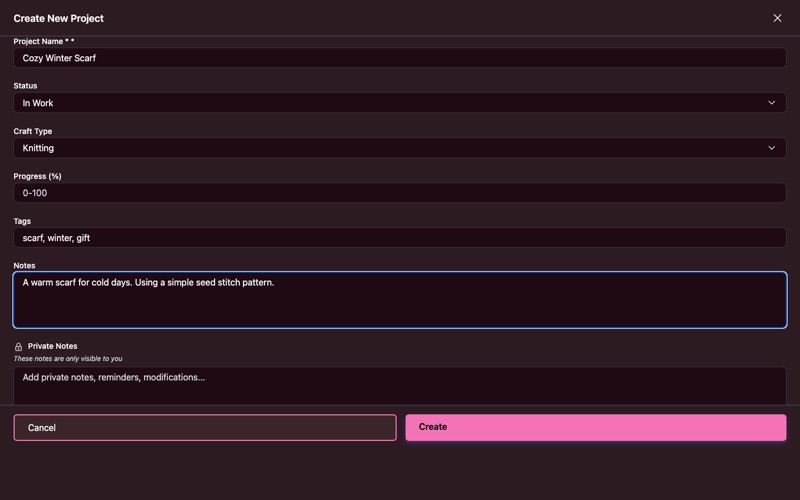
Type the name, add a few tags ("scarf", "winter", "gift"), and write down what you are planning. Then tap Create, and it goes into your Ravelry notebook.
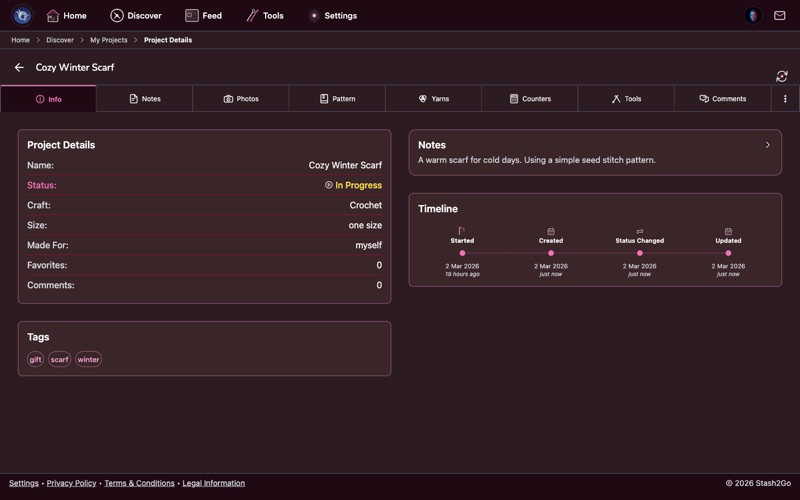
The project screen shows everything at once: status, progress, craft, and the pattern it is linked to. The three that change while you work can be changed right there. Tap Status to move between In Progress, Finished, Hibernating and Frogged. Tap Progress for a slider. Tap Happiness to say how you felt about making it. None of them need the edit screen.
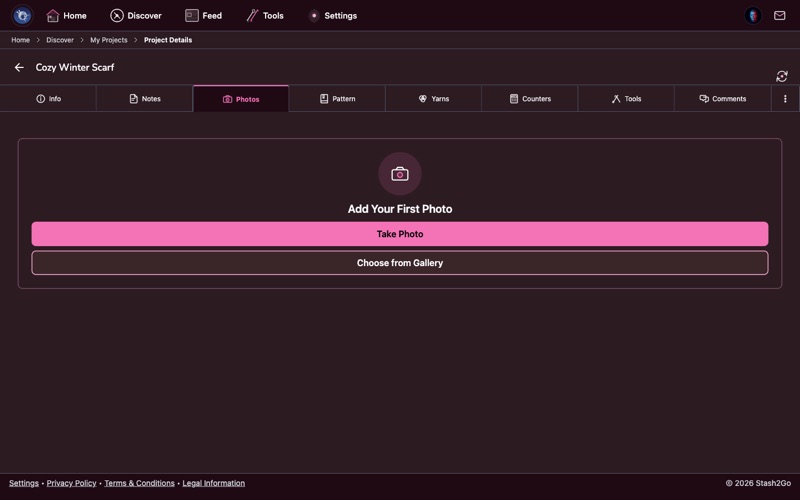
The Photos tab takes a picture there and then, or picks one from your gallery. Your photos go across to Ravelry, and are laid out here as a masonry grid.
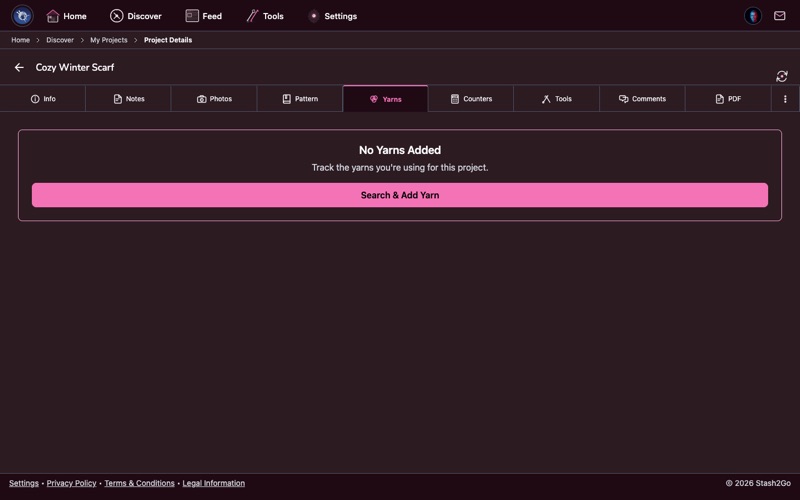
The Yarns tab holds the yarn for this project. Search Ravelry's yarn database and link what you find, with the brand, the colorway, the weight, and how much you used. Over time that tells you what a project really takes.
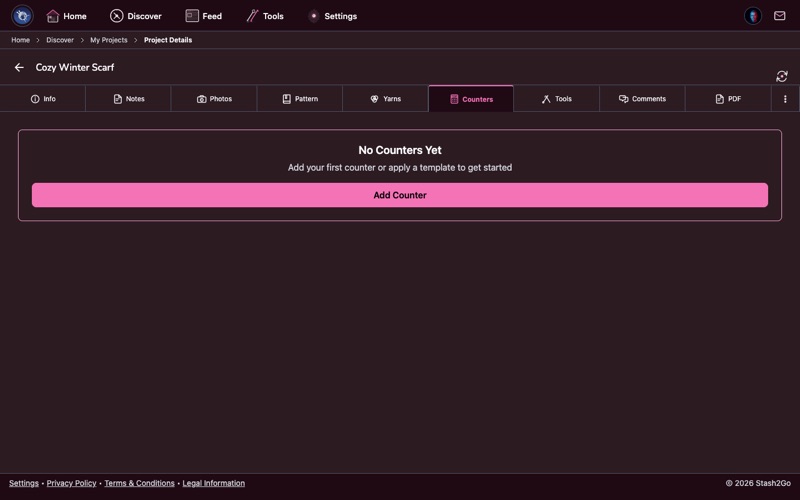
Counters keep track of rows, repeats, or the sections of a pattern. Tap + as you work, and − when you have to tink back. You can have several counters, one for each part of the project.
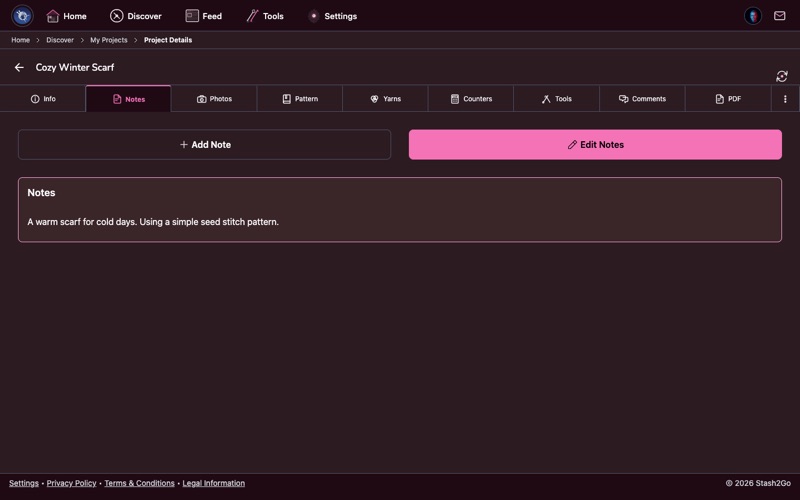
The Notes tab is the project's diary. Record the changes you made, your gauge swatch, the sizing you altered, anything you will want back later. Each note is dated for you, and you can format the text.
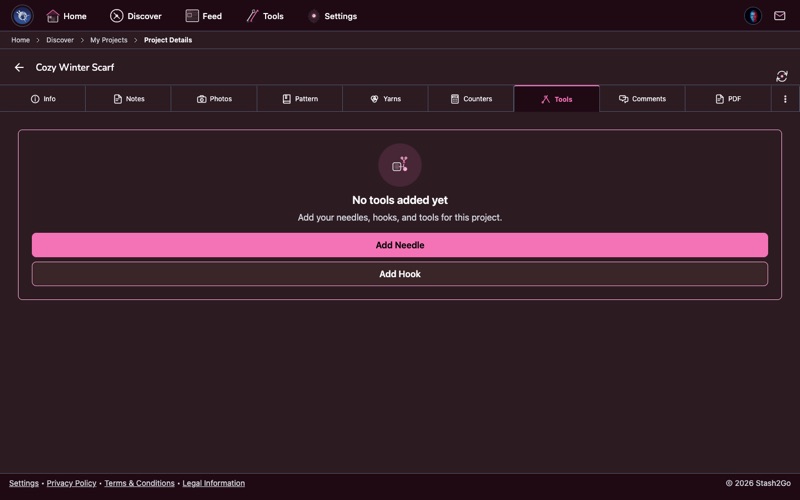
The Tools tab holds the needles or hooks this project is using. It earns its keep when several projects are on the go and you cannot remember which needles are tied up in what.
The yarn picker has two tabs. Yarns searches the Ravelry database. Stash searches your own shelves, with sorting and filters, and it leaves out anything you have marked used up. Picking from Stash ties the project to that entry, so the amount you set aside comes off what you have left.
Yarn Ravelry has never heard of goes in with Add yarn by name: handspun, a local dyer, something from a market stall.
As well as the project notes that go to Ravelry, a project has private notes that never leave your account. That is the place for what you paid, who it is really for, and what went wrong.
The Tools tab records the needles and hooks you are using. You add them, change them and remove them there. Each one is saved as the right kind of tool for the craft, so a crochet hook on a knitting project stays a hook.
Available on iPhone, iPad, Android, and web at app.stash2go.com