43I want to import my own pattern PDFs
Add PDFs from your device, email, or other apps into Stash2Go
- A PDF on your device, or a link to one.
- A Stash2Go account. On iPhone, iPad and Android, the file stays on that one device until you back it up to the cloud.
- It works on the web too. There the file uploads straight away.
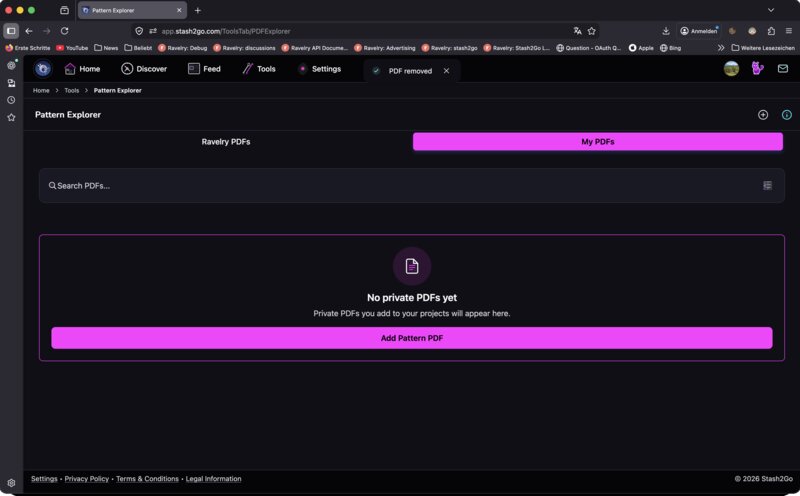
Open the Pattern Explorer from Tools and go to the My PDFs tab. Tap Add Pattern PDF. From there you can look through the files on your device, or paste in a web address. The file lands in your own PDF library, beside the patterns you bought on Ravelry.
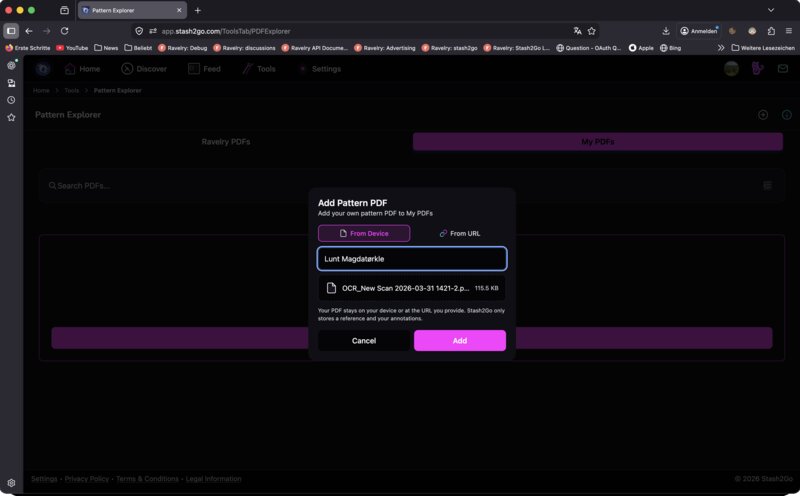
Choose From Device or From URL. Give the PDF a name, pick the file, and tap Add. You can also send one over from any other app: open a PDF in Mail, Files or Safari, and share it to Stash2Go.
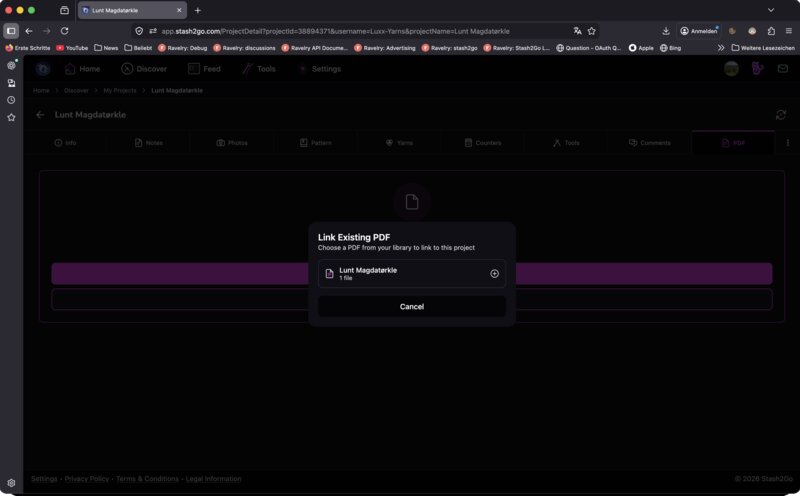
Open a project's PDF tab and tap Link Existing PDF to attach one you have already imported. It then sits in that project, ready while you work. You can also add a new PDF from the project itself.
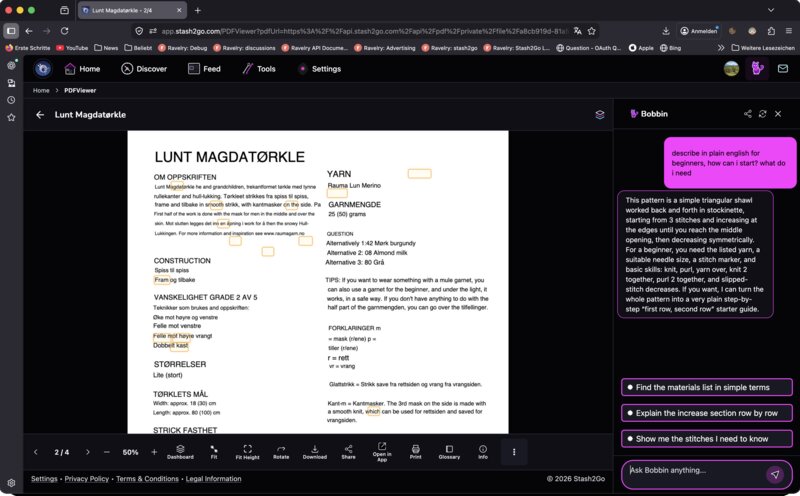
An imported PDF gets everything the Smart Reader does: reading guides, marked-out charts, row counting and notes. You can also ask Bobbin about the pattern while you read it.
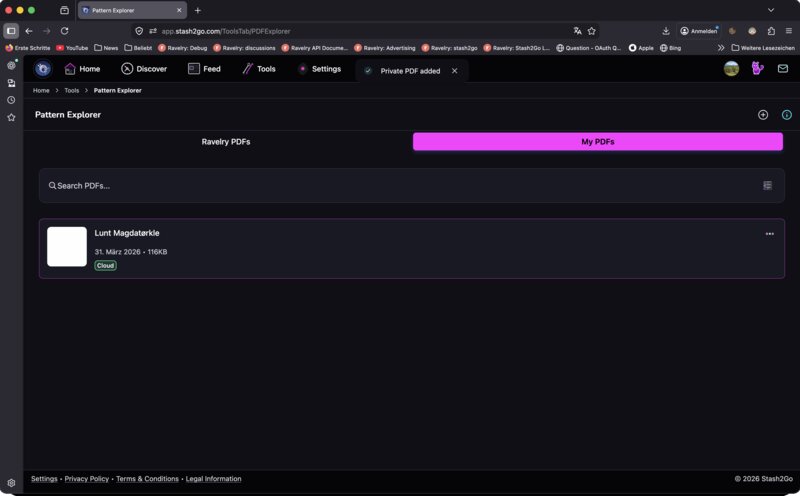
Everything you import shows up in the My PDFs tab of the Pattern Explorer. Each one has a chip saying where it is: Device, On another device, or linked. Its menu offers Back up to cloud, Download to device, Remove from device, Remove cloud backup and Delete PDF. Taking it off the device is safe once it is backed up. Deleting the PDF takes your notes and markings with it.
Available on iPhone, iPad, Android, and web at app.stash2go.com