35I want to annotate my pattern PDF
Put reading guides on your PDF, and mark chart cells with stitch markers
Draw marks straight onto your PDF so you always know which row you are on. On a chart, stitch markers pick out single cells to flag the stitches that matter.
- Any pattern PDF open. Reading guides work in every mode, free included.
- Stitch markers on charts (step 5) needs Full Knitting.
- Guides are saved to your Ravelry account, so they follow you to your other devices.
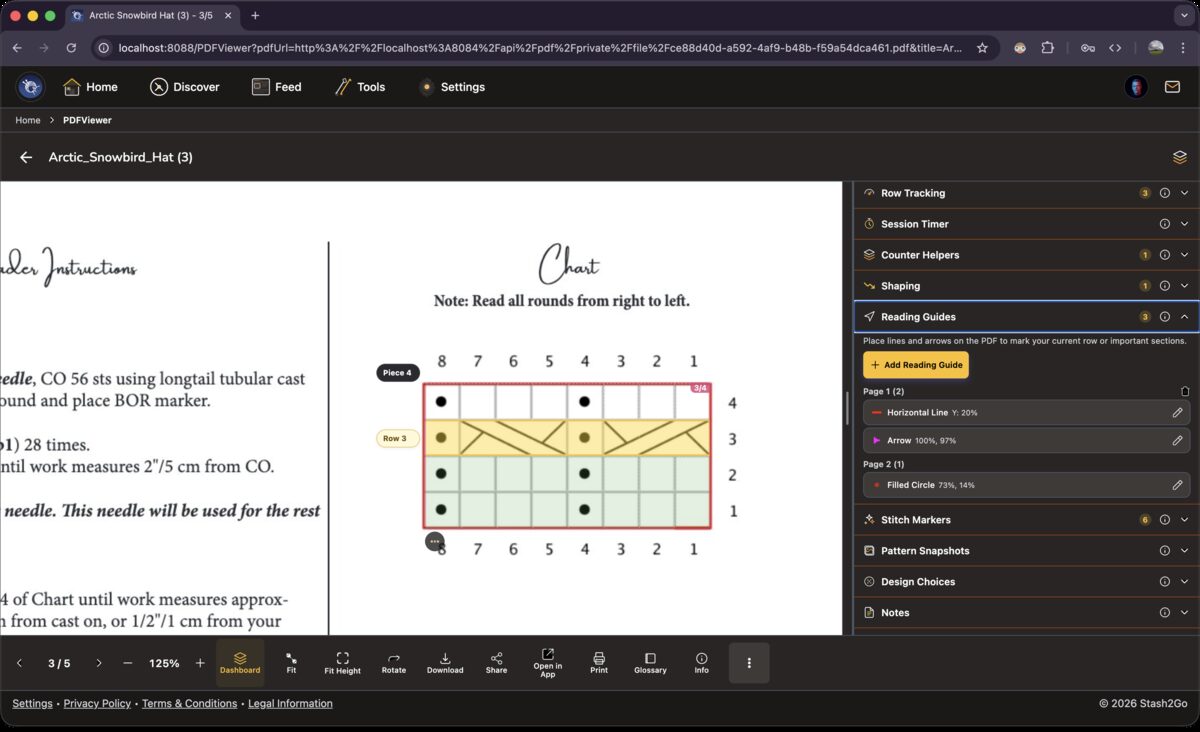
The Reading Guides section lists every mark on the PDF you have open. A horizontal line across the page works like a ruler. Slide it down row by row as you work through the written instructions.
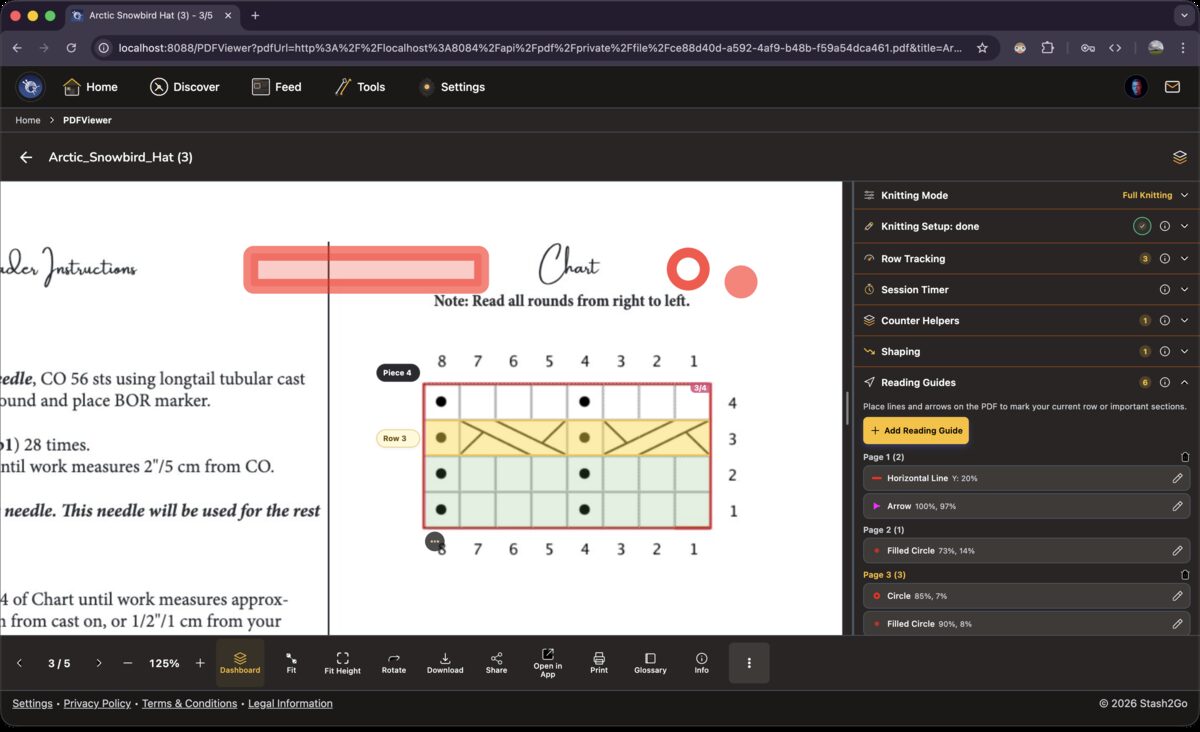
Open the Dashboard (the layers icon, top right), go to Reading Guides and tap Add. Pick a type, then tap the PDF where you want it. You can place several at once: a line under your current row, a circle around the stitch count for your size, a highlight over the chart key. Each one moves on its own.
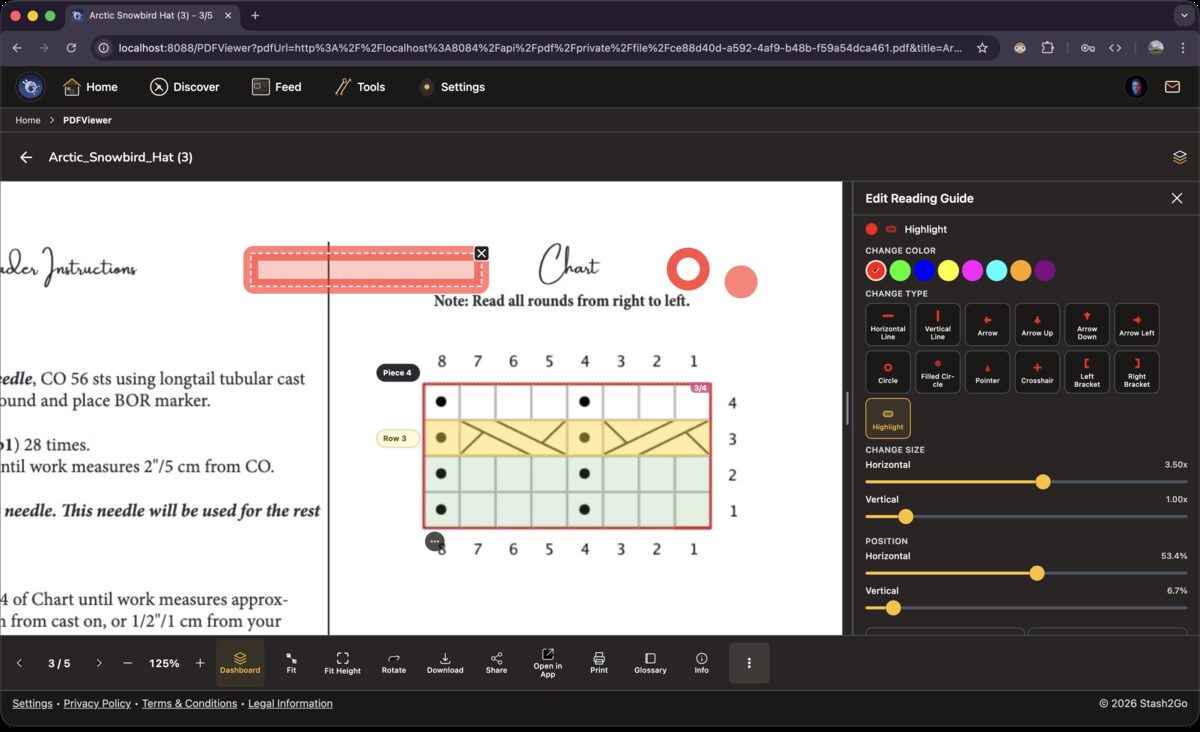
There are horizontal lines, vertical lines, arrows (any direction), circles (outline or filled), pointers, crosshairs, brackets, and highlight rectangles. Each does a different job. Lines follow rows, arrows point at something important, circles ring a number, and rectangles shade a whole area.
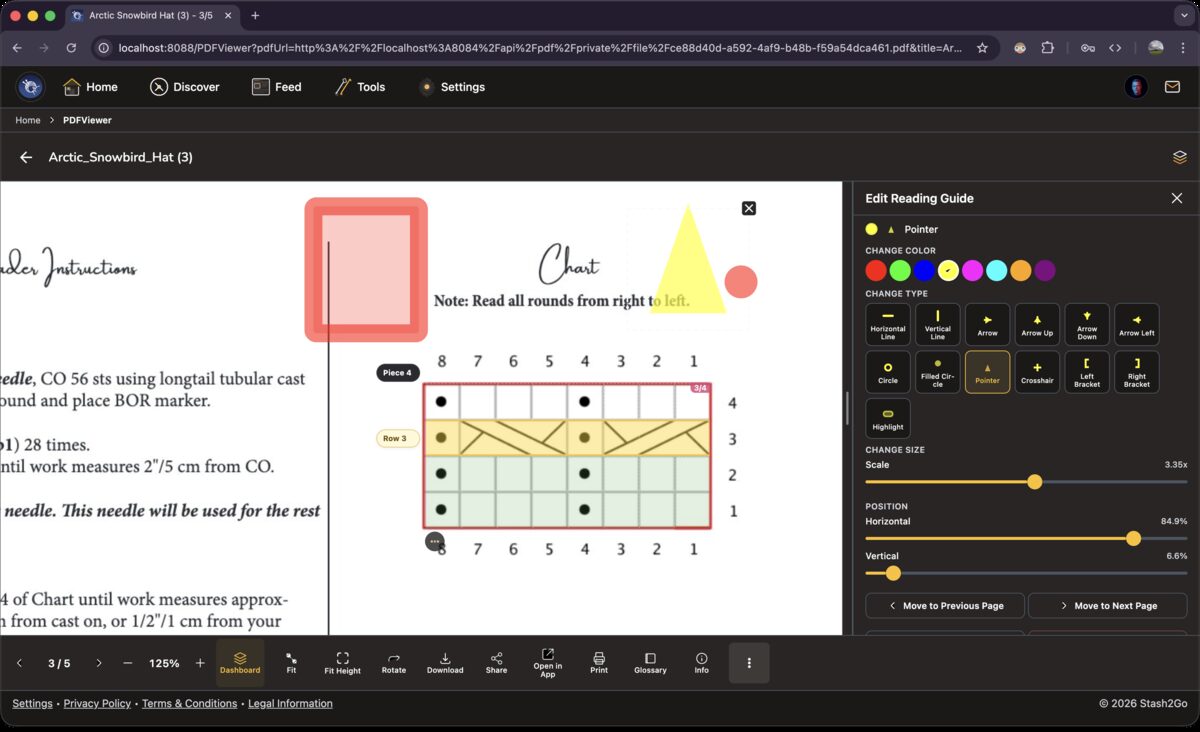
Press and hold any marker to open the edit panel. Change its colour, its size, where it sits, or swap it for a different type altogether. Markers travel to your paired devices, so a mark you add on your iPad is waiting on your phone.
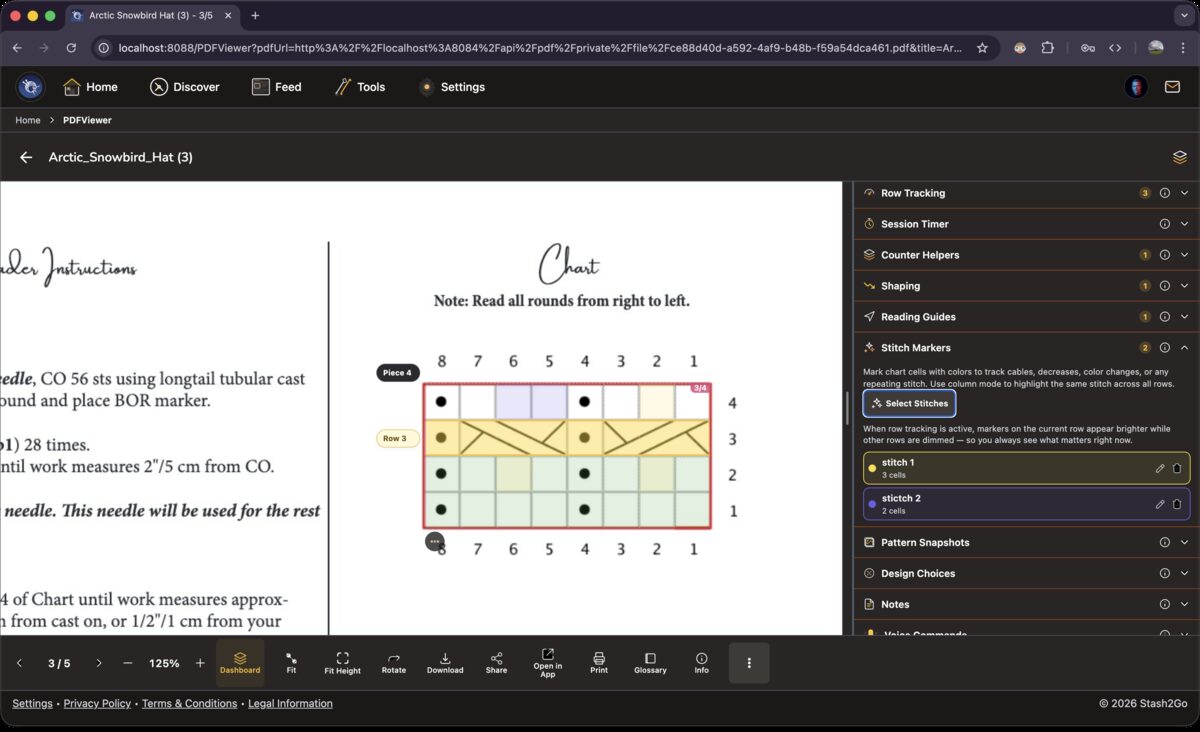
Stitch markers pick out single cells inside the chart areas you have set up. Mark the columns where the colour changes, flag one particular stitch, or give each kind of stitch its own colour. With row tracking on, the markers on your current row get brighter, so you only have to look at the stitches in front of you.
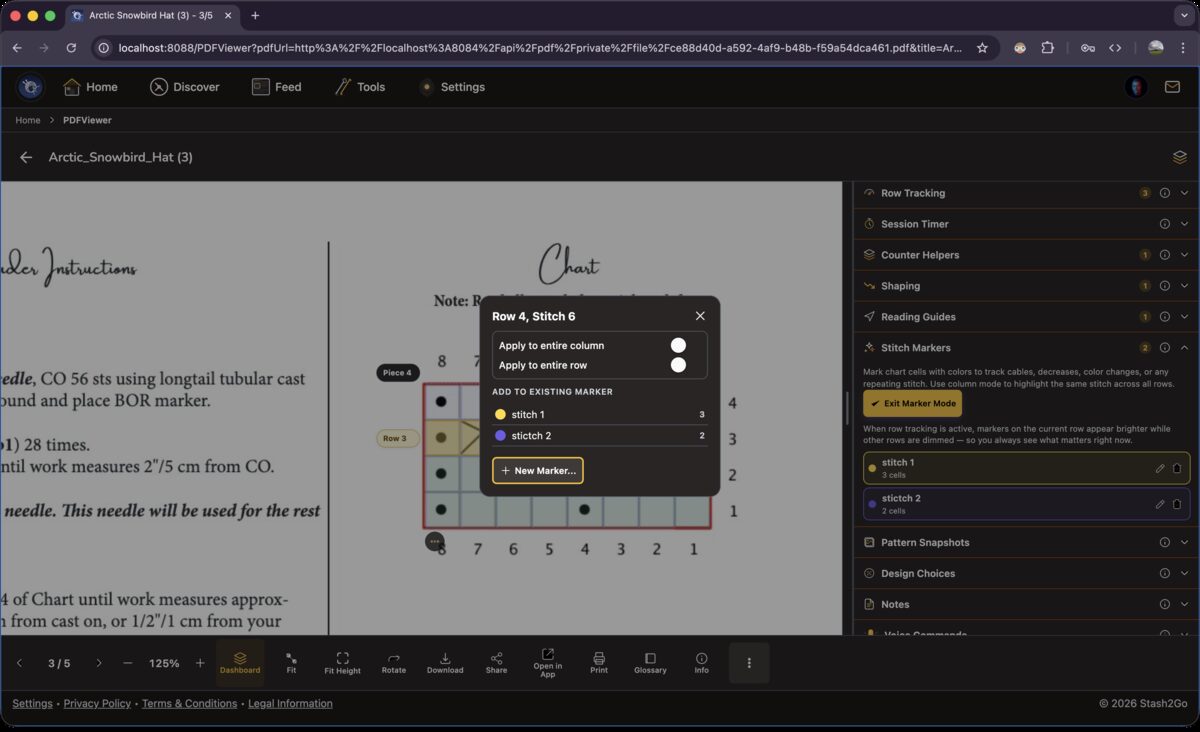
In Marker Mode, tap a chart cell to see exactly where it sits, along with a few quick options. "Apply to entire column" marks that stitch on every row. "Apply to entire row" marks every stitch in one row. Add the cells to a marker group you already have, or make a new one there and then.
Available on iPhone, iPad, Android, and web at app.stash2go.com