32I want to set up my pattern for tracking
Show the app where the chart is on the page, and link it to a row counter
Before the Smart Pattern Reader can follow you through a chart, it has to know where the chart is on the page and how many rows it has. The Setup section walks you through drawing that in and linking it to a counter. After that, moving your counter on highlights the row you are meant to be knitting.
- A pattern PDF linked to a project. The Knitting Setup section only appears then.
- Premium, for Smart Tracking or Full Knitting.
- A connection. Adding and changing charts is refused while the service cannot be reached. Counting still works.
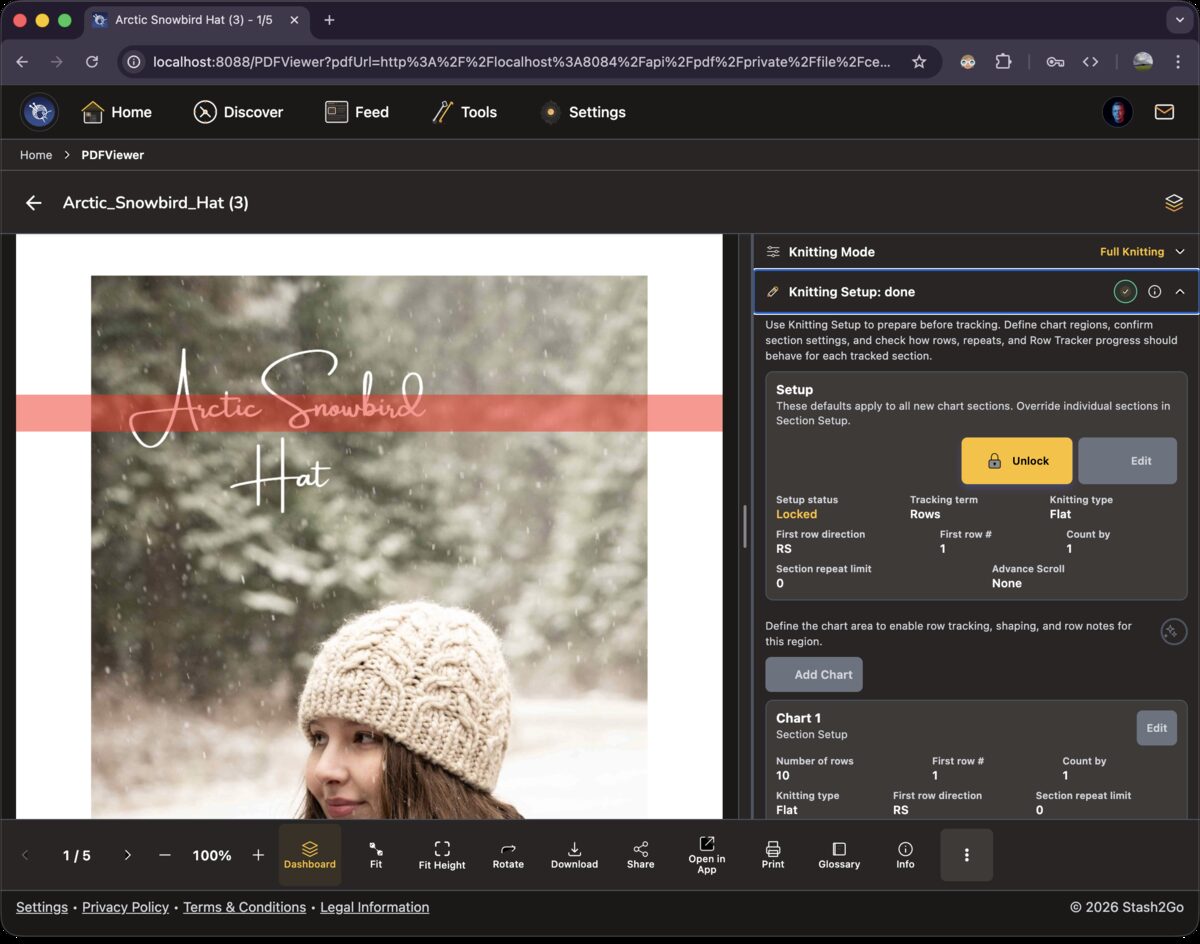
In Smart or Full mode, open the Knitting Setup section in the sidebar. There is a Lock/Edit switch, and any charts you have already drawn. The lock stops things being changed by accident while you knit. Unlock it when you want to add a chart or change one.
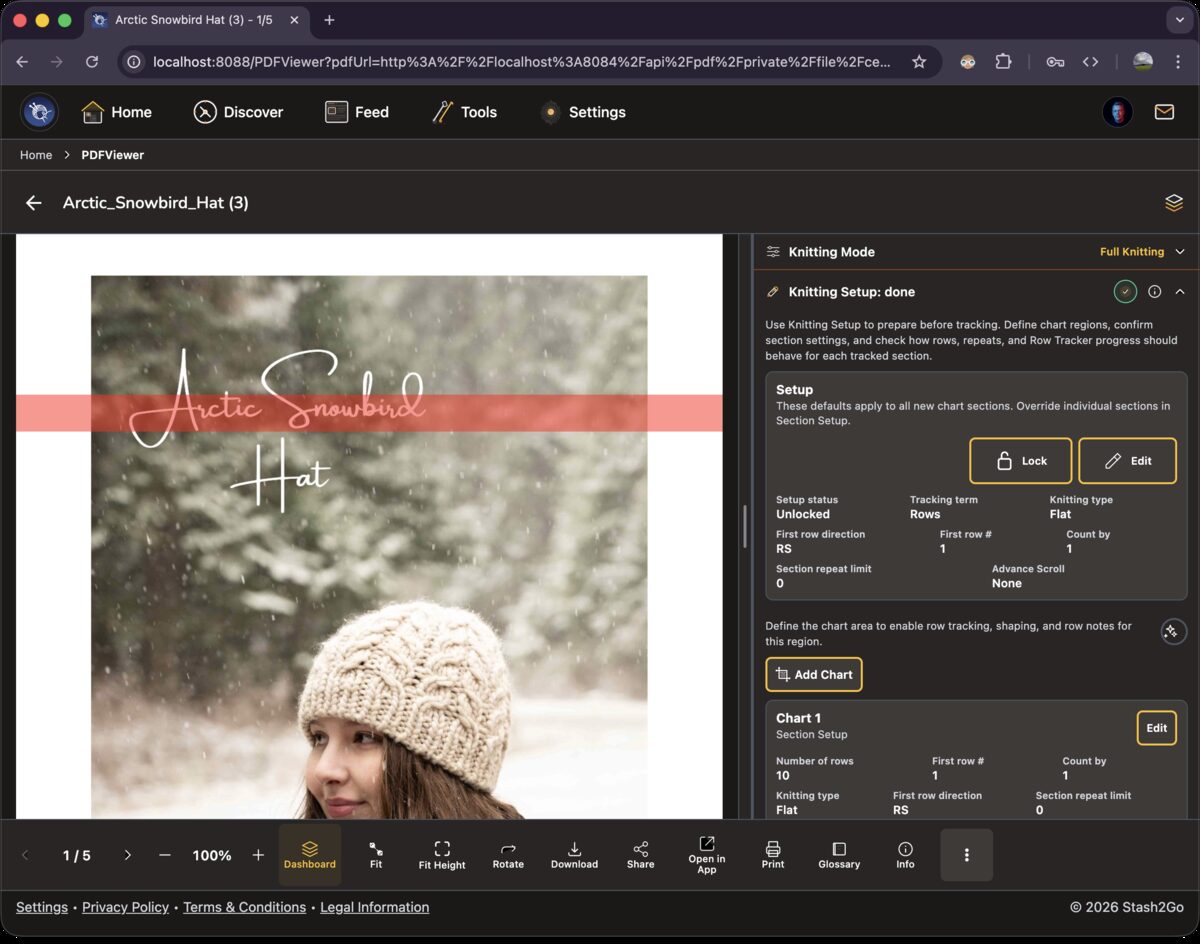
Unlock the setup and tap "Add Chart". Go to the page your chart is on, pinch to zoom in so you can be accurate, then draw a rectangle around the chart.
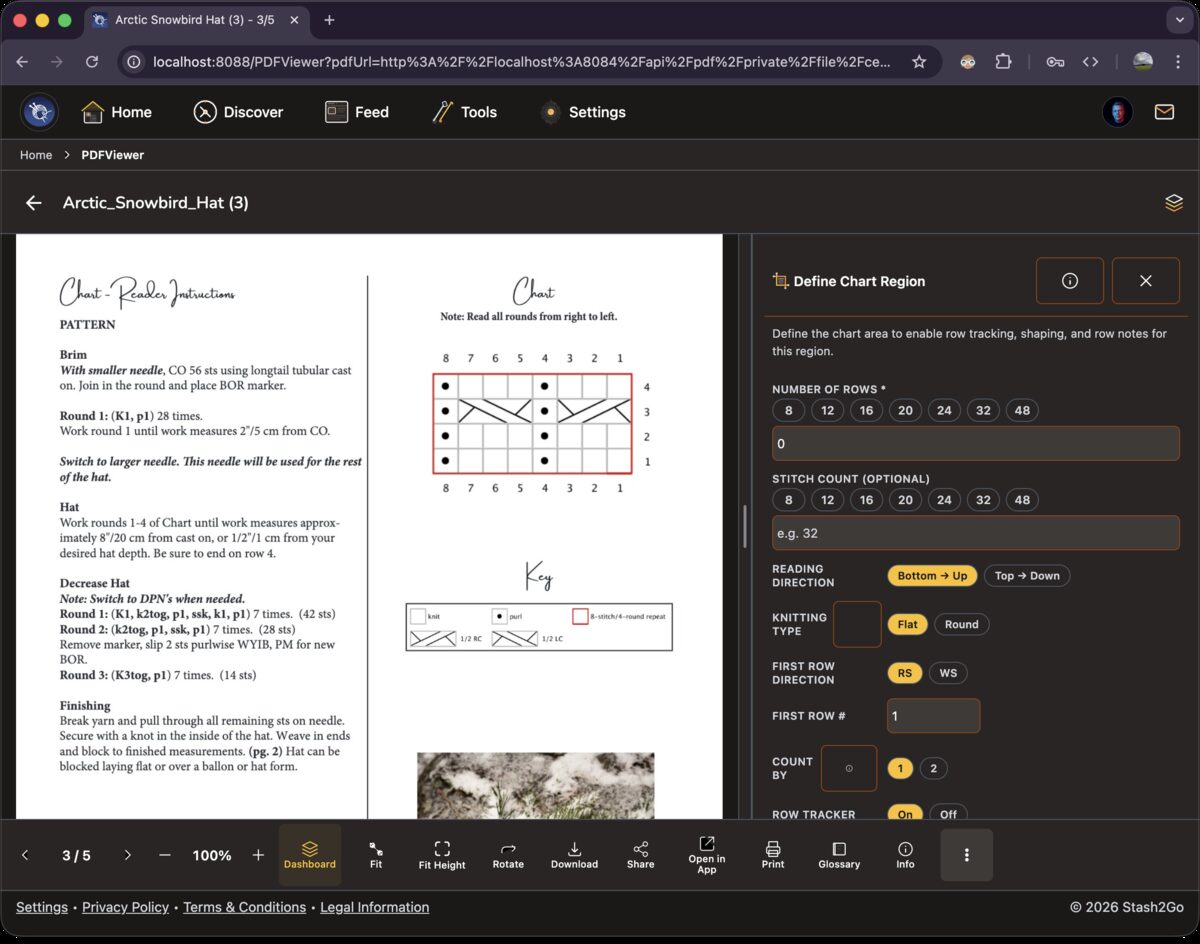
Set the row count, the stitch count, the reading direction and the knitting type (flat or in the round). Those are what let the app highlight the right row, read the right way, as you move your counter on.
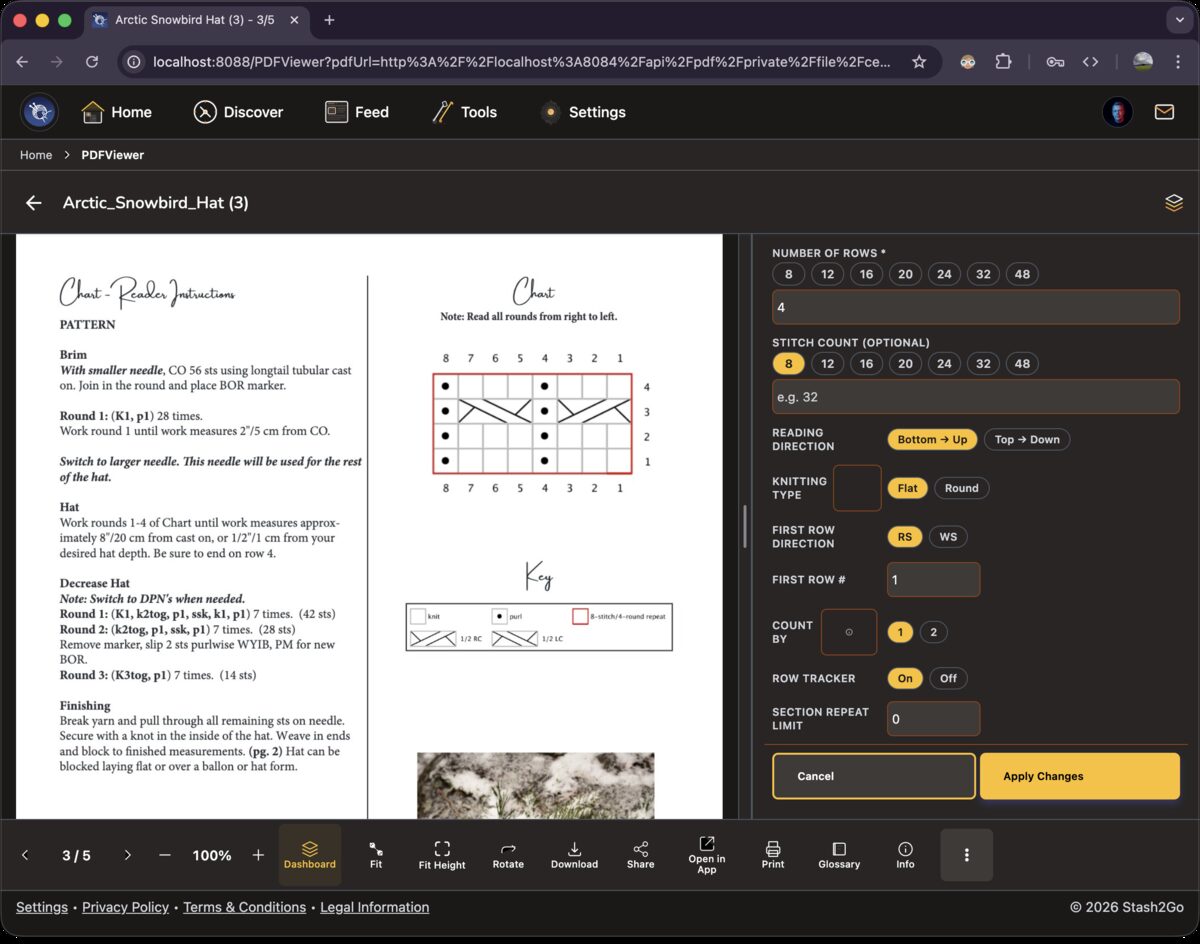
When you confirm, a row counter is created and tied to this chart. Move that counter on in the Row Tracking section and the highlight on the chart moves with it. You always see which row you should be knitting.
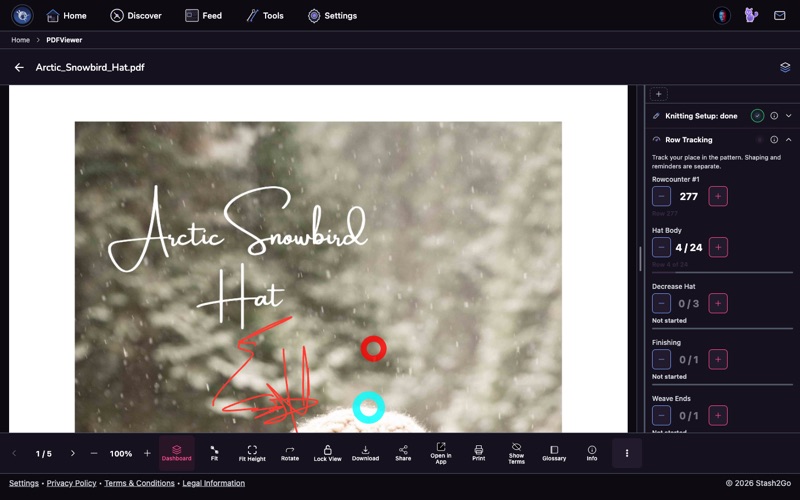
If your pattern has several charts, do the same again for each one. Every chart carries its own row counter and its own highlight, so you can follow several at once without losing your place.
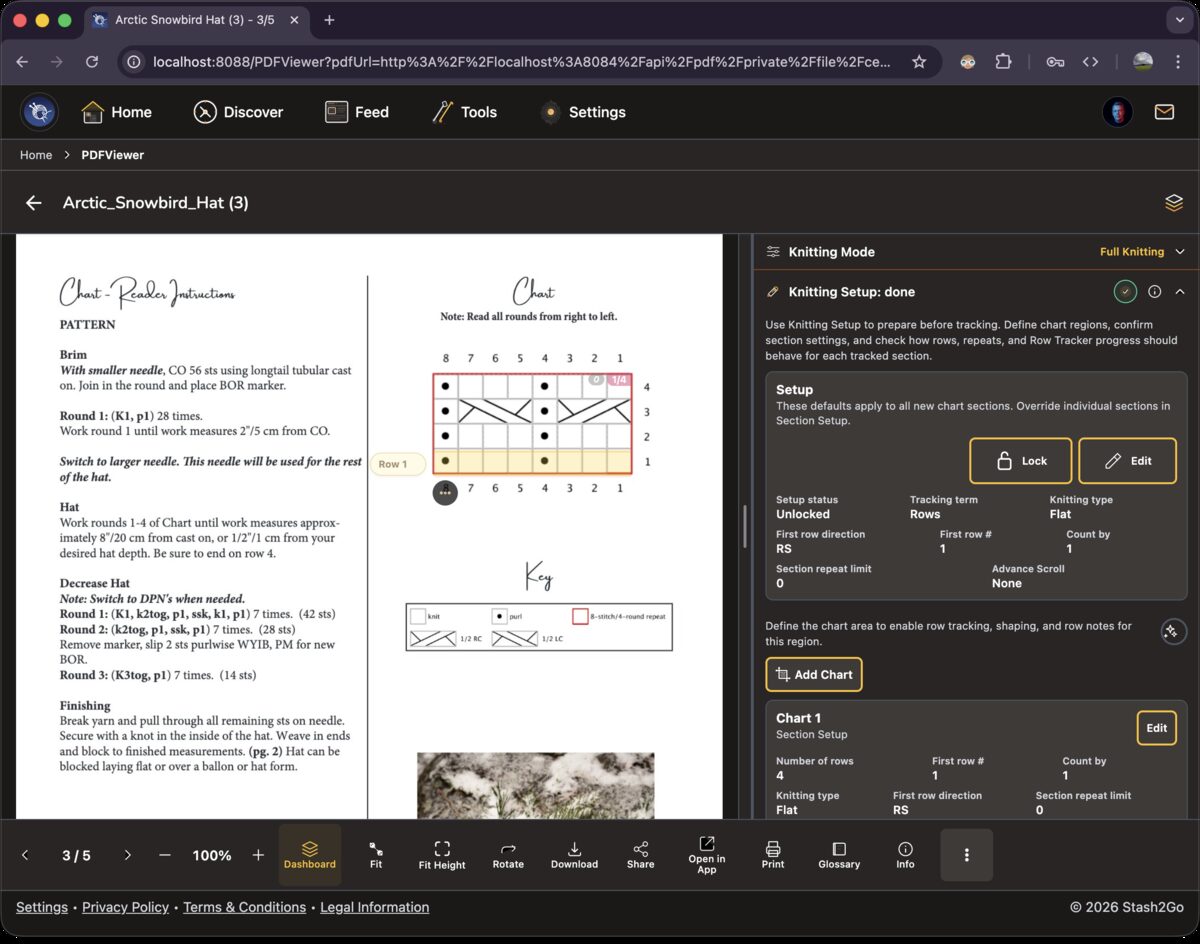
Setup is done and the chart is live. The row you are on is highlighted in yellow, so you always know where you are. Lock the setup so nothing moves by accident, and you are ready to knit. Shaping guides and stitch markers become available now too.
Knitting Setup is where a project's habits are agreed once. Whether you say rows or rounds. Whether you work flat or in the round. Whether the first row is a right or wrong side. What number the first row has. Whether the counter counts by one or two. How many times a piece repeats, and how the row number resets. A padlock keeps all of it from being changed by accident.
Anything one chart does differently is set on that chart, in its own Section Setup. So the pattern's one odd piece does not force you to describe the whole garment its way.
Available on iPhone, iPad, Android, and web at app.stash2go.com