63Let the app find the charts
A chart is the part of a pattern you keep going back to, so the app can pick them out of the PDF for you
You read a written pattern once. A chart you come back to every row. On a phone that means pinching in, losing your place, and pinching out again. Stash2Go can look through a pattern PDF, find the charts in it, and give you each one on its own. The chart becomes something you open, so you stop hunting for its corner of the page.
- You need Premium and the PDF Tools beta. It is off until you turn it on.
- It works on any PDF you can open in the reader: one you imported yourself, or a pattern from your Ravelry library.
- Nothing leaves your device. The app reads the page's own drawing instructions and its pixels, right on the phone or computer in front of you.
Chart finding is a beta, so it starts off. Go to Settings → Appearance and scroll to Beta Features. Turn on PDF Tools, the switch called PDF Chart Detector. You need a Premium plan for it. Nothing else in the app changes. A Charts button appears the next time you open a pattern PDF.
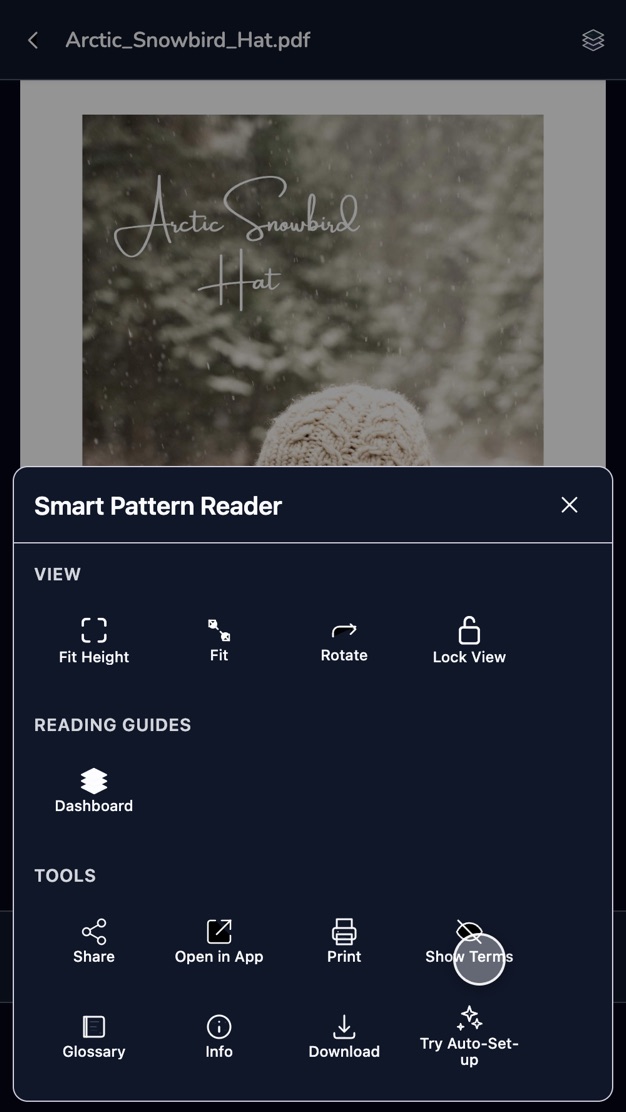
Open the pattern the way you always do: from Pattern Explorer, or from the PDF tab of the project you are making. Anything with a chart in it will do. A cabled hat, a colourwork yoke, a lace repeat.
Tap Charts on the bar along the bottom. If it is not there, look in the menu at the end of the bar. The panel says Ready to scan for charts, and tells you what it is about to do: look at the pictures and the drawn lines in this PDF, and work out which of them are knitting charts.
Sensitivity runs from 1 to 10, low to high, and starts in the middle. Low finds only the obvious grids: a clean, ruled chart on its own. High finds fainter ones, and will sometimes offer you a table or a schematic as well. If the first scan misses a chart you can see with your own eyes, raise it and go again.
Scan for Charts reads every page. A short pattern takes a few seconds. A magazine takes longer, because there is more to look through. You can watch it work. Nothing is sent anywhere, so it is only your own device doing the reading.
The panel tells you how many it found and where: 4 charts found, then Page 3 and Page 4 with a count beside each. Open a page to see the charts on it. Tap one and you land on it in the pattern. That is the useful bit. The chart you want is two taps away instead of a hunt.
Analyze takes a chart the app found and works out more about it: the grid, and the rows and stitches in it. View log shows what the scan did and why it decided as it did. That is the honest answer when a result surprises you.
What a scan finds stays with the PDF. Open the panel again and you see the last result. Changed the sensitivity and want another go? Use the rescan control. The clear control throws the results away so you begin from nothing. Neither one touches the pattern itself.
Some charts are pictures of charts: a photograph of a printed page, or a scan. There are no drawn lines in those, so there is nothing to read. Raising the sensitivity helps. Sometimes nothing will. And a pattern with no charts in it will honestly find none. Either way the pattern is untouched, and you can read it the ordinary way. See Read your pattern PDFs.
Charts are one part of what the reader does. The Smart Pattern Reader guides cover the rest: an overview, setting it up, row tracking, shaping guides, markers, notes and voice commands.
Available on iPhone, iPad, Android, and web at app.stash2go.com