63This is either too much or not enough
Three view modes: Basic, Advanced, and Classic
- Nothing to install, nothing to switch on. The choice is one row of three in Settings, and you can change it as often as you like.
- Your data stays put. All three modes read and write the same Ravelry account, so the same projects, stash and counters are there whichever one you pick.
- Works on iPhone, iPad, Android and the web. Televisions and in-car screens always run the full layout, so they have no picker.
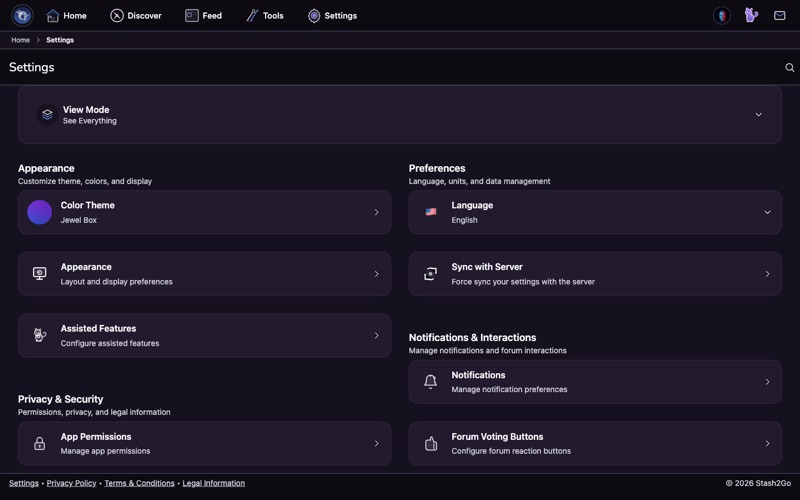
Open Settings. The first thing on it is View Mode: the three modes side by side, Basic, Advanced and Classic, with the one you are in marked. The line under them says what that mode is for.
Where it sits depends on the mode you are in. In Advanced it is at the top of the Settings tab. In Basic it is on the Profile tab, under the shortcuts. In Classic it is at the top of the Settings page, and also, as a single line, in the menu you get by swiping up on the area bar. It is the same choice in all three places, so your way back is never more than a tap or two away.
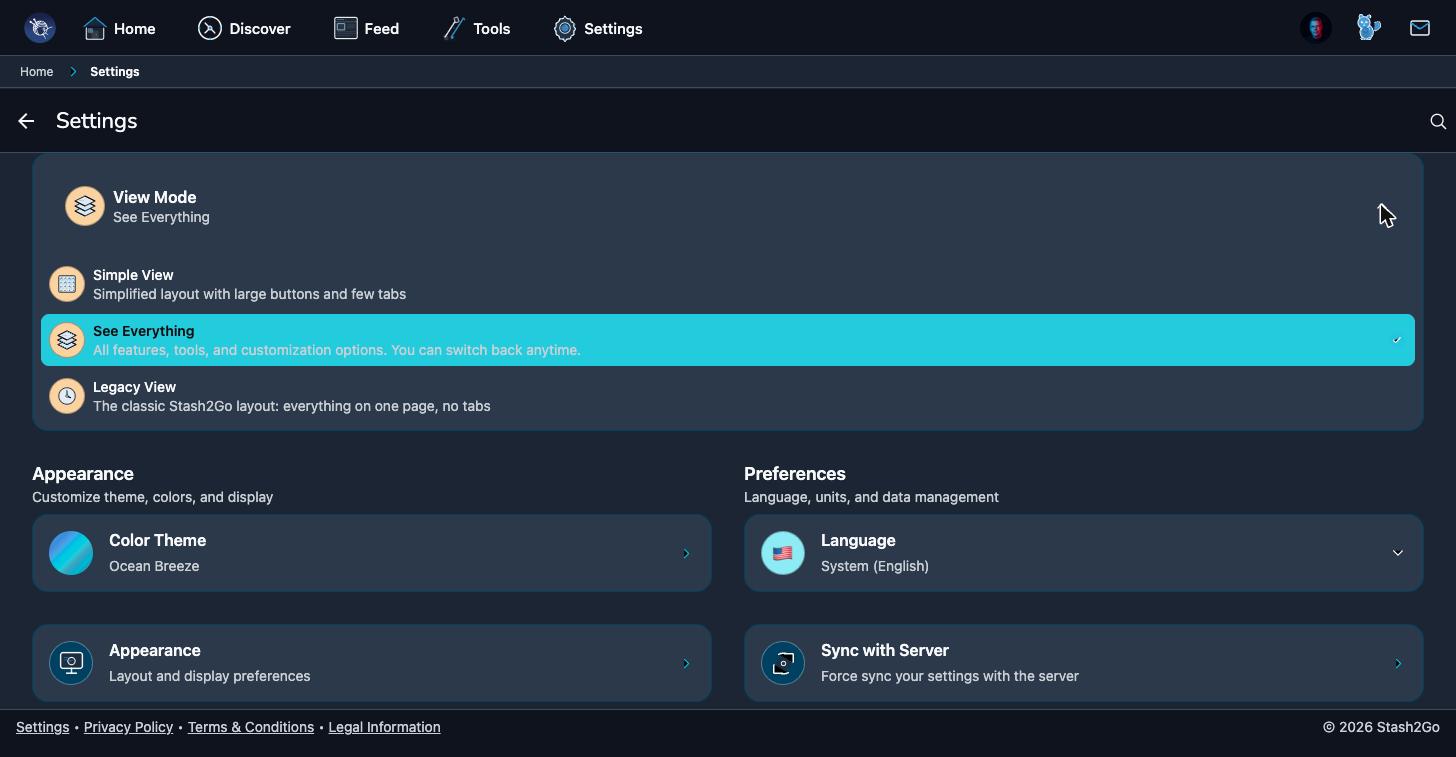
Tap another of the three and the app changes shape straight away, and the line under them changes to say what the new mode is for. There is no confirmation and no restart, because you are only picking a layout.
- Basic
- Large buttons, few tabs. Made for browsing patterns and what is already yours.
- Advanced
- The default, and the recommendation. Every feature, tool and setting the app has.
- Classic
- The classic Stash2Go layout. One page per area, no tabs, a bar along the bottom.
Basic is a smaller app around the same account. You get four tabs: Home, Discover, Patterns and Profile. A fifth, Feed, appears when the feed is switched on and you are online.
Home is six large tiles: My Projects, Queue, My Stash, Favorites, Messages and Forums. Under them sit a recently favorited row and a trending row. The Patterns tab opens straight into Hot Right Now. The Profile tab keeps the few things you still need: appearance, your saved searches, the tools, and Settings.
Basic puts things away without removing them. The tools list is shorter: no insights section, no paired devices section, no colour palette, no pooling calculator, no global search, no network diagnostics, no newsletter. A pattern page loses its Statistics and Photos tabs. Everything else works exactly as it does in the full layout, including row counters, your PDFs and all of your Ravelry account.
Advanced is how the app arrives. Five tabs: Home, Discover, Feed, Tools and Settings. Nothing is hidden. So if a guide tells you to open something and you cannot find it, this is the mode to be in.
It is also the only mode where the home screen is fully yours to arrange, and the only one where the whole toolkit is one tab away instead of two.
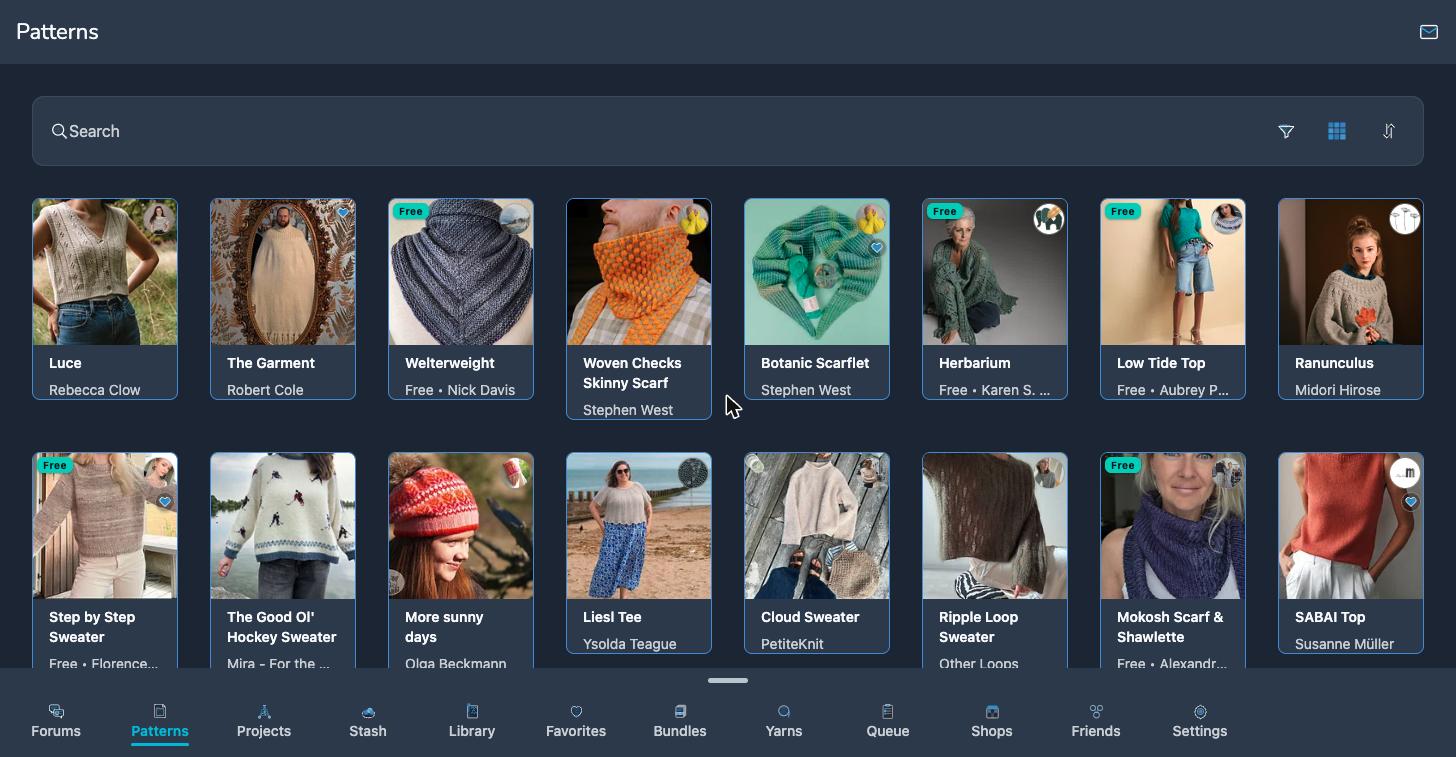
Classic has no tabs. A bar along the bottom holds eleven areas: Forums, Patterns, Projects, Stash, Library, Favorites, Bundles, Yarns, Queue, Shops and Friends. Tap one and it fills the screen. Open a project or a pattern and you get one long scrolling page instead of tabs, the way the old Stash2Go did.
Each kind of device remembers its own answer: one for your phone, one for your tablet, one for the browser. Basic on the phone and Advanced on the laptop is a perfectly ordinary way to run the app. Neither overwrites the other.
Apple TV, Google TV and in-car screens are not part of this. They always run the layout built for them, so View Mode is not there at all.
Available on iPhone, iPad, Android, and web at app.stash2go.com