41I want to customize my home screen
Move the tiles about, pick a layout, and make the app work the way you do
- Settings → Appearance → Adjust Home Screen, or press and hold the home screen.
- Nothing to switch on. Nothing is kept until you tap Save.
- The layout is remembered for each kind of device, so a phone and a tablet can look different.
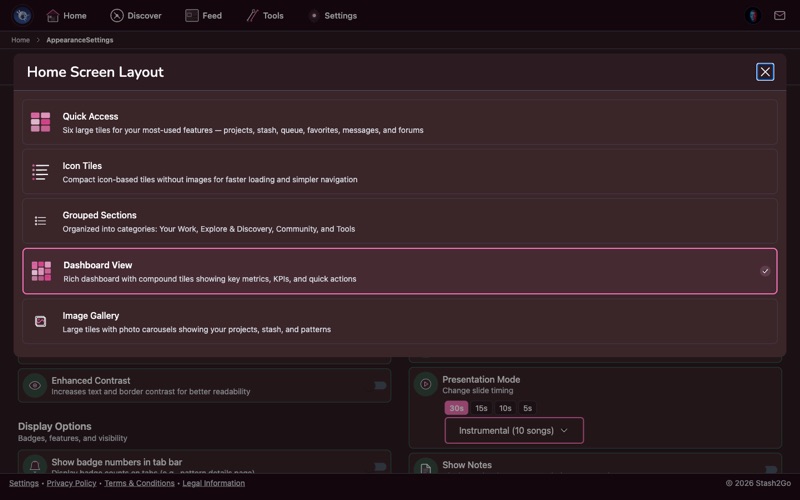
Go to Settings → Appearance → Adjust Home Screen. There are five styles to pick from:
| Image Gallery | Large tiles with photo carousels. |
| Icon Tiles | Small, compact tiles with icons. |
| Grouped Sections | Features sorted into sections. |
| Quick Access | Six large tiles for the things you use most. |
| Dashboard View | Compound tiles that show key numbers. |
Press and hold the home screen, or tap Customize Home Screen in the same Appearance card. Either one opens the Customize Home Screen editor. Choose the layout you are editing at the top, then switch tiles on and off. In the layouts that allow it (Icon Tiles and Dashboard View) you can drag them into the order you want. Then tap Save. Nothing is kept until you do, and if you leave without saving it asks you first.
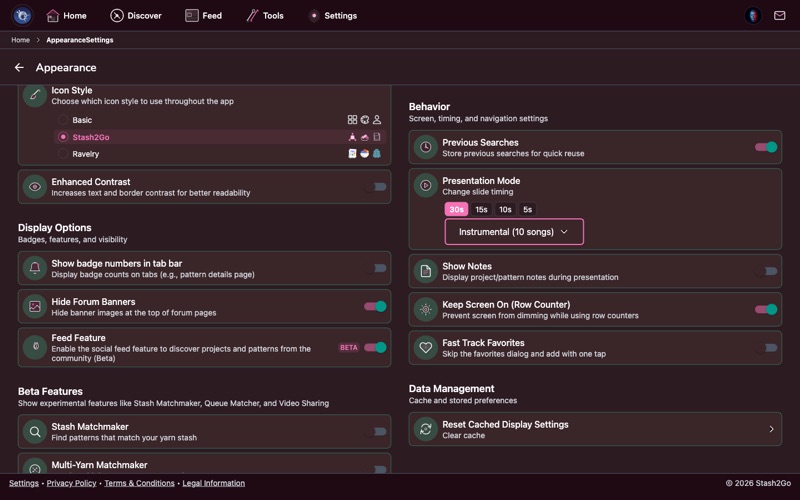
There are three icon packs to choose from: Basic (plain line icons), Stash2Go (hand-drawn craft icons), or Ravelry (the classic Ravelry look). You will find them in Appearance → Icon Style.
The Grouped Sections layout sorts features into four groups: Your Work, Explore & Discovery, Community, and Tools. Each group shows the actions that belong there, so you can go straight to what you need.
A project can show up to eleven tabs, a pattern seven. Only the first few fit across the screen. The rest sit behind More. You decide which is which.
Open More on any project, pattern, yarn, stash entry, bundle, volume, person or queue entry. At the top of its Pages list is an options icon. Tap it and choose Customize tab order. Drag a tab to a new place (on the web and on TV, use the arrows). The highlighted ones are the ones that stay in the bar.
Available on iPhone, iPad, Android, and web at app.stash2go.com