44I want to start without Ravelry
Get started with Google or Apple sign-in, then connect Ravelry later
- No Ravelry account needed. This is the way in for people who do not have one, or do not want one yet.
- A Google sign-in, or an Apple one on iPhone and iPad. You can connect Ravelry later without losing anything: see Move Your Data to Ravelry.
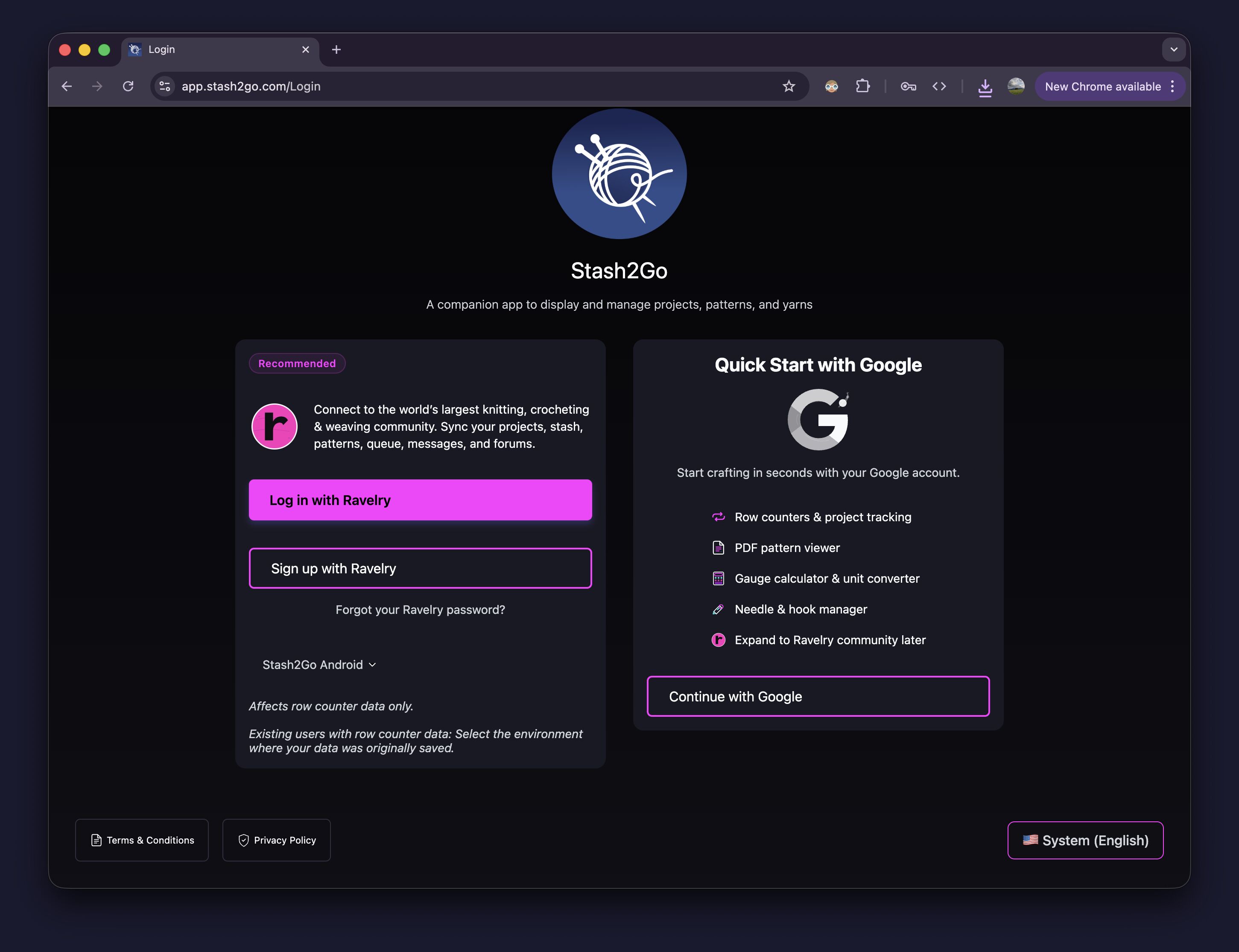
On the login screen, choose Continue with Google on the right side. On iPhone and iPad, Sign in with Apple works the same way. There is no Ravelry account to make. You are straight in, with row counters, the PDF pattern viewer, the gauge calculator, the needle manager and the rest.
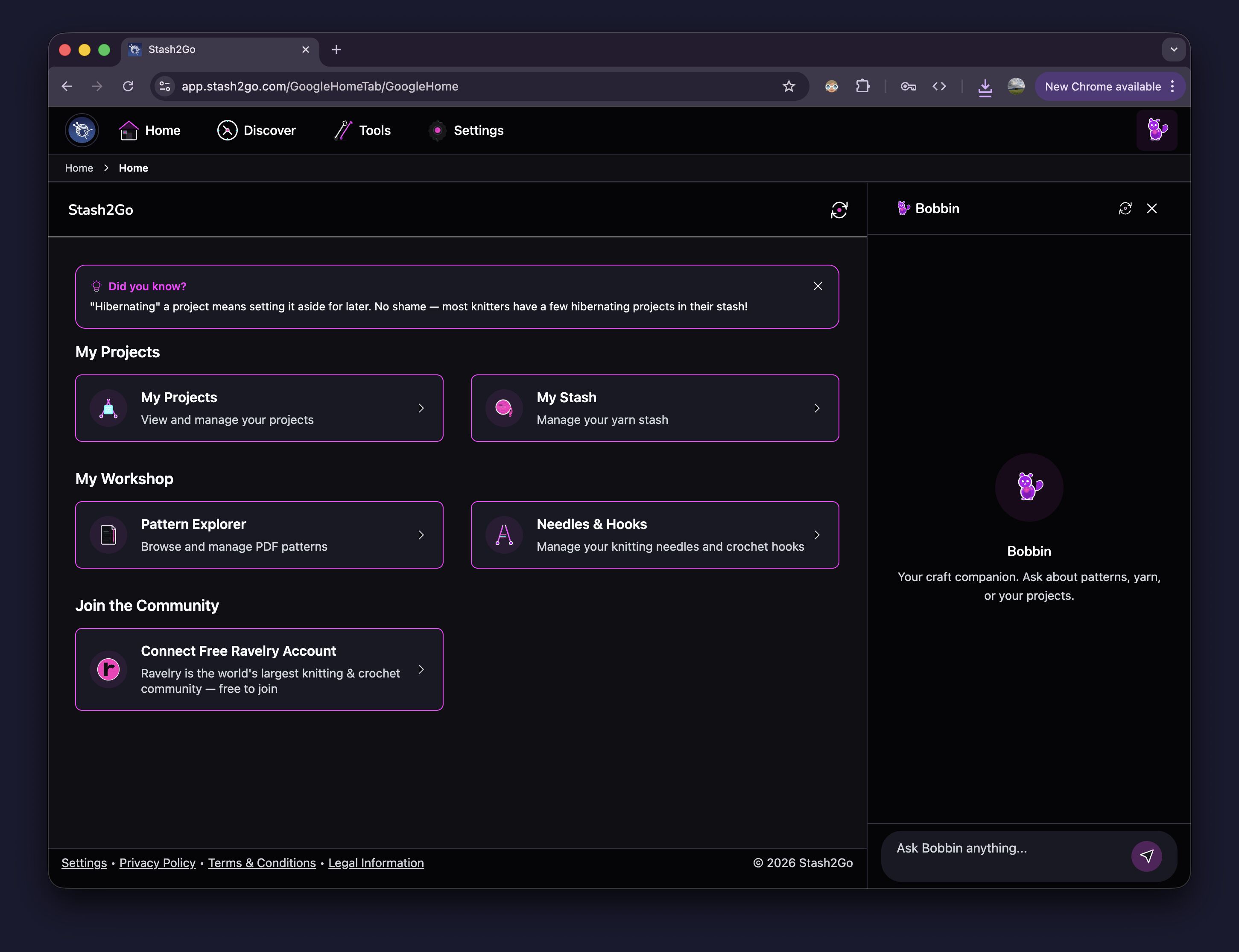
The home screen puts four things within reach: My Projects, My Stash, Pattern Explorer for your PDFs, and Needles & Hooks. Bobbin, your craft companion, is always there in the sidebar.
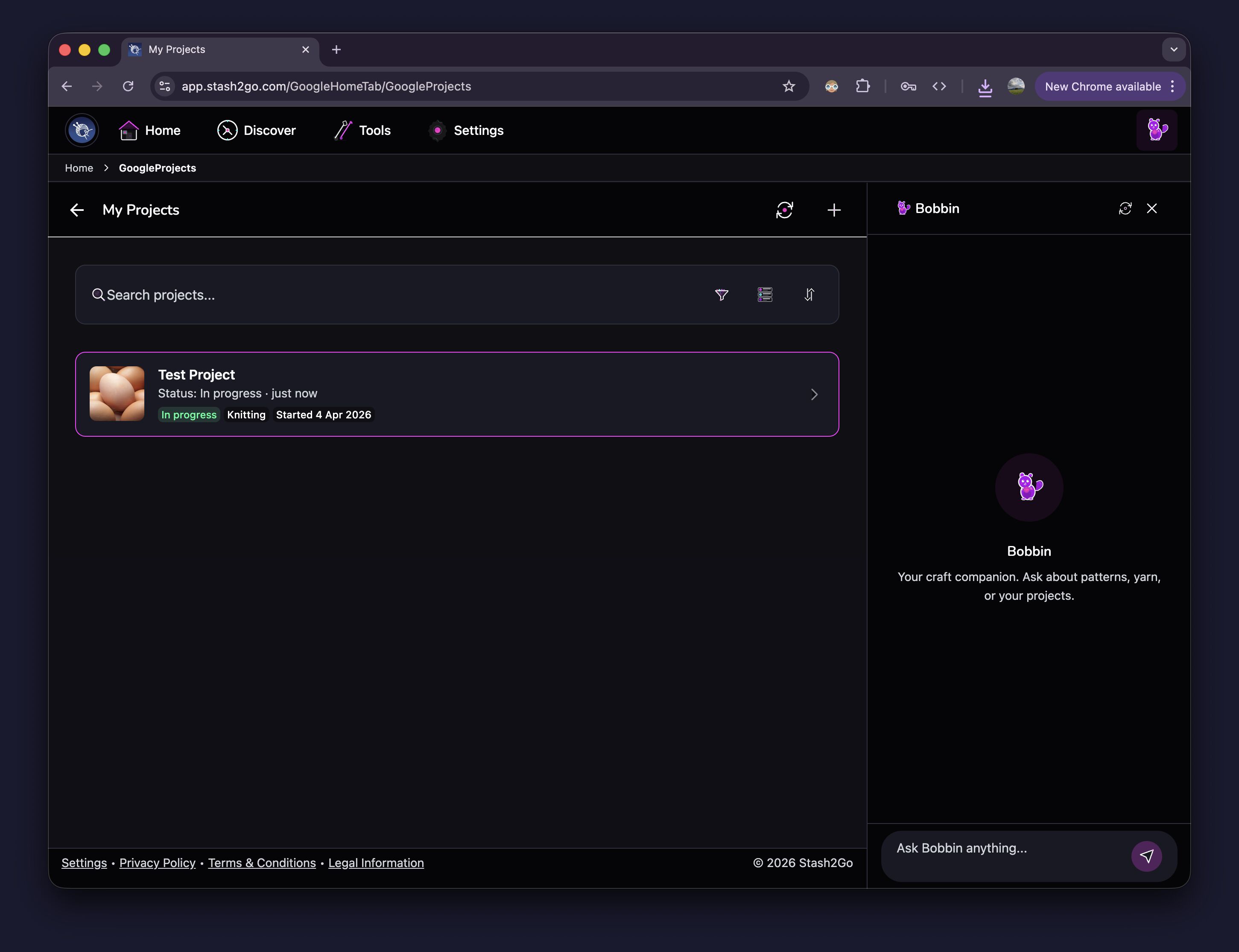
Make a project for each thing you knit or crochet. It keeps the status, the craft, the date you started and how far along you are. Search and filters get you back to any of them quickly.
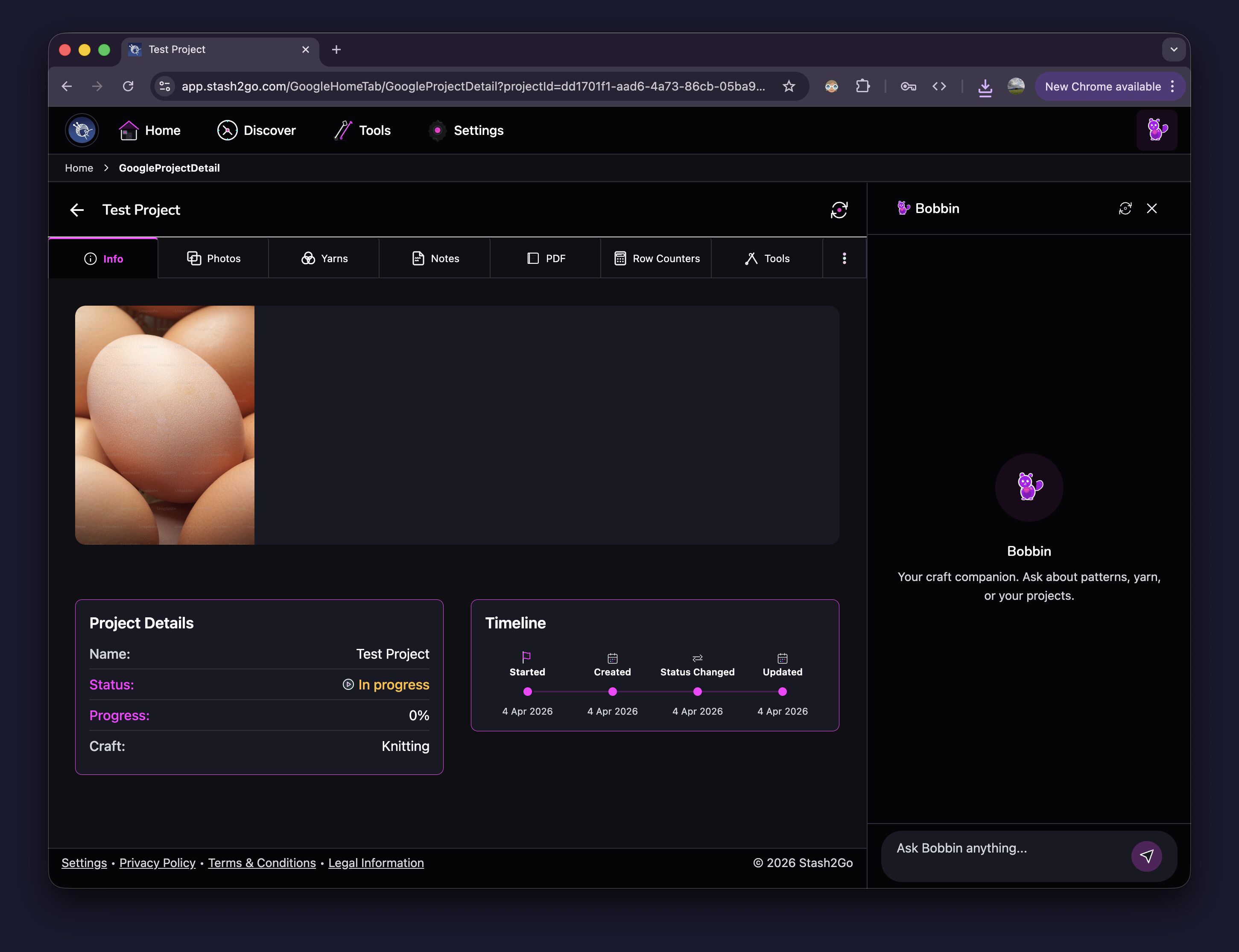
Each project has tabs: Info, Photos, Yarns, Notes, PDF, Row Counters and Tools. Everything about the piece stays in one place.
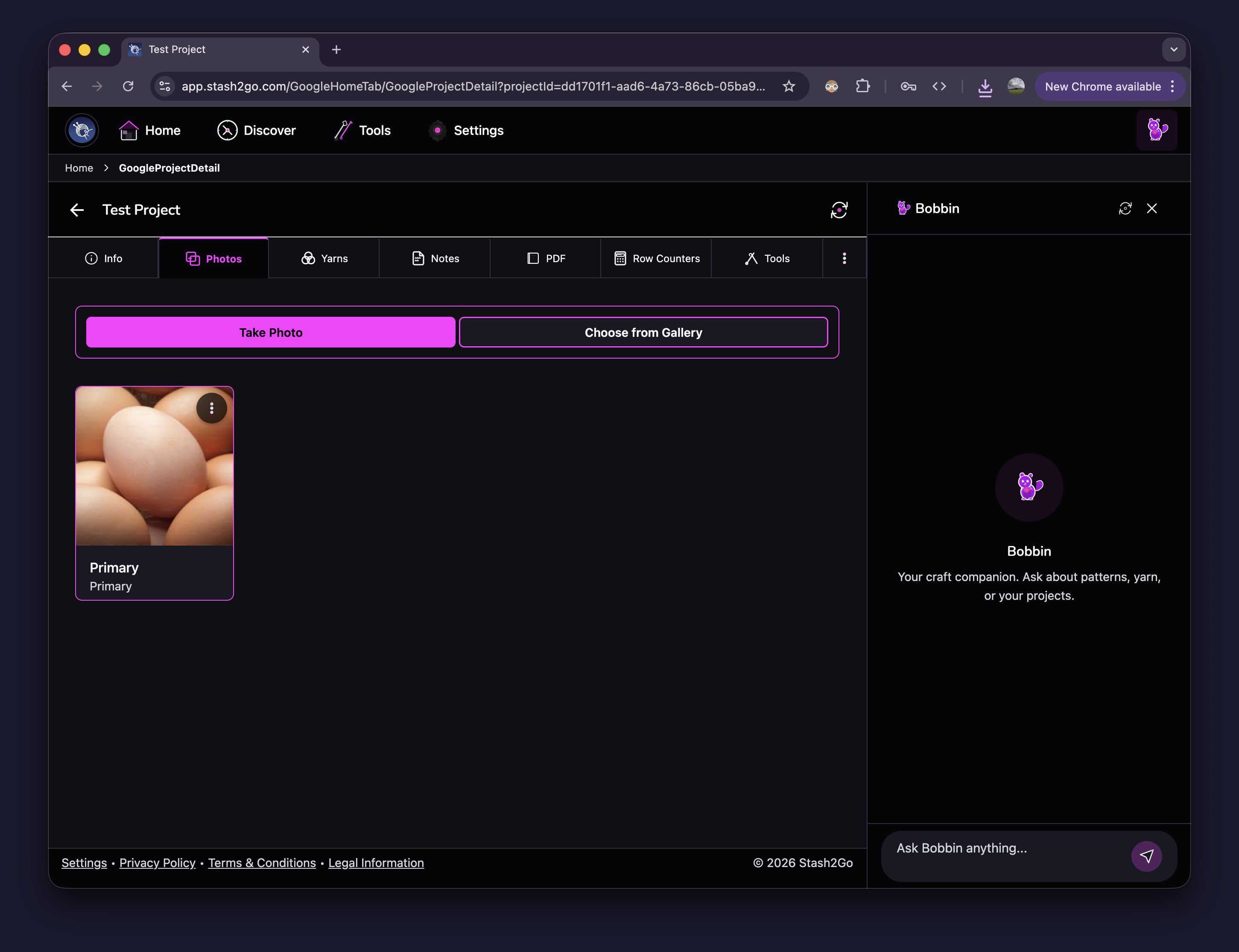
Take a progress photo with the camera, or pick one from your gallery. Photos are kept safely in your Stash2Go account.
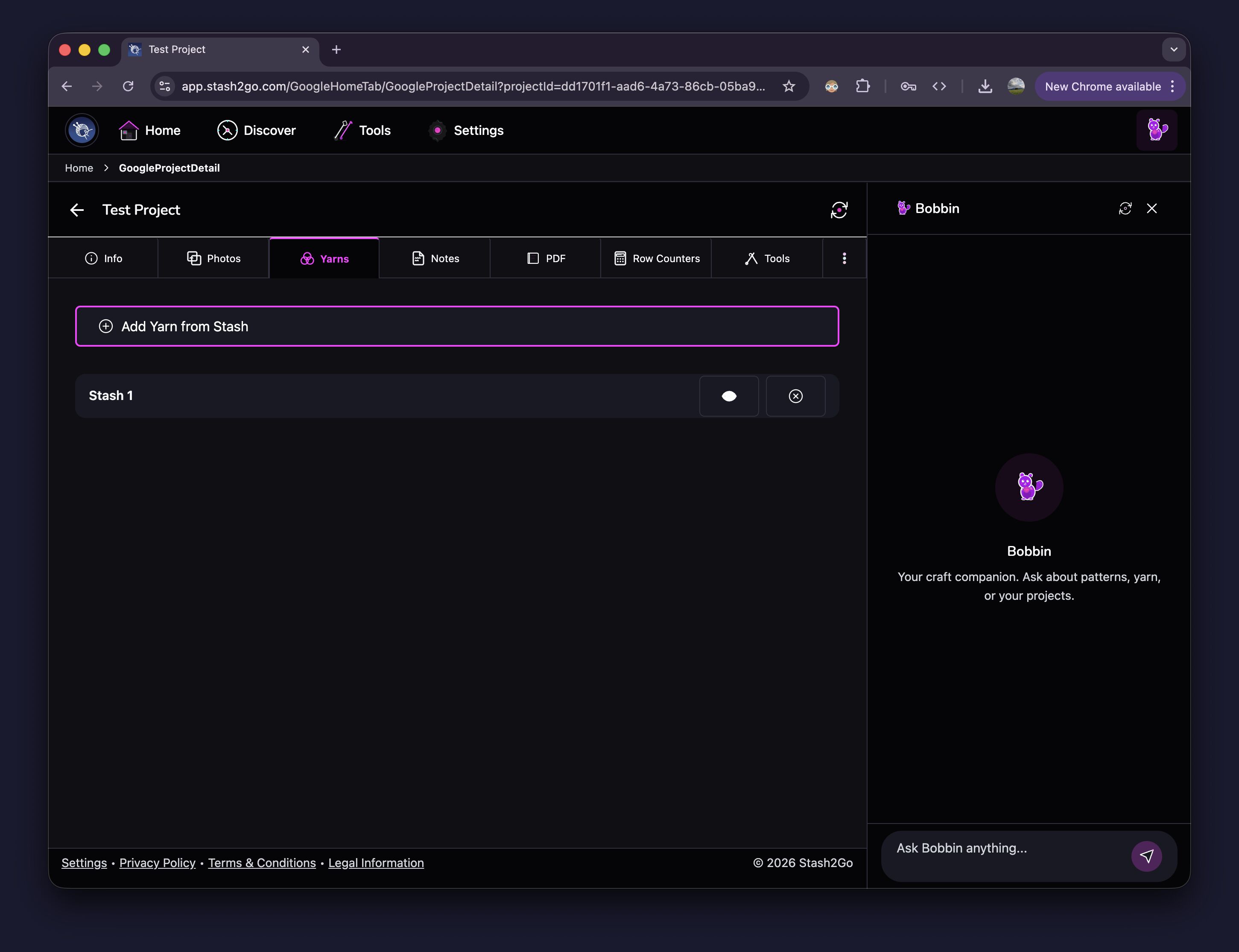
Attach yarn from your stash to any project. That records which yarns you are using, and how much you need.
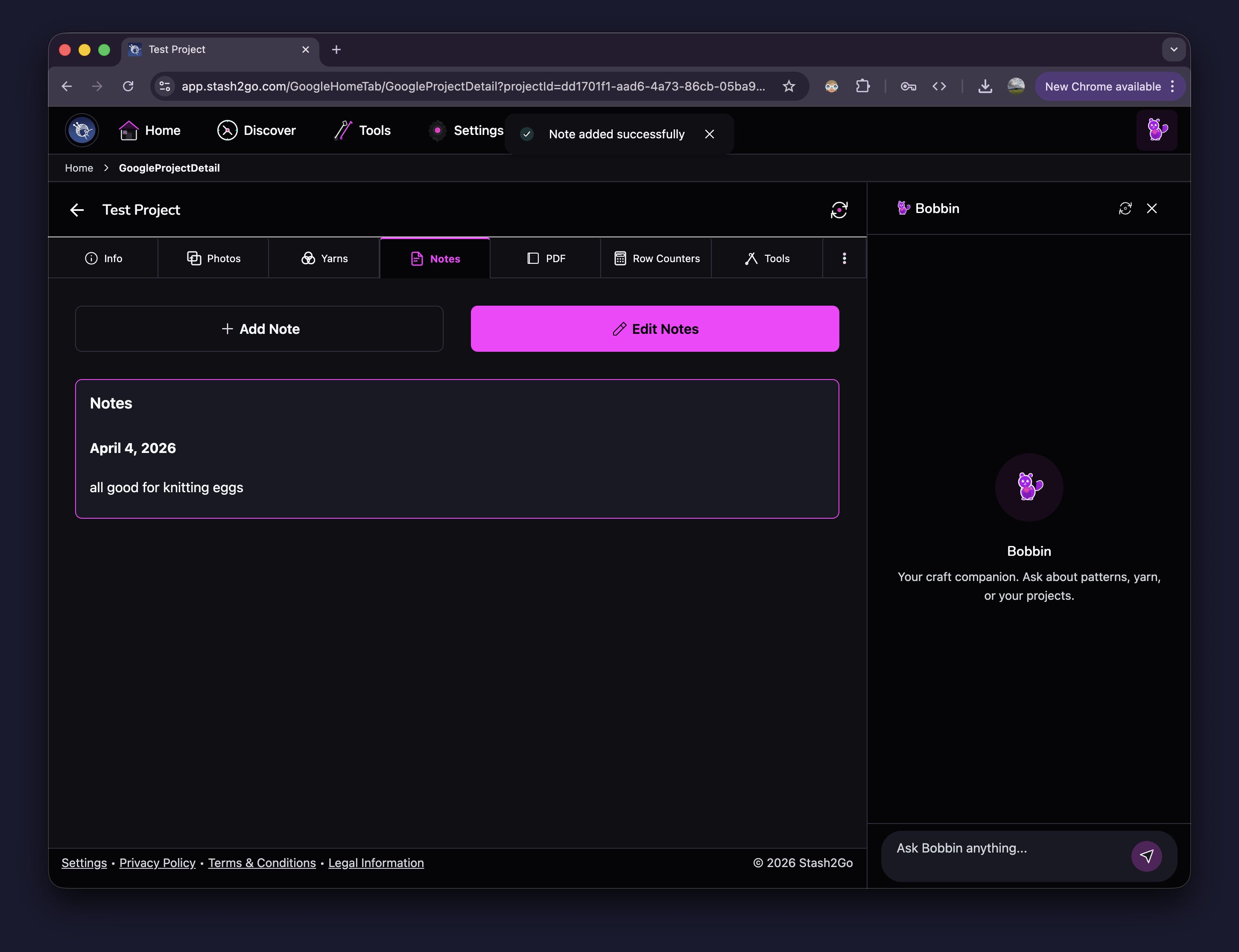
Add a dated note for a change you made, a measurement, or anything else you want to remember. Notes can be edited later.
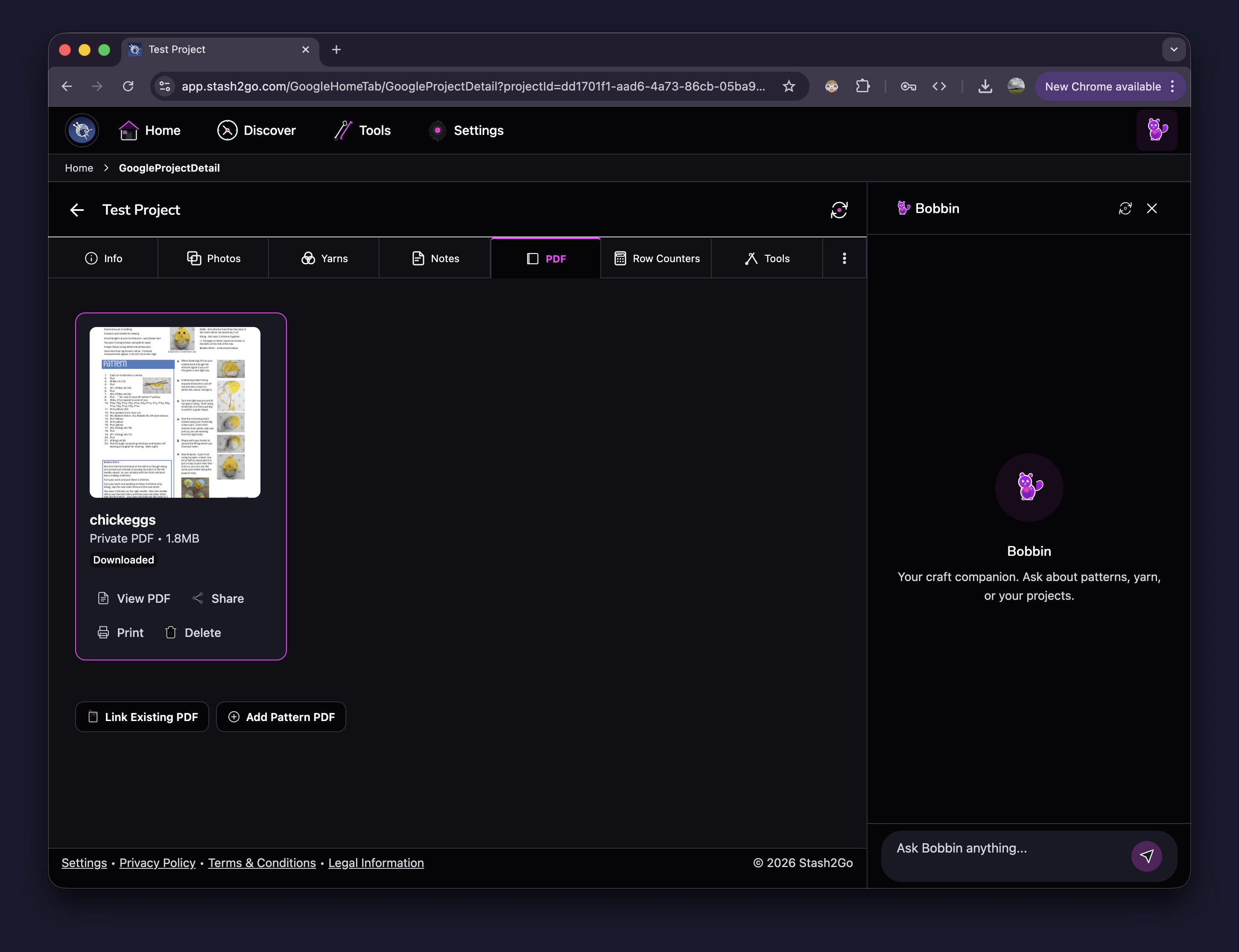
Link or upload a pattern PDF straight onto the project. Read it, share it or print it from the app. The Smart Reader is the better way to read one, with markers and counters.
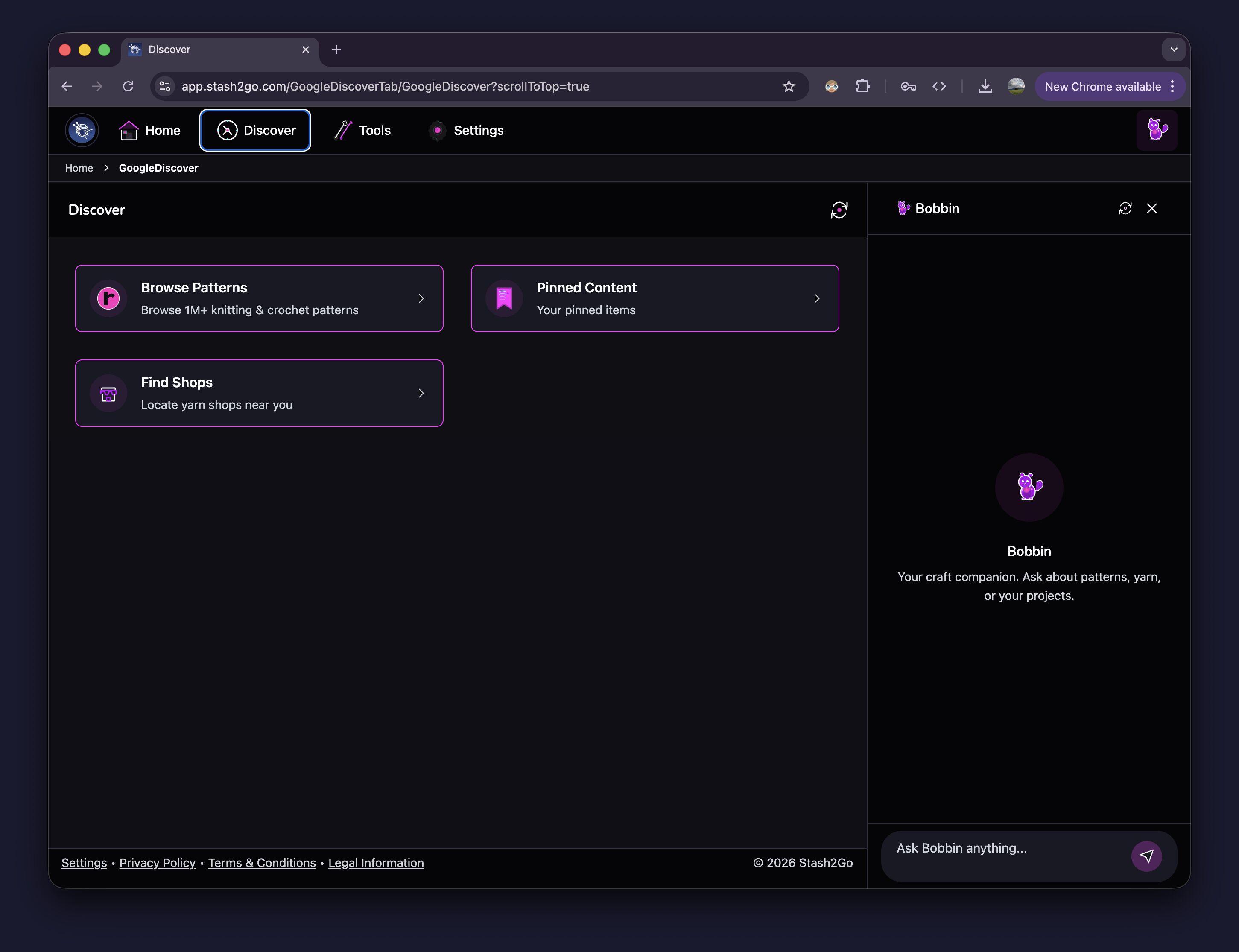
Look through over 1 million knitting and crochet patterns. Keep the ones you like with Pinned Content. Find yarn shops near you.
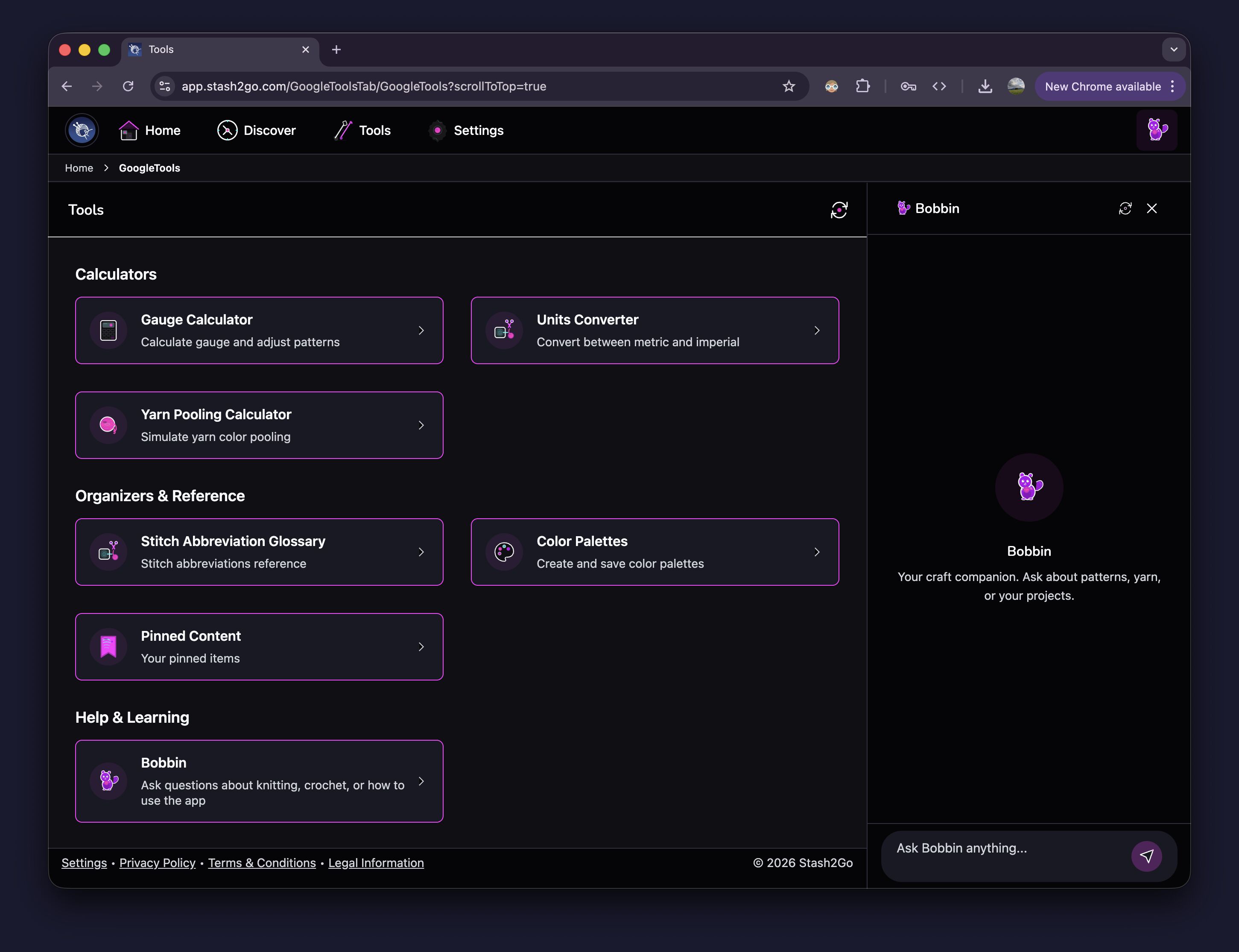
You get the Gauge Calculator, Units Converter, Yarn Pooling Calculator, Stitch Abbreviation Glossary, Color Palettes and Bobbin, your craft companion for questions about techniques and patterns.
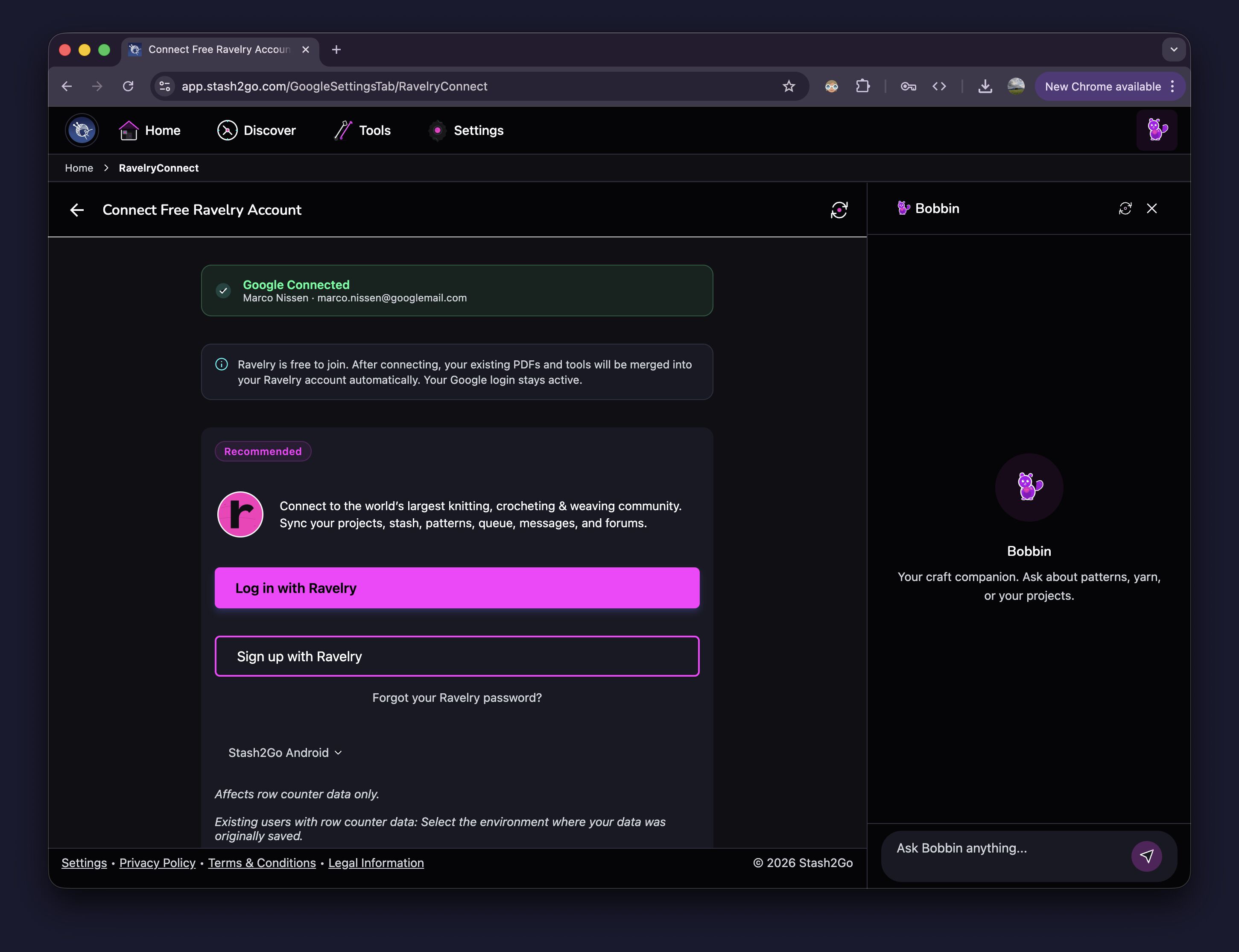
When you want to join the world's largest knitting and crochet community, go to Settings → Connect Free Ravelry Account. Your Google login keeps working, and both sign-ins then open the same account.
Connecting Ravelry does not move anything on its own. Your projects stay where they are until you ask for them to be copied across. Go to Settings → Migrate Projects to Ravelry. It shows you what it found and waits for you to tap Migrate Now. Nothing is deleted from Stash2Go by moving it.
Available on iPhone, iPad, Android, and web at app.stash2go.com