4I found a pattern I like
See what yarn it takes, read the comments, look at other people's photos, and start a project
- A Ravelry account for anything that saves: hearting, queueing, adding to your library.
- The Stats and Photos tabs are not shown in Basic mode.
- The Craft Value grade on the Stats tab needs that beta. The Colour Swatcher on the Yarns tab needs its own.
The full walkthrough – every card on the Info tab, all five tabs, and the actions.
A shorter look – tabs, yarn info, photos, comments and actions.
A walk through a pattern page: the tabs, the yarn, the photos, the comments and the actions.
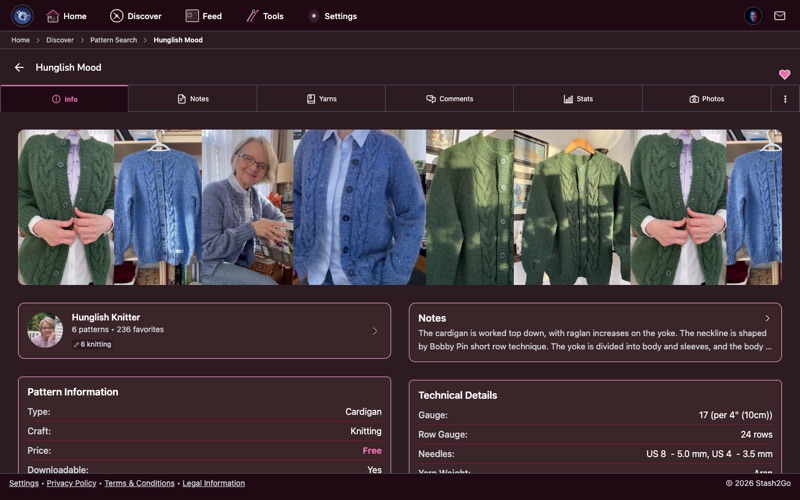
The Info tab is where you start. It has what you need to decide whether a pattern is for you: the yarn weight, how much yarn it takes, the gauge it was written for, the sizes it comes in, how hard it is, and what the designer says about it. Check the craft (knitting or crochet) and the yarn weight against yarn you already have, or plan to buy.
Pattern Information is the card everything else hangs off. It carries the pattern's name and its designer, the craft it is written for, and what it makes. Underneath are the numbers people judge a pattern by: the rating out of five, the difficulty other makers reported, the price, and whether you can download it here.
Technical Details is the part you read before casting on: the gauge, the needle or hook sizes the pattern was written for, the yarn weight, how much yarn it takes, and the sizes it is published in. If that gauge does not match the yarn you have, this is where you find out. Before you buy it.
Further down, Categories says where the pattern sits in Ravelry's own classification. The Timeline shows when it was published and when it was last changed. Sources says where you can actually get it: a book, a magazine, a Ravelry download, or the designer's own shop.
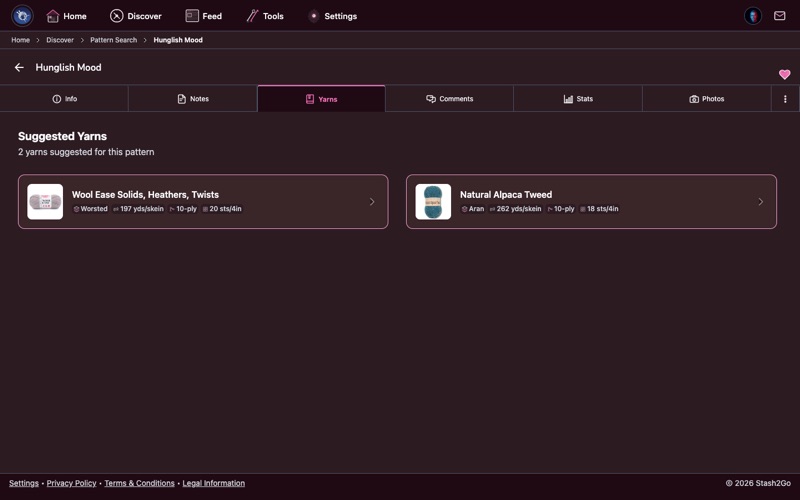
The Yarns tab lists the yarn the designer chose, and the ones other makers reached for instead. Each entry gives the name, the weight, what it is made of, and how many people used it. That is how you find a substitute when the original yarn is discontinued, or beyond your budget.
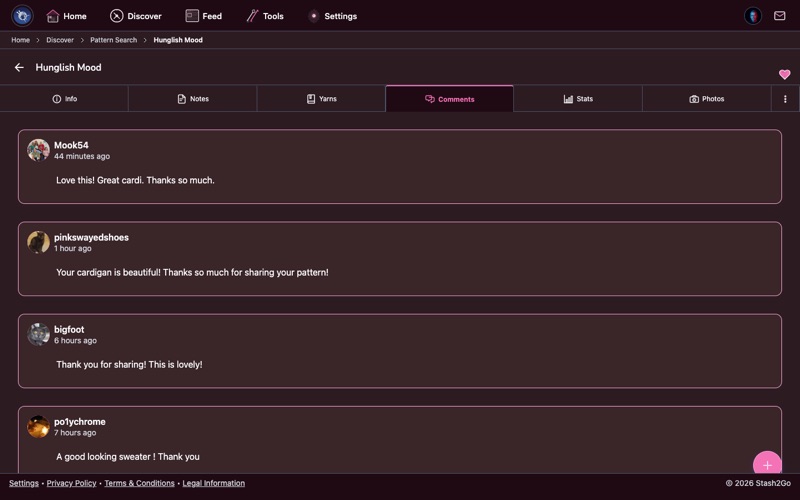
Comments are where the useful warnings live. Which section is tricky. Corrections the designer has posted. Sizes that run small. Changes people made and were glad of. A few minutes here can save you hours of unpicking.
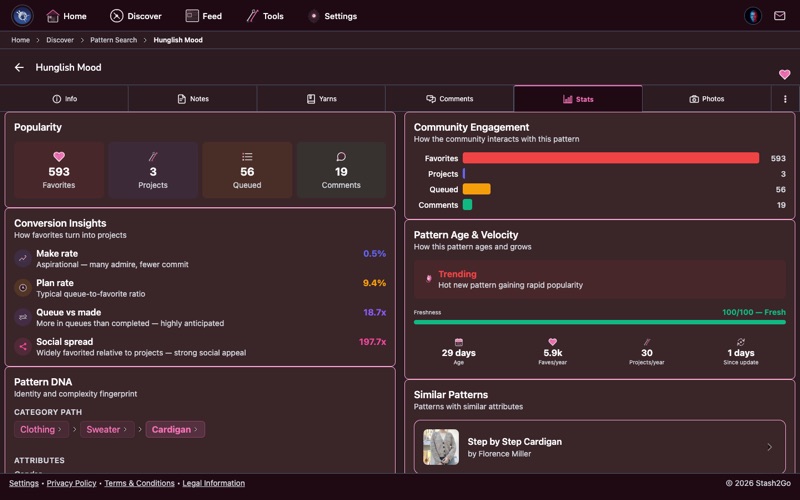
The Stats tab is the numbers: how many people have made this pattern, the average rating, how many have hearted or queued it, and what recent projects say about it. Hundreds of finished projects and good ratings usually mean a safe bet. A small number can simply mean the pattern is new, or unusual.
If you have switched on the Craft Value beta (Settings → Appearance), the Stats tab also shows the pattern's Craft Value grade. That is a verdict, built from what the community has actually made, on whether the pattern is worth making, with the reasoning written out.
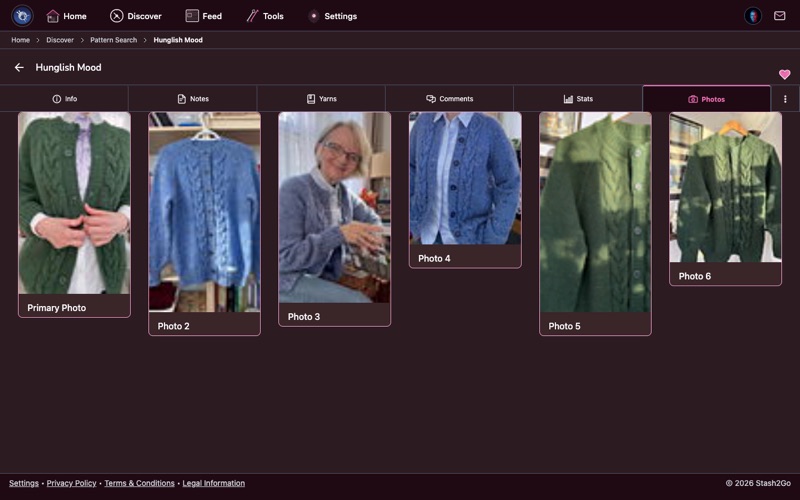
The Photos tab is a gallery of finished things made by other people. You see the pattern in different colours, in different fibers, and on different bodies. It is the best way to picture your own version before you commit to it.
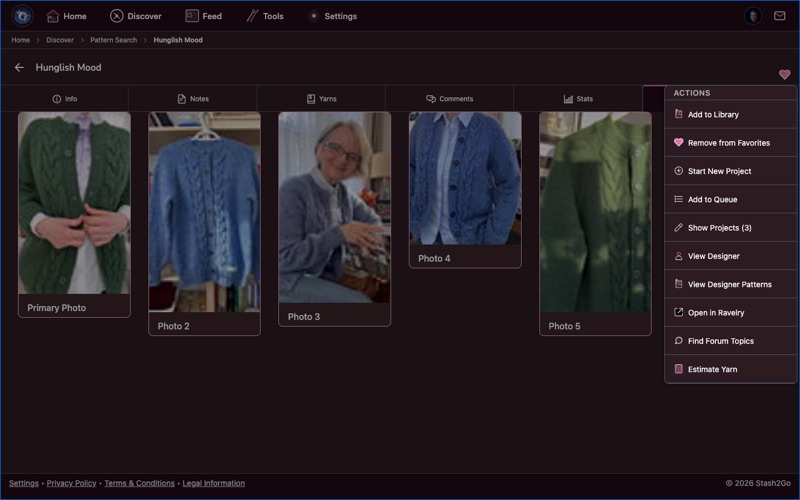
Tap the menu icon to see everything you can do with this pattern. Add it to your favorites, start a project, put it in your library or your queue, look at the designer's other patterns, open it on Ravelry, and more. What is offered changes depending on whether the pattern is free or paid.
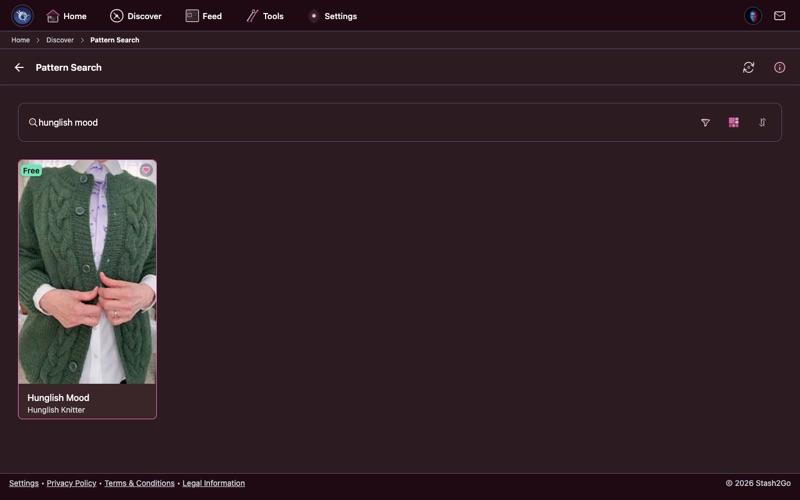
Tap the heart in the header to add a pattern to your favorites. It is saved to your Ravelry account, and the heart turns red. You can add a comment and tags at the same time, and file the pattern in a bundle: your own collection, like "Summer Tops" or "Gift Ideas".
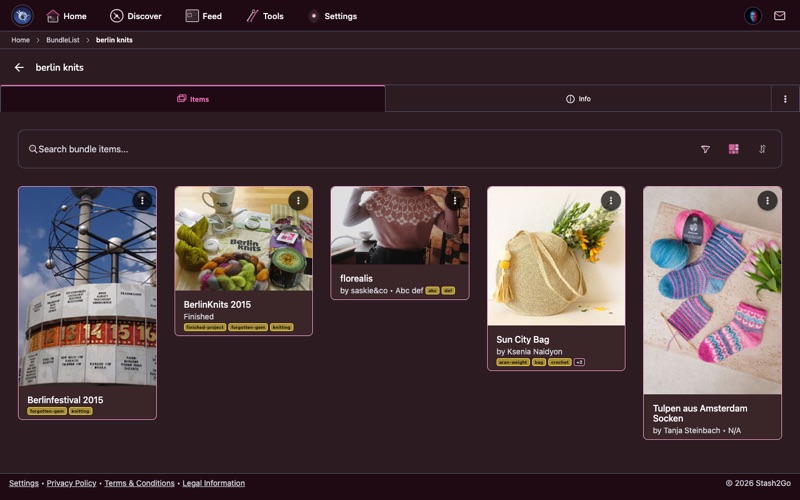
Open a bundle to see everything you have collected in it. A bundle can be public (anyone can see it), private (only you), or friends-only. Each one shows its cover photo, its description and everything inside. You can add patterns, take them out, and share the bundle. (Changing the order of a bundle is done on ravelry.com. The app can sort by that order, but not change it.)
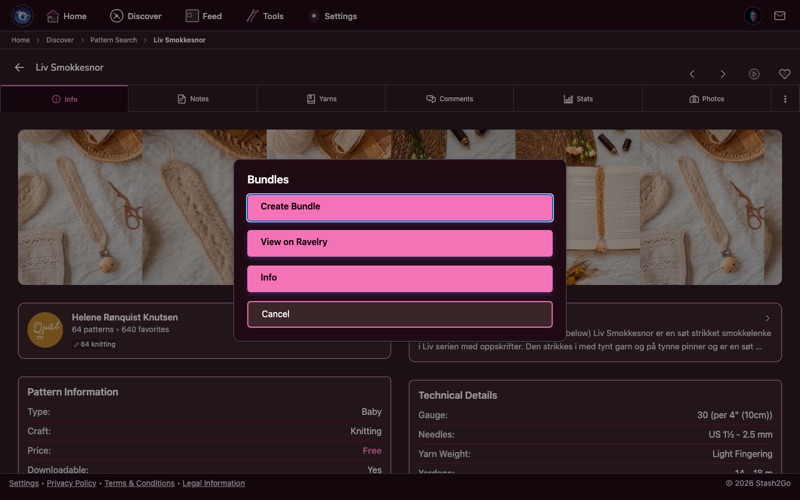
From your bundles, tap the menu. Create Bundle starts a new one, View on Ravelry opens it on the Ravelry website, and Info shows the description and who can see it. A bundle can be public, private or friends-only.
Besides hearting and queueing, a pattern's actions can Pin it so you can come straight back, Present it fullscreen (or on a television, see Show Your Craft on a Screen), Share it, find forum topics about it, and estimate the yarn it needs in the size you are making.
A pattern with designer notes gains a Notes tab as well. Your own tab order applies here too: open More and use Customize tab order to put Stats or Yarns where you actually reach for them.
Available on iPhone, iPad, Android, and web at app.stash2go.com