6I need a substitute yarn
Search yarns, and compare fibers, weights, colorways and brands
- Nothing to switch on, and no account needed to browse the yarn database.
- A Ravelry account to add yarn to your stash or favorite it.
- Scan Yarn is an assisted feature. It asks for your consent the first time you use it.
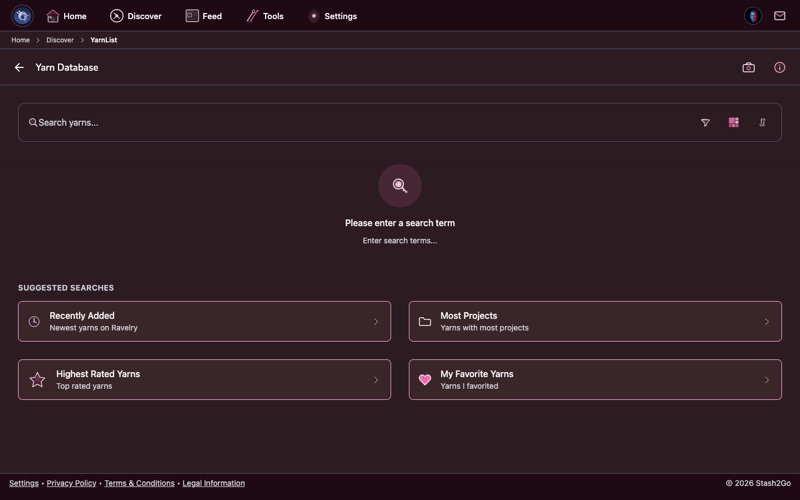
Go to the Discover tab and tap "Yarn Database". That opens Ravelry's yarn database: thousands of yarns from hundreds of brands.
A walk through the yarn database: searching it, reading a yarn page, looking at its colorways, and finding the brands and patterns behind it.
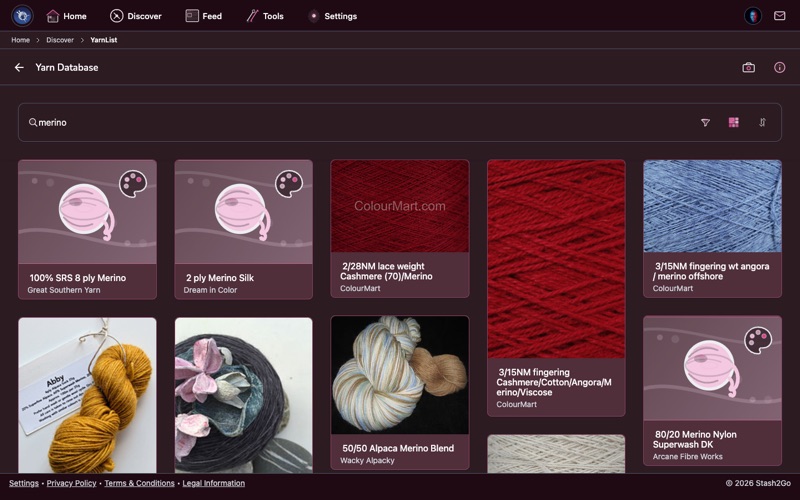
Search by name, or use the filters. You can narrow by weight (lace up to super bulky), fiber content (wool, cotton, silk, alpaca and more), color family, and brand.
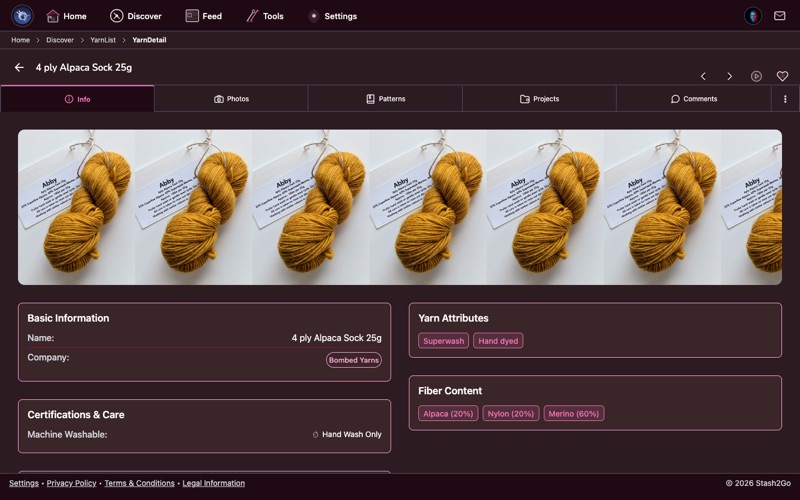
Tap any yarn to see the whole picture: what it is made of, its weight, its gauge range, how much is in a skein, the colorways it comes in, and how other makers rated it.
See every colorway a yarn comes in, with photos from other makers showing how each one looks knitted or crocheted up. That is worth a great deal when you are choosing a colour on a screen.
On the Colorways tab, tap a colour and it searches every Ravelry stash for it. That is how you find a discontinued shade someone is willing to trade, instead of deciding it has gone for good.
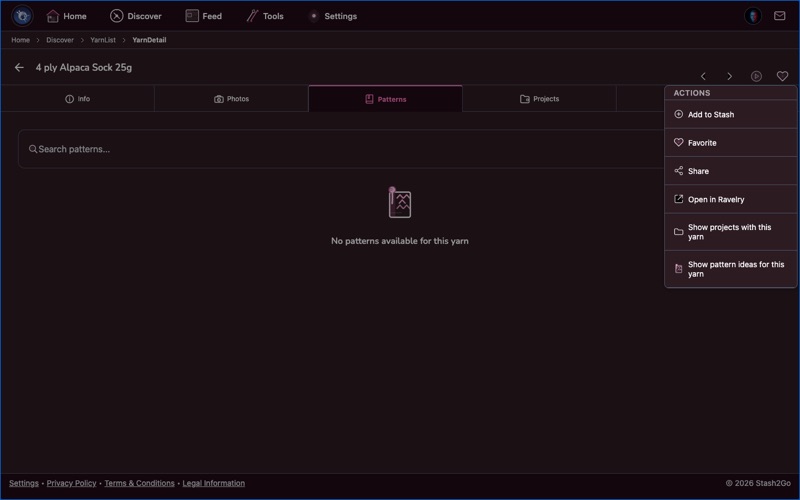
From a yarn's page you can see which patterns were written for it, and which ones people often use it for. Handy when you have the yarn already and need something to make with it.
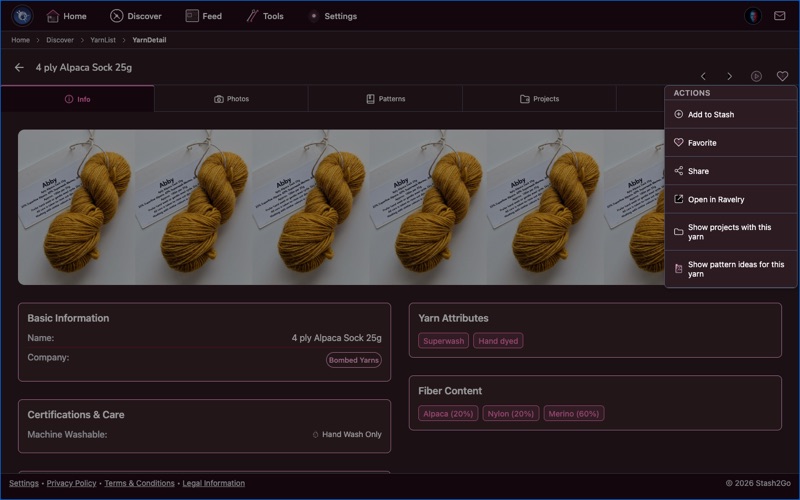
A yarn's page has tabs. Info holds the weight, fibre, yardage, gauge and needle size. Then come Photos, Notes, Colorways, the Patterns written for it, the Projects other people have made in it, and Comments. Its actions also take you to the maker's own website, to projects using it, and to pattern ideas for it.
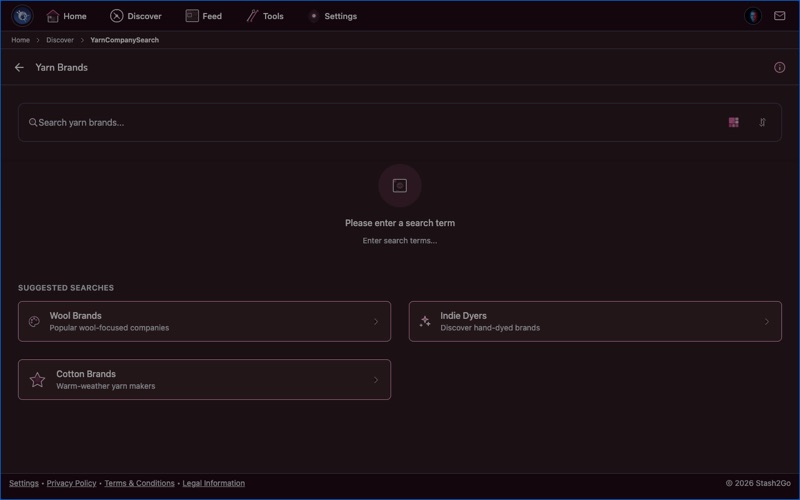
Look through yarn brands and everything they make. Find every yarn from a company you already like, or come across an indie dyer or mill you have not met.
Tools → Yarn Tools → Scan Yarn points your camera at a ball band and tells you what the yarn is. It does not add it to anything. Useful for the skein in your hands whose name you cannot read, or cannot pronounce.
Available on iPhone, iPad, Android, and web at app.stash2go.com