5I want to organize my yarn
Browse your stash, view details, photos, and colorways
- A Ravelry account. Your stash is kept on Ravelry, so it is the same stash you see on ravelry.com.
- Nothing to switch on. The stash works in Basic mode and in Advanced mode. Stash Insights (step 9) is the one exception: it lives in Tools, and Basic mode hides it.
- Works on iPhone, iPad, Android and the web.
The full walkthrough – filter and sort, every tab of an entry, insights and bulk actions.
A shorter look – browsing, filtering and organising the collection.
A walk through the stash: browsing it, filtering it, and getting it in order.
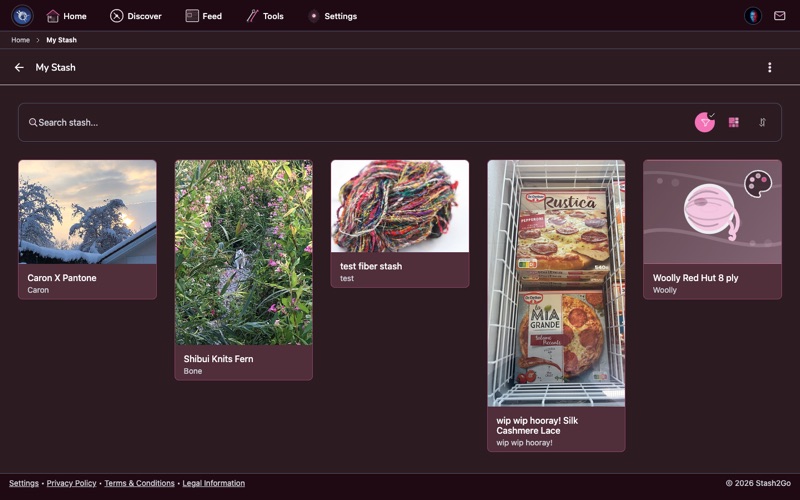
Tap the My Stash tile on your home screen to see all the yarn you own. Each entry shows the yarn name, the colorway, the weight and a photo, so you can take it in at a glance.
To add yarn, open the menu on the stash list and choose Stash Yarn. Search the Ravelry yarn database for what you bought. Then record the colorway, the dye lot, how much you have, where you keep it, and, if you like, what you paid and where. You can also start an entry from a yarn page, which fills the yarn in for you.
- Stash entry
- One yarn in one colorway that you own - the row in your stash list.
- Pack
- The quantity attached to that entry: how many skeins, how many metres or yards, which dye lot. Allocating yarn to a project makes a second pack that belongs to the project.
- Colorway
- The colour name the dyer gave it. Two skeins of the same colorway can still differ - see dye lot.
- Dye lot
- The batch a skein was dyed in. Mixing lots in one garment can show as a faint stripe, which is why it is worth recording.
- Remaining vs starting
- Starting is what you had; remaining is what is left after the amounts you have allocated to projects.
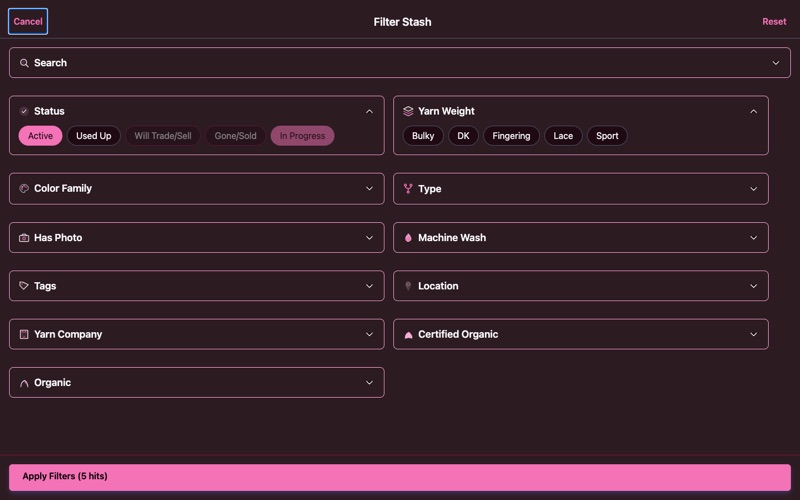
Tap the filter icon to cut the stash down. You can filter by yarn weight, color family, fiber content, status and more. You can sort alphabetically, or by yarn weight, colour family, remaining yardage, grams, company, status, storage location, most favorited, or when it was added or last updated. Two of those, most available length and most available weight, go by what is left after you have set yarn aside for projects.
Each entry shows its length, skein count and weight in the list itself, so you can compare amounts without opening every yarn. When you sort by remaining yardage, the up-to-date amounts are fetched for the rows you can see, as you scroll.
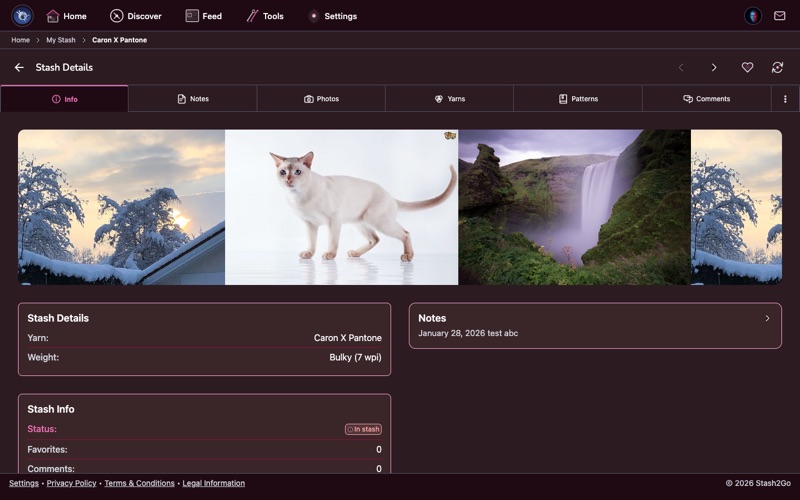
Tap any yarn for the full picture: fibre content, weight category, how much is left, the colorway and what you paid. The Info tab has what you need to plan the next project.
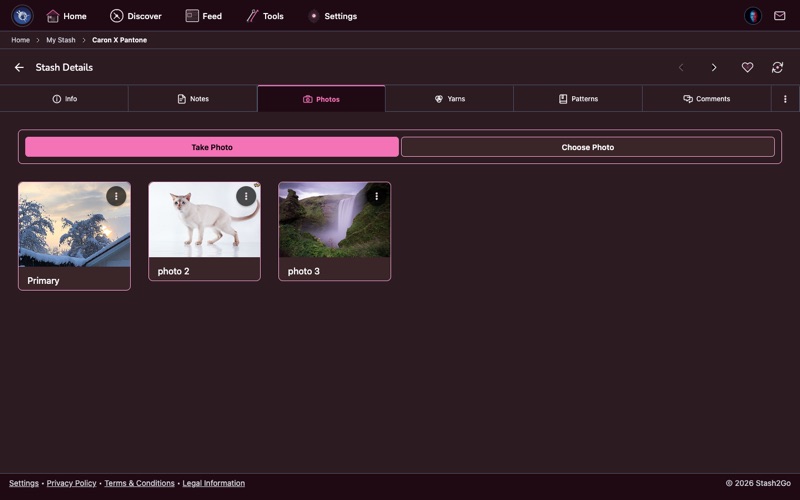
The Photos tab holds every photo you have taken of that yarn. It is how you remember the exact colour when you are standing in a yarn shop, or matching yarn for a project.
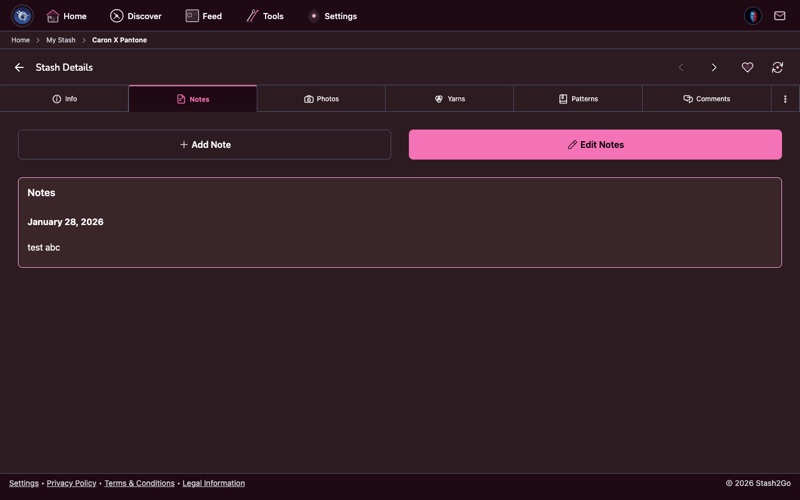
The Notes tab is for whatever you want to remember: where you bought it, what you mean to make with it, how it feels to work with. Notes go to Ravelry too, so they are always with you.
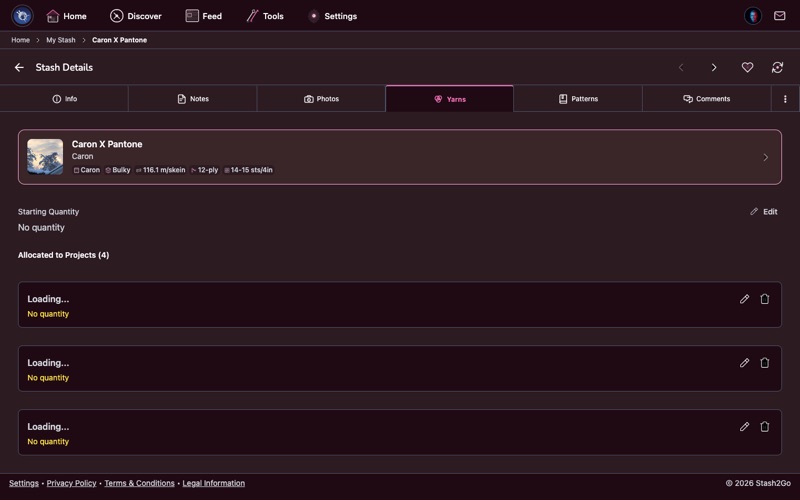
The Yarns tab is where the yarn is counted: the yarn and colorway, the dye lot, where and when you bought it, how much you started with, and how much is allocated to projects. You can set yarn aside for a project from here, or take it back again.
A stash entry is one colorway you own, so it names that one rather than listing them all. To see every colorway a yarn comes in, tap the yarn here to open its yarn page. Its Colorways tab shows the whole range. See Find a substitute yarn.
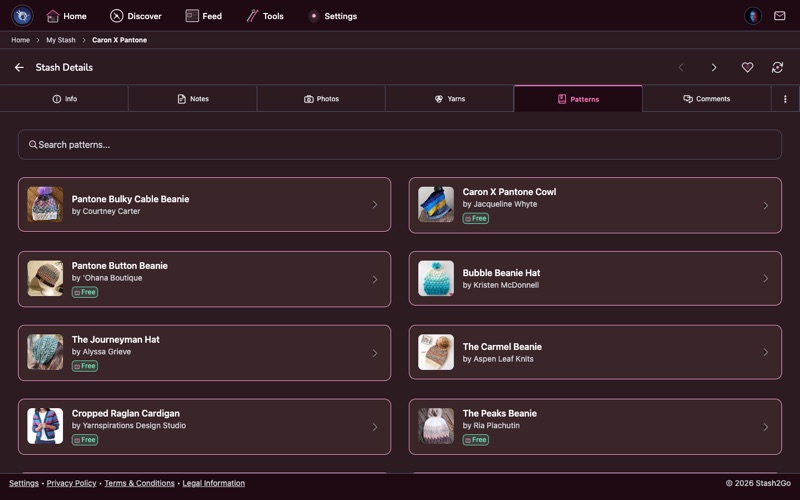
The Patterns tab shows patterns that work with this yarn, going by weight and gauge. You can look for ideas without leaving your stash, and start a project straight from here when you find one you like.
A stash entry's Yarns tab has Purchased on and Purchased at: the date and the shop. The entry's Info tab then shows the purchase as a point on its timeline. It is worth filling in. Two years later, "where did I get this, and was it expensive" is exactly the question the yarn itself cannot answer.
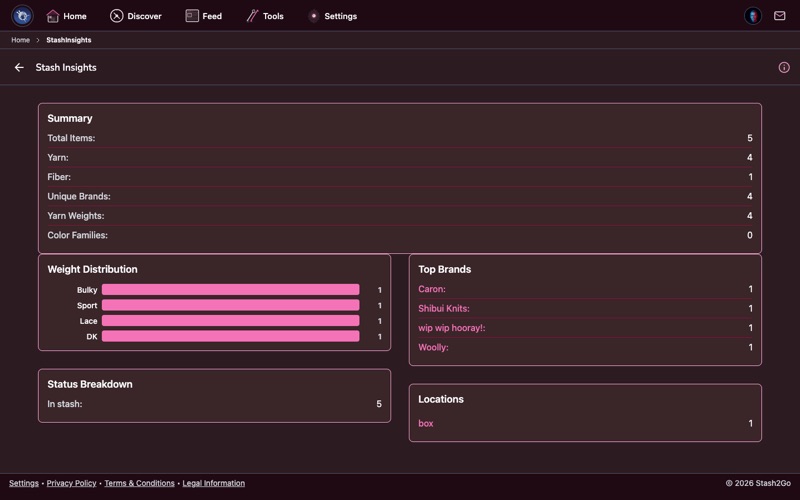
Open Stash Insights from the Tools tab to see the whole collection from above: how much yarn you have altogether, which weights, which colours, which brands come up most, and where it is all kept.
Open the menu on the stash list and choose Select for Bulk Update. Now tap the yarns you want, or use Add All to take every one you can see. A floating basket button counts what you have picked.
Tap the basket button to open the bulk actions panel. It does two things to everything you picked: Change Status and Change Location. Afterwards an undo banner appears, in case you want it back the way it was.
Open an entry and its actions menu holds the rest. Edit its details. Add another colorway, which copies the entry and changes the colour, the quick way to record the four shades you bought together. Use it for a project, find patterns for it, share it, or delete it.
Its Photos tab takes pictures from your camera or your library. That is worth doing. A photo of the actual skein tells you more about the colour than any name, and it is what the Colour Swatcher and Studio work from.
Available on iPhone, iPad, Android, and web at app.stash2go.com