11I want to share a project video
Make a little slideshow film of your project and share it
- Video Sharing is a beta and starts off. Turn it on in Settings → Assisted Features → Video Sharing. It is hidden while Turn AI off completely is on.
- A project or pattern with photos to make a video from.
- Simple videos are free. The full wizard, with music, effects, captions and format, is premium.
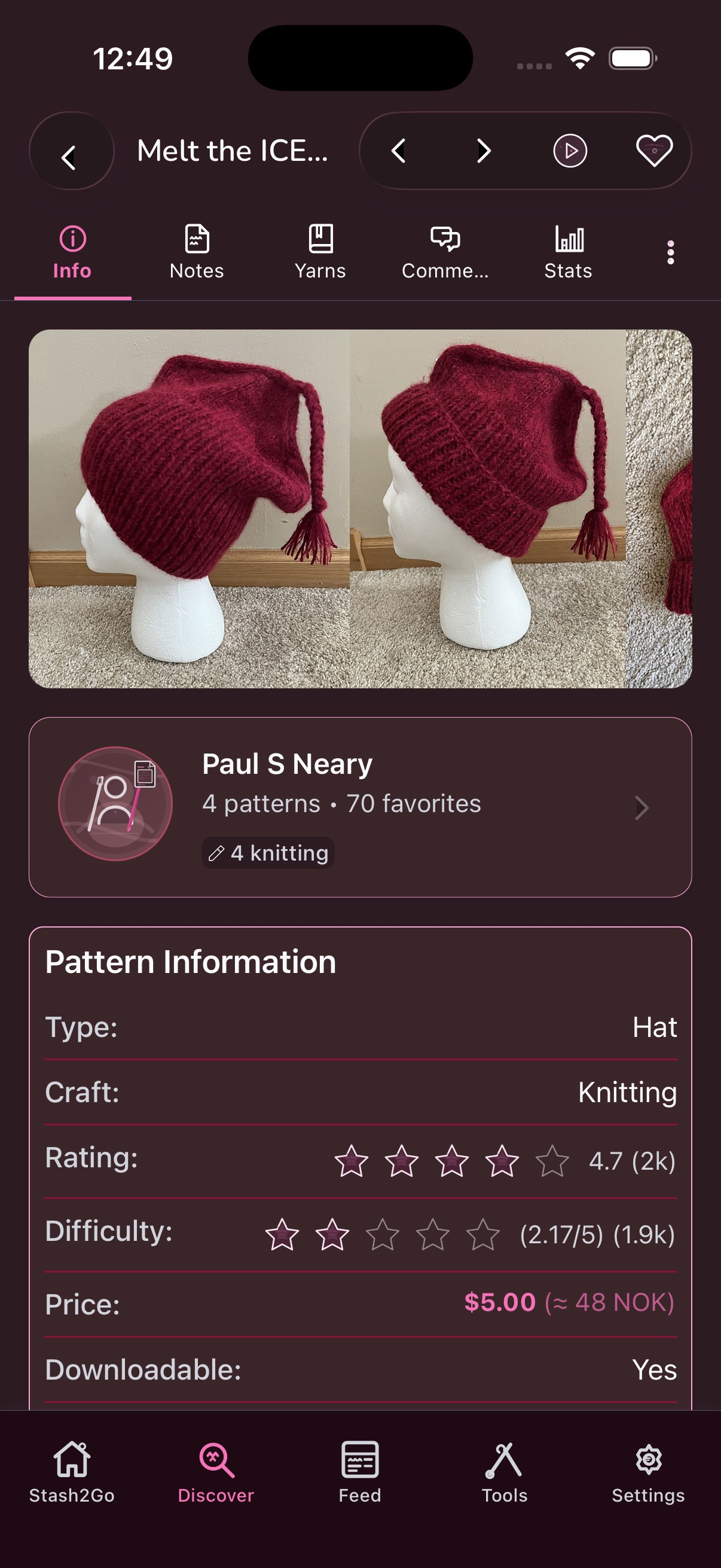
Open any pattern's page. You will see its photos, who designed it, and all the details about it.
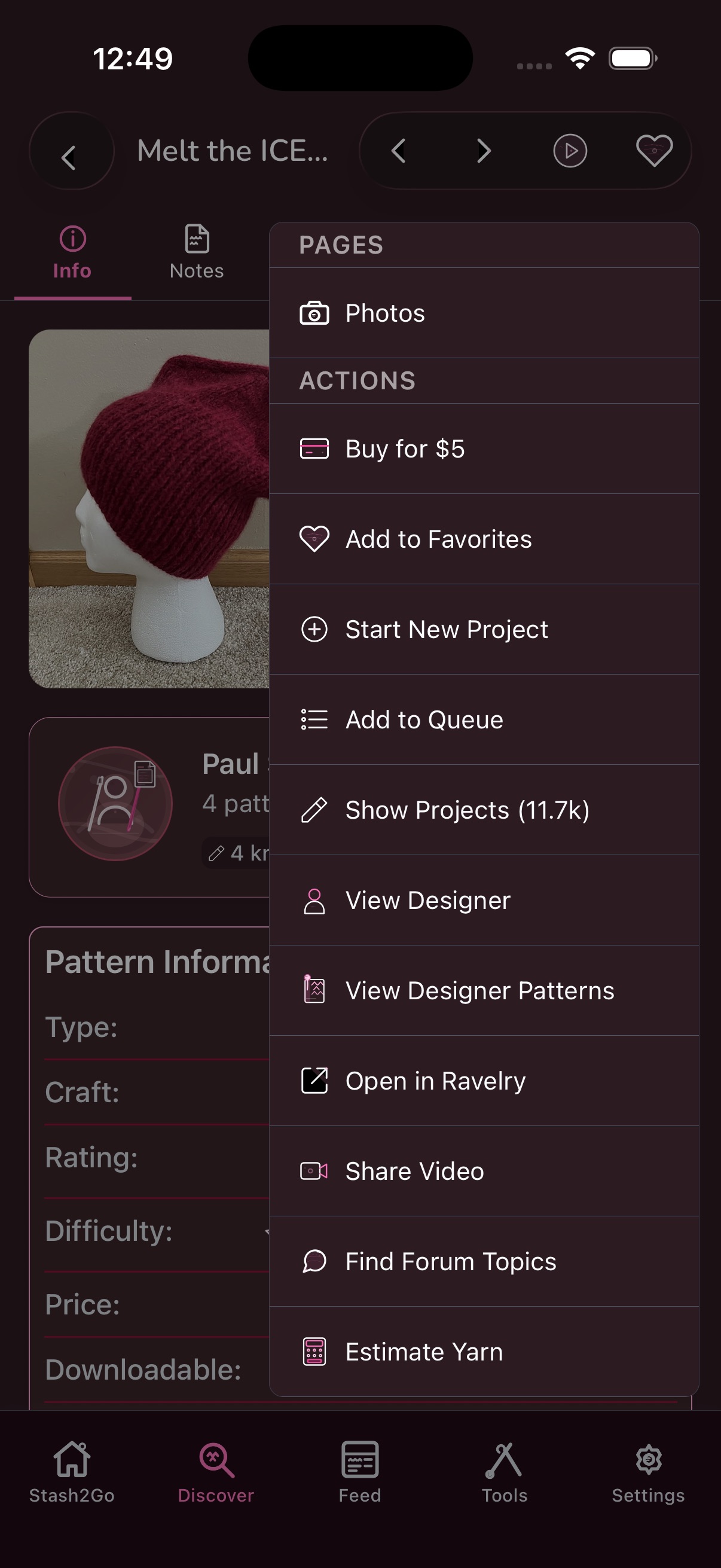
Video Sharing is a beta and it starts off. Turn it on first in Settings → Assisted Features → Video Sharing. It sits there rather than with the other betas because the captions are written for you. If the master switch Turn AI off completely is on, the feature is hidden entirely, and you cannot switch it on until you turn that off. Then tap the actions menu (top right) and choose “Share Video”. That opens the video wizard, which takes you through it a step at a time, with a progress bar along the top.
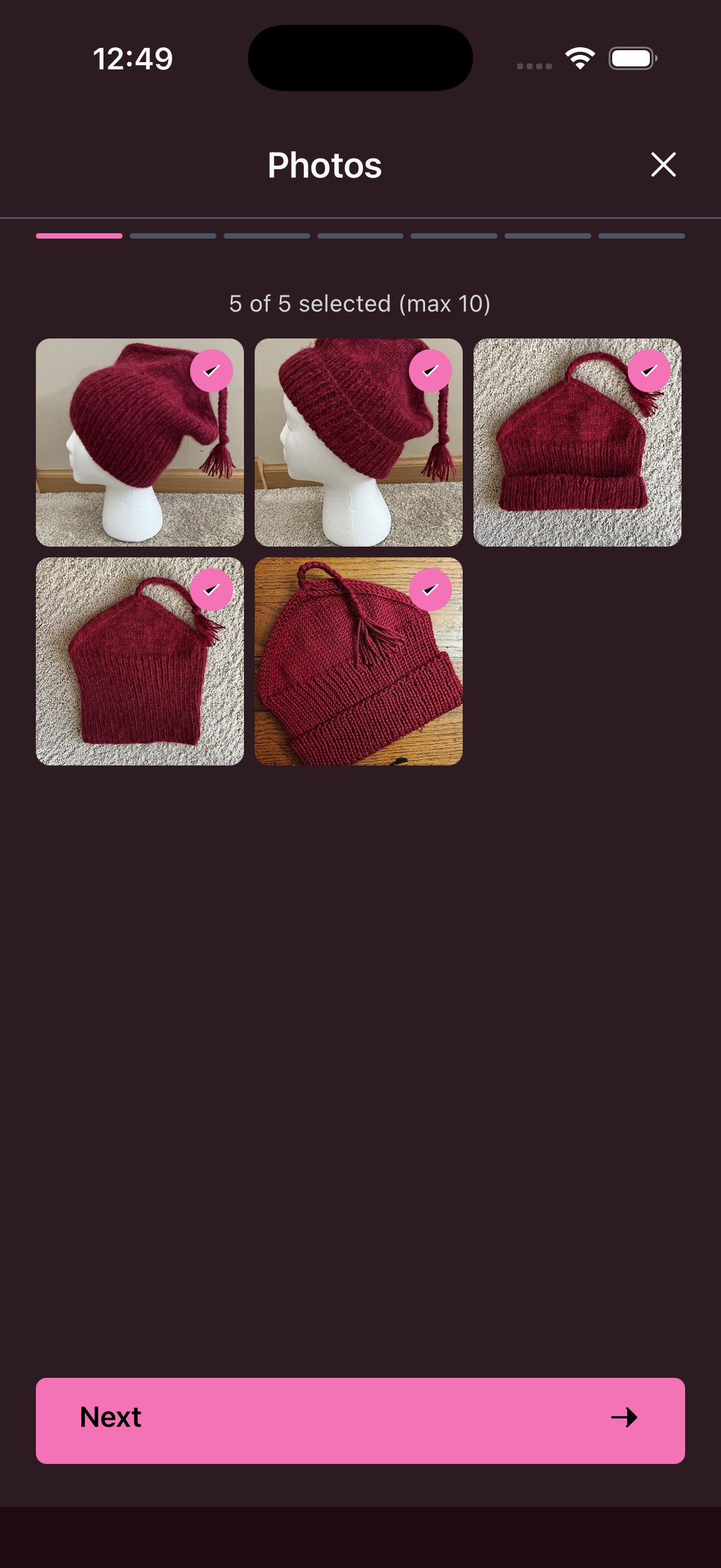
Choose the photos you want, up to 10 photos in one video. Tap to pick one, tap again to drop it. The ones you have picked show a badge with their place in the running order.
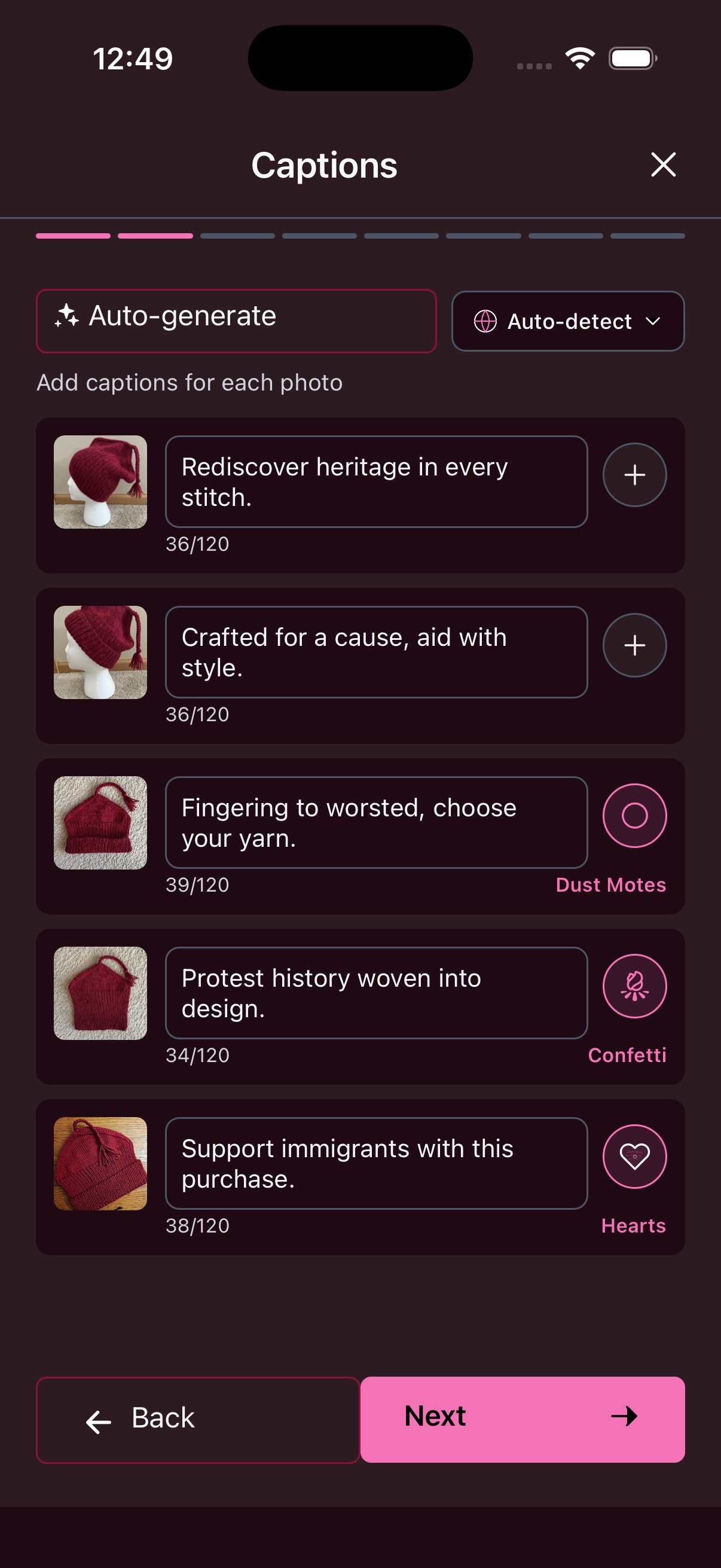
Write a caption for each photo, up to 120 characters. Tap “Auto-generate” and the app writes them for you, or type your own. Each photo also gets a visual effect. Tap the effect icon to pick from Dust Motes, Confetti, Hearts and more.
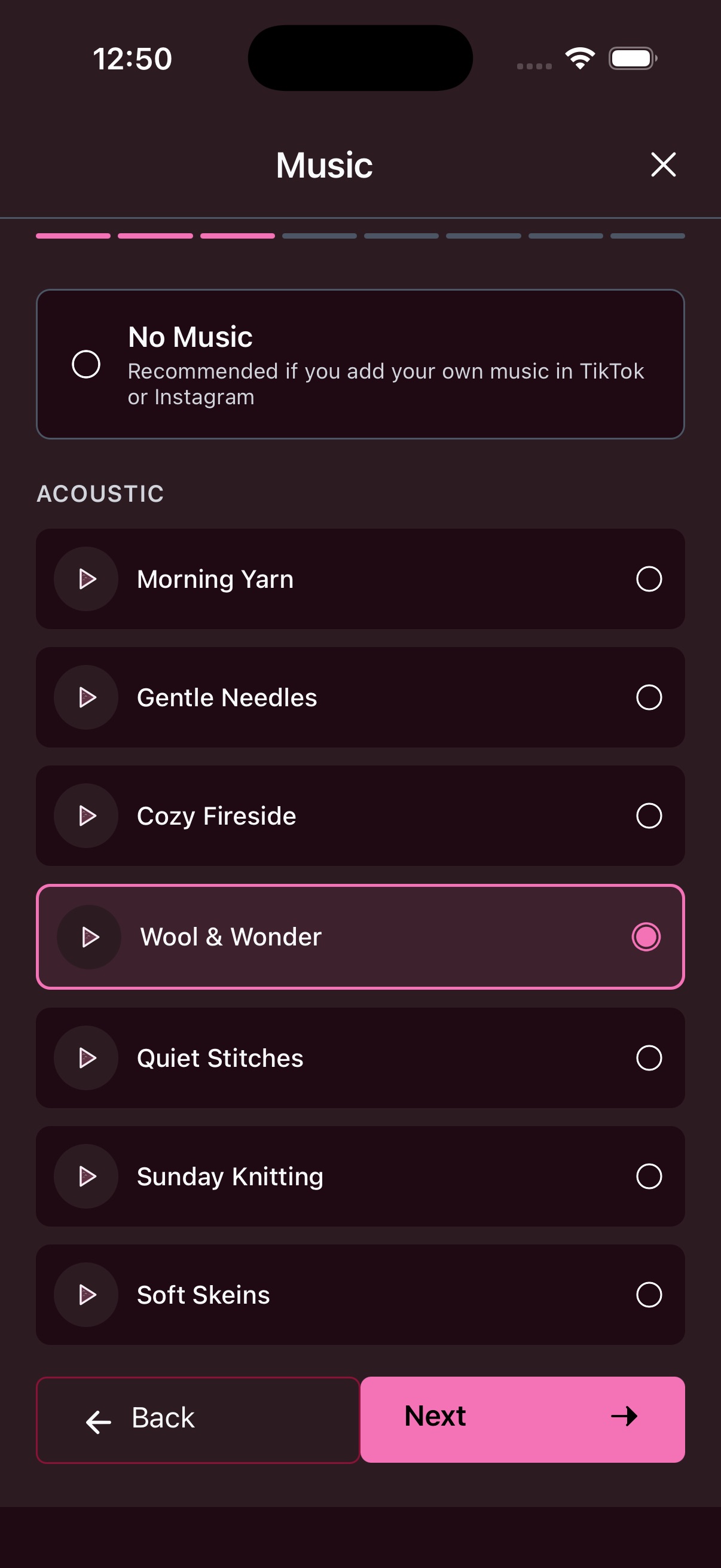
Pick background music from the built-in acoustic library. The tracks are made for craft: Morning Yarn, Gentle Needles, Cozy Fireside, Wool & Wonder, Quiet Stitches, Sunday Knitting and Soft Skeins. Listen to each one before you choose. Pick “No Music” if you would rather add your own in TikTok or Instagram.
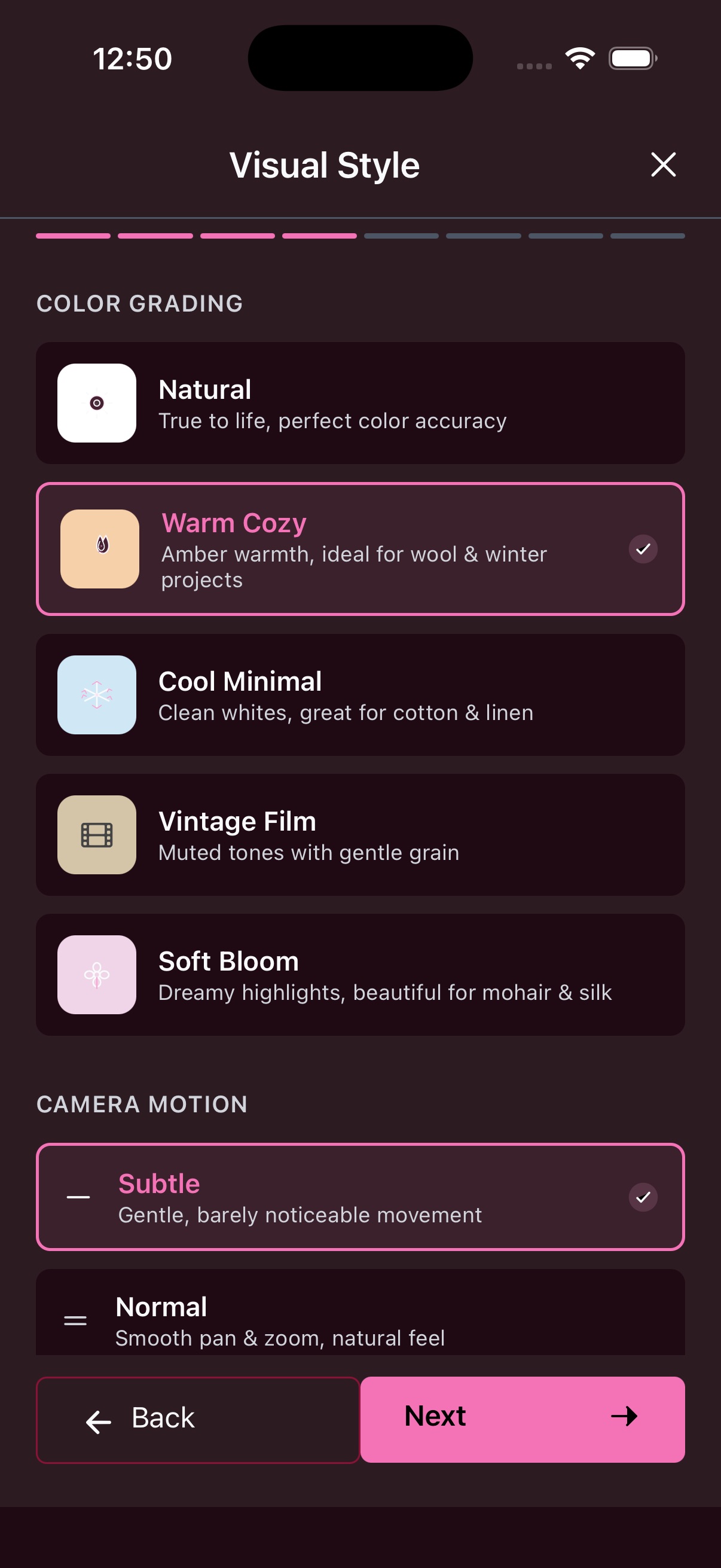
Color grading sets the mood of the colours:
| Natural | True to life. |
| Warm Cozy | Amber warmth, for wool & winter. |
| Cool Minimal | Clean whites, for cotton & linen. |
| Vintage Film | Muted tones with a gentle grain. |
| Soft Bloom | Dreamy highlights, for mohair & silk. |
Camera motion is either Subtle (barely noticeable) or Normal (a smooth pan & zoom).
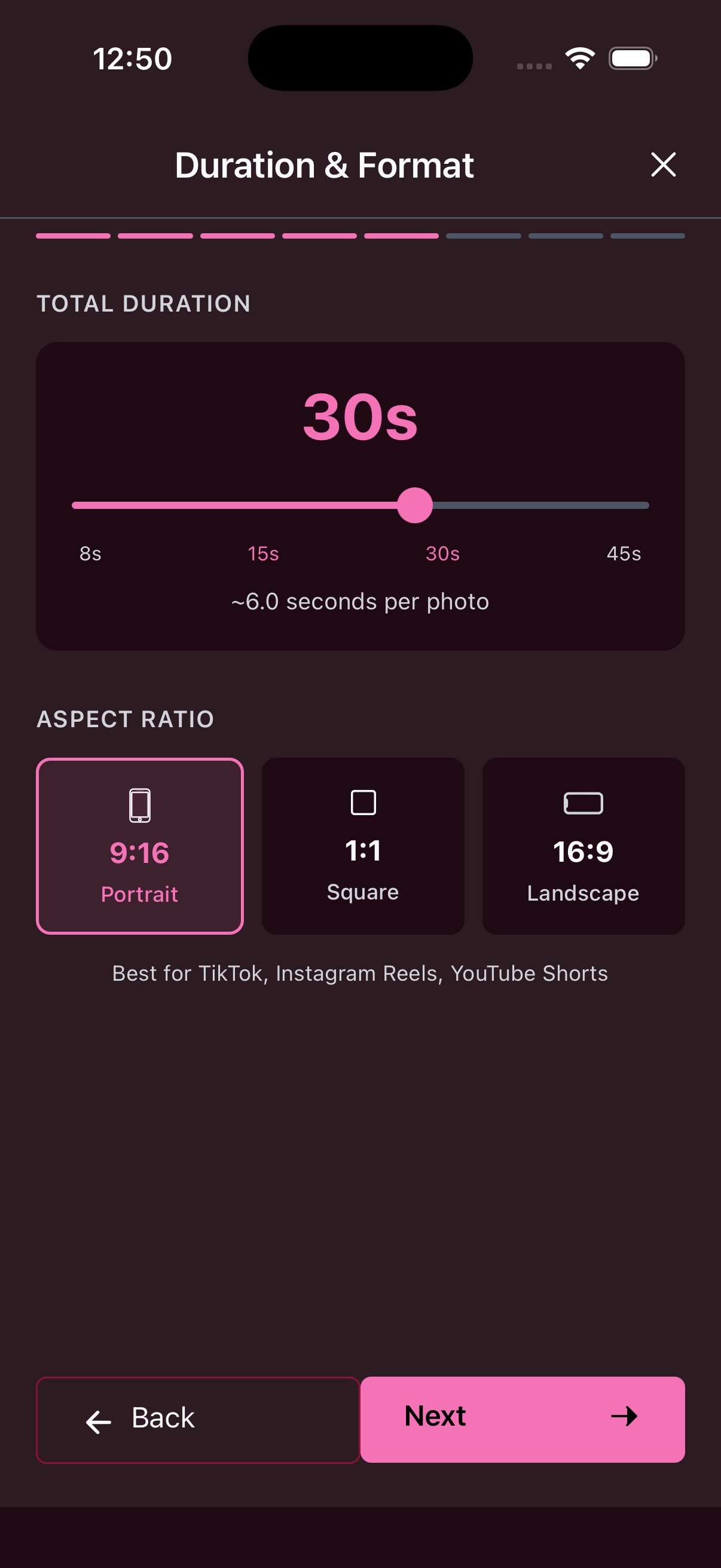
Drag the slider to set the whole length, from 8s to 45s. It shows you the seconds per photo, so you can get the pace right. Then choose the shape: 9:16 Portrait (TikTok, Instagram Reels, YouTube Shorts), 1:1 Square, or 16:9 Landscape.
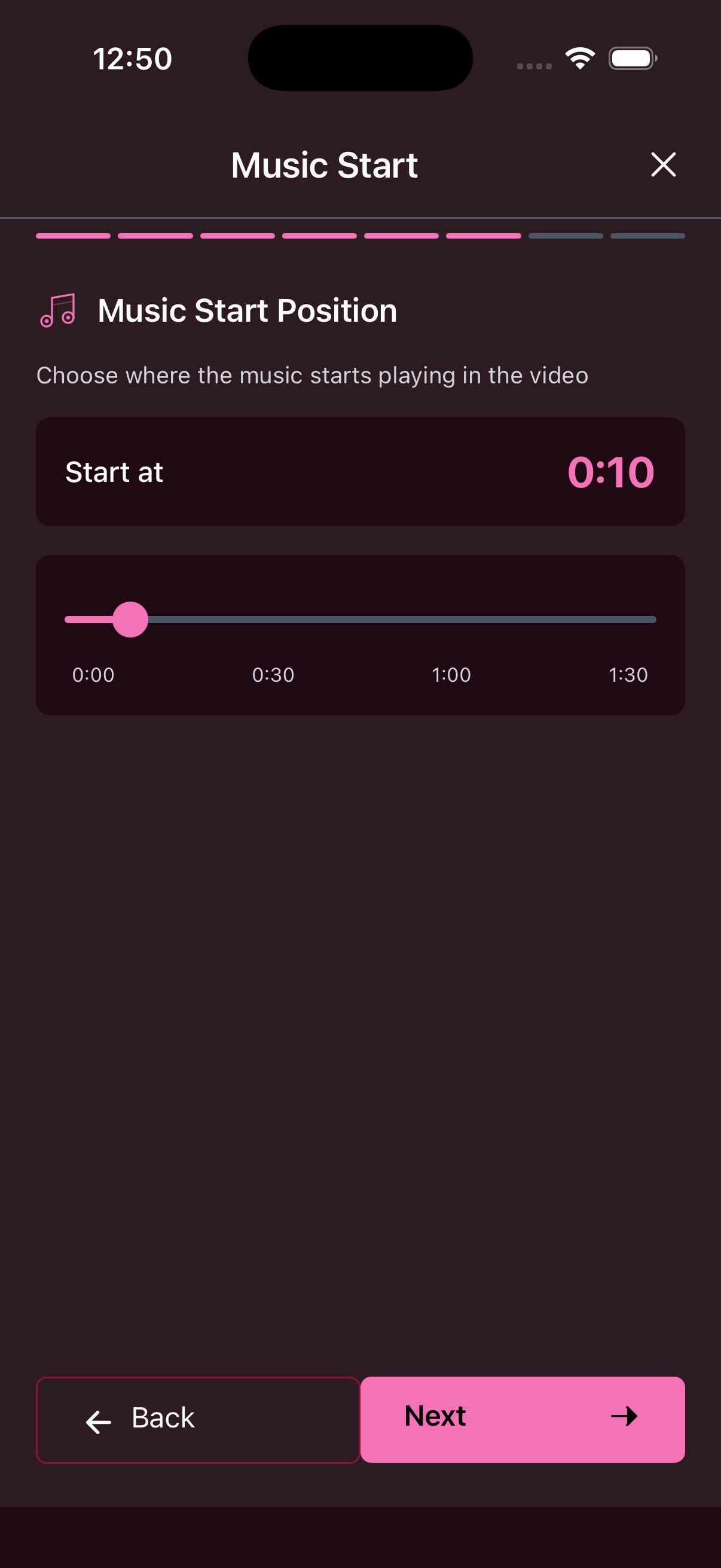
Choose the exact moment in the track where the music should come in. Drag the slider to find it. Good for skipping an intro, or starting on a particular beat.
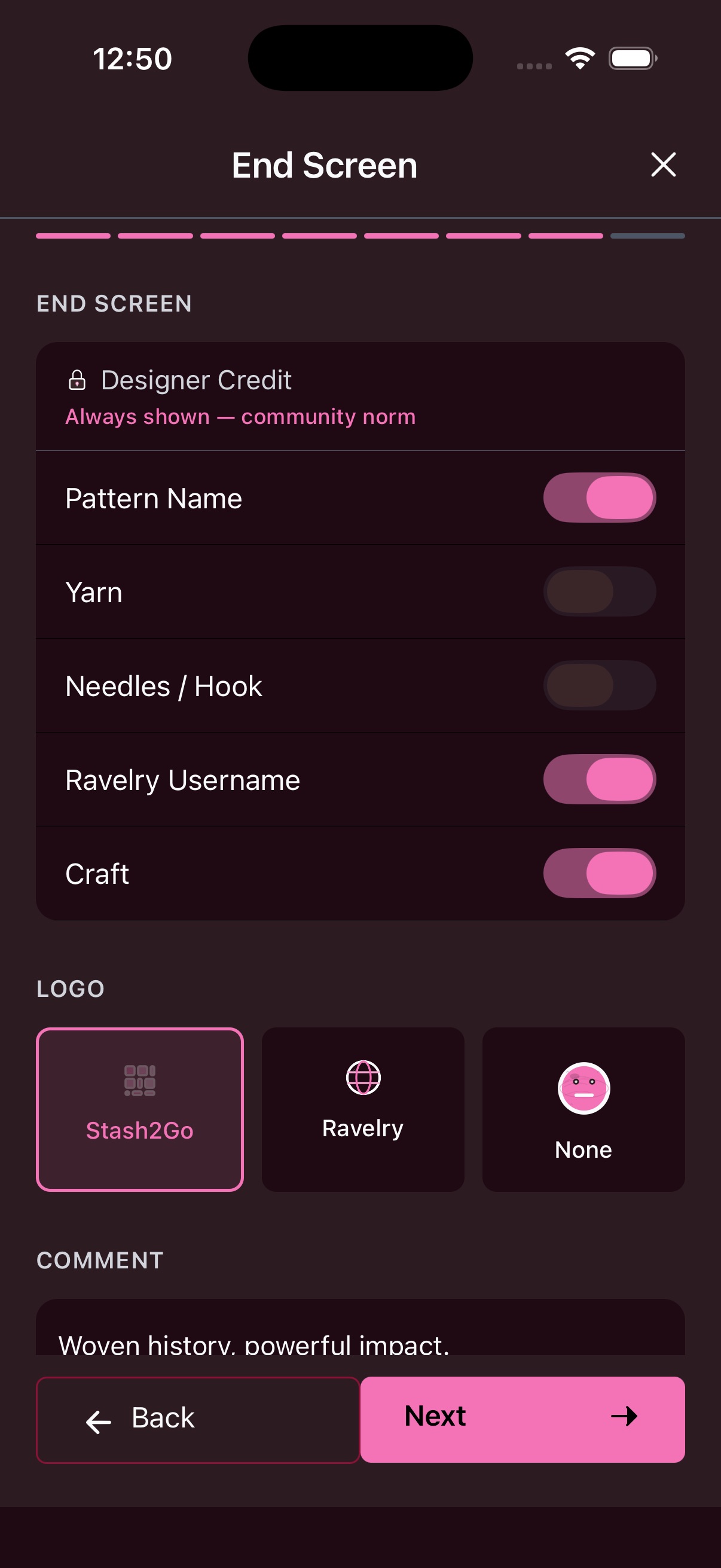
Designer Credit is always shown, because that is what makers do for each other. You switch the rest on and off: pattern name, yarn, needles or hook, your Ravelry username, and craft type. Pick a logo (Stash2Go, Ravelry, or none) and add a comment of your own.
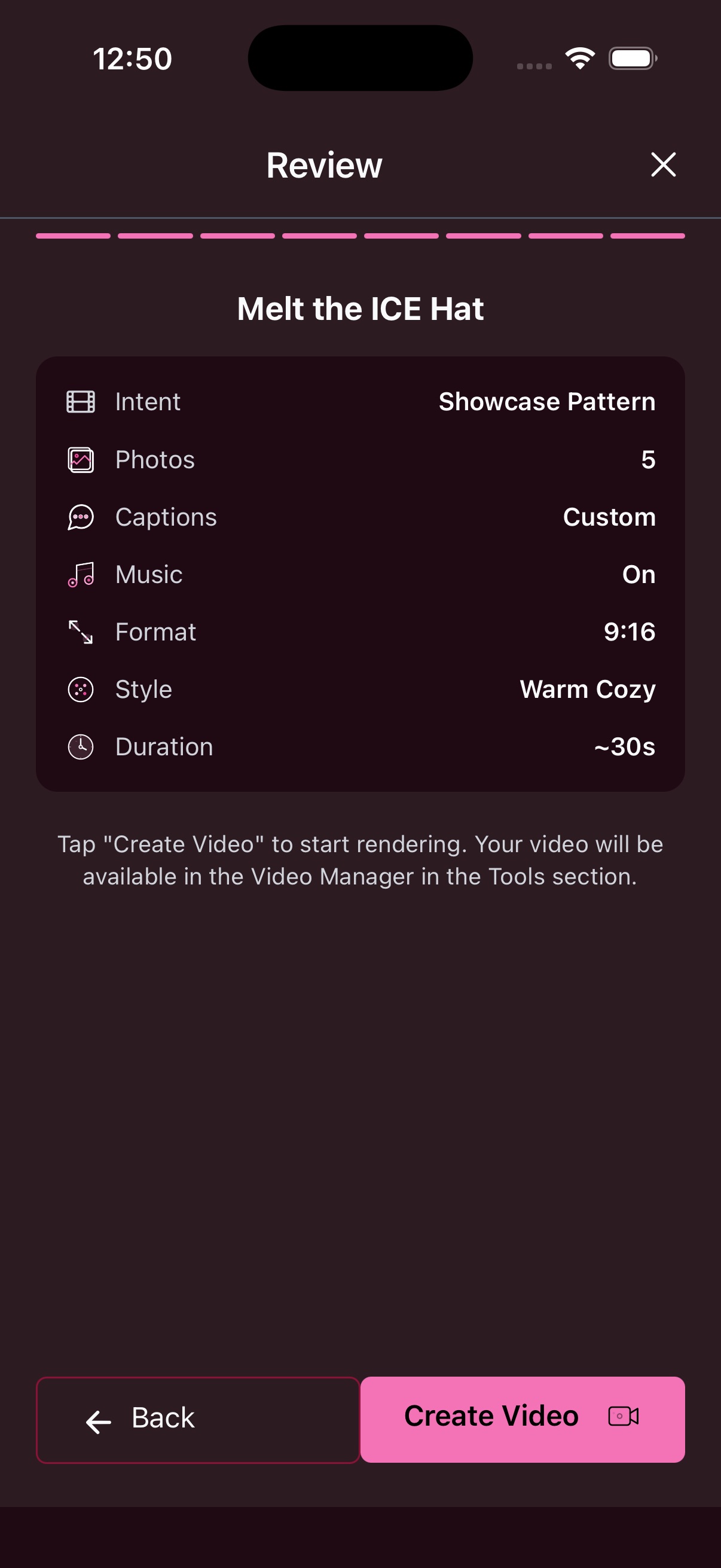
The review screen lists everything you chose: intent, how many photos, captions, music, format, visual style and length. Tap “Create Video” and it starts making the film. The finished video waits for you in the Video Manager under Tools.
Available on iPhone, iPad, Android, and web at app.stash2go.com